8 Best Free Auto Caption Generators With No Watermark
· 11 min read
The best free auto caption generator depends on where your video starts. If you build short-form videos from a script, an article, or a prompt, Cliptalk is my pick. It writes, voices, captions, and edits the video in one render, so the captions sync to the voiceover automatically and you skip any separate transcription pass. You also get 50 free credits upfront with no card required. If you already have footage and only need clean captions added, CaptionX Studio is the most hassle-free choice: it runs in the browser with no signup and no watermark. If all you need is a subtitle file, ElevenLabs' subtitle generator exports SRT, VTT, and several other formats in 99 languages.
Below is how all eight compare, what each one is good at, and where the "free" label stops being free.
How I Judged These Tools
Most of my work is short-form, faceless content for TikTok, YouTube Shorts, and Reels. I tested each tool against the problems that actually come up when you publish every day:
- Genuinely free: Can you caption a real video without paying, or is the free tier only a preview?
- Clean output: Does the export come out without a logo stamped on it? If the burned-in video is watermarked, can you export an SRT file instead?
- Accuracy and editing: How much cleanup do names, slang, and fast speech need? Can you fix a word by clicking it?
- Short-form styling: Does it offer word-by-word animated captions that look right in a 9:16 frame?
- Friction: Do you need an account, an install, or a file under a size cap before you see results?
The reason this category matters is simple. Around 85% of mobile video views happen with the sound off, a figure that shows up again and again in the caption tool space. Without captions, most viewers have no idea what your Short says and swipe away.
Quick Comparison
| # | Tool | Best for | Free starting point | Clean-export route |
|---|---|---|---|---|
| 1 | Cliptalk | Script-to-video creators and faceless channels | 50 free credits, no card | Finished vertical video with captions, voiceover, and B-roll |
| 2 | CaptionX Studio | Captioning existing footage, no signup | Free in browser | Captioned MP4 or SRT, no watermark |
| 3 | CapCut | Free editing plus captions in one app | Free editor | In-app export |
| 4 | ElevenLabs Subtitle Generator | Accurate subtitle files | Files up to 10 min or 50MB | SRT, VTT, TXT, DOCX, PDF, JSON |
| 5 | HeyGen AI Caption Generator | Translating captions | Free to start | SRT, VTT, TXT, or burned-in MP4 |
| 6 | Vozo AI Subtitle Generator | Styled captions with auto zoom and highlights | Free to start (web and mobile) | SRT or captioned video |
| 7 | Captions AI: Videos Subtitles (Pixster Studio) | Android creators | Free app with in-app purchases | Advertised watermark-free HD export |
| 8 | OpusClip | Clipping long videos into captioned Shorts | Free to start, features vary by plan | Depends on plan |
1. Cliptalk: Best for Script-First and Faceless Creators
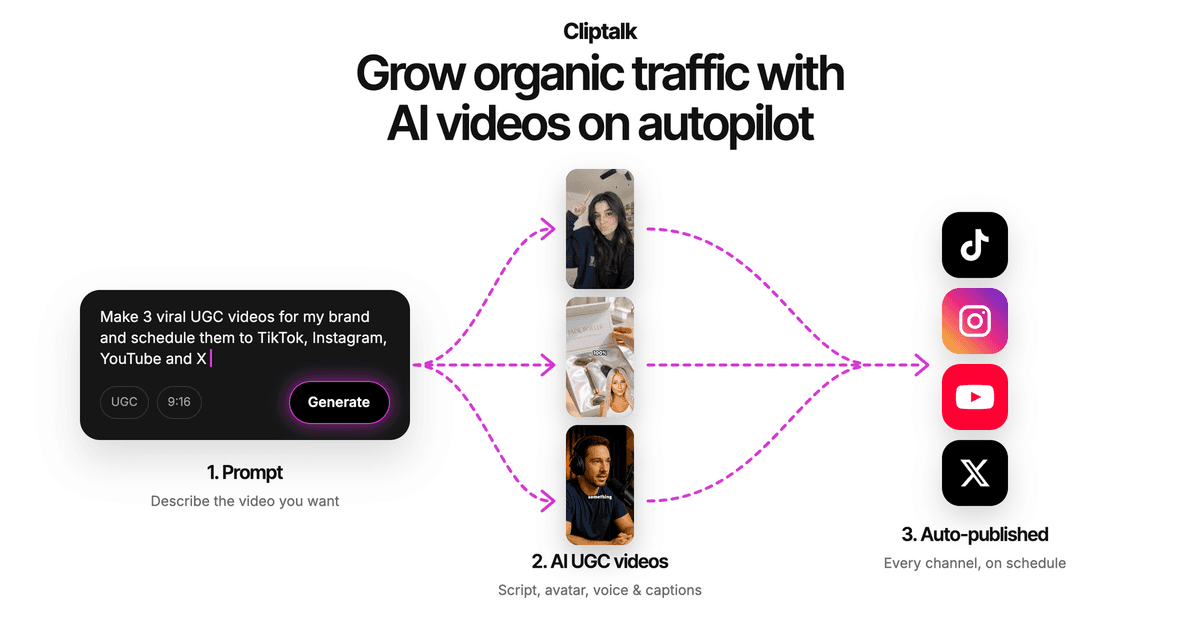
This is the tool I use every day. It is not a simple subtitle adder for existing clips. Instead, it creates videos from scratch. Feed it a prompt, script, or article, and it outputs a complete short-form video with captions, B-roll, an AI voiceover, and optional AI characters.
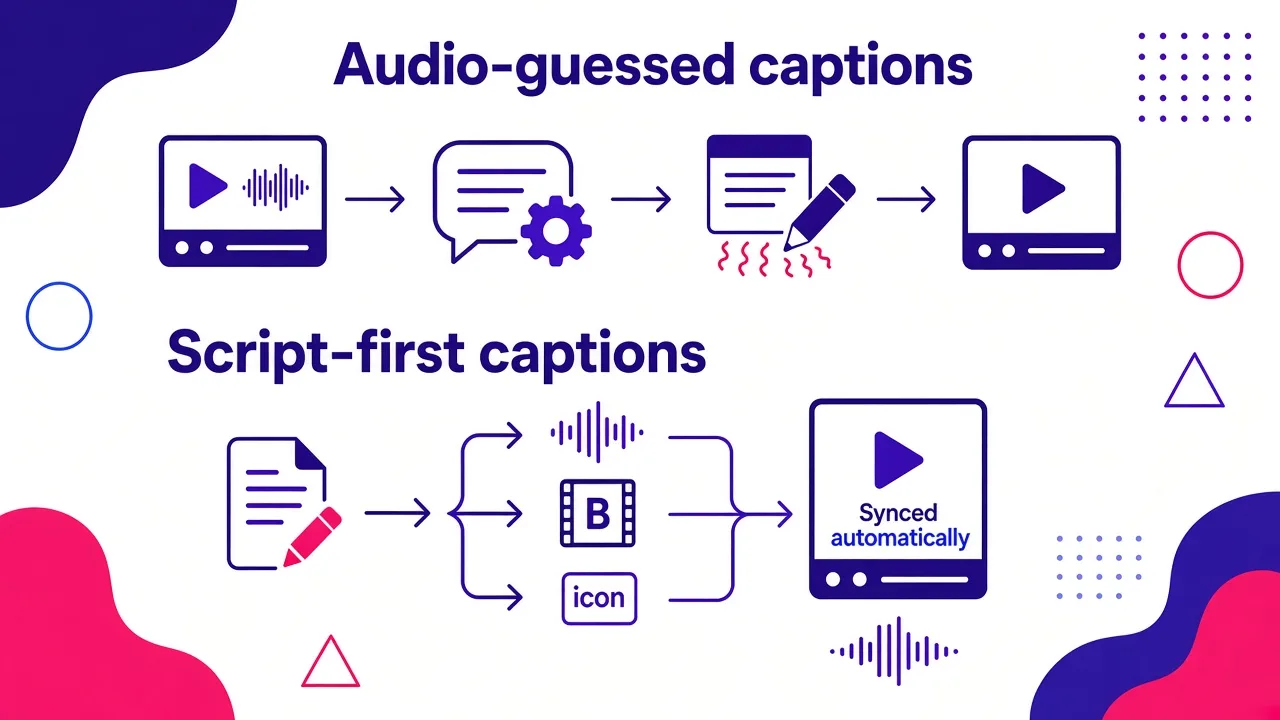
The caption feature stands out because it skips the usual transcription errors. Other tools guess the audio and force you to fix mistakes later. Here the captions match the script that drives the voiceover exactly, so the text you wrote appears on screen and stays synced to the spoken words.
Where it fits best:
- Faceless channels that publish several Shorts a day and don't want to record, transcribe, and style each one by hand.
- Marketers turning blog posts or product pages into Reels.
- Creators who want a consistent caption style across every video without rebuilding a template each time.
If you need a script, the free YouTube script generator builds one from hook to CTA with no signup. Turn that script into a finished, captioned video right away. For on-camera style, the AI influencer video generator lets you create a character and script for free, then produce a talking video with captions, B-roll, and music.
Honest limitation: When you already have filmed footage like a vlog or interview to caption, a dedicated tool such as CaptionX Studio or ElevenLabs works faster. This tool excels at building the video itself rather than adding subtitles to existing clips.
2. CaptionX Studio: Best Free Captioner for Footage You Already Have
When people need a simple way to caption an existing clip, this is the tool I recommend. CaptionX Studio works right in the browser with no install or account required. It exports a captioned MP4 or a clean SRT file, and neither has a watermark.
What I like:
- No account needed to get started. Upload your video, get timed captions, tweak the style, then export.
- It focuses on captioning instead of being an add-on in a full editor.
- The SRT option lets you use the captions in any editor or upload directly to YouTube.
What to watch: it's a captioner, not a full creative tool. Skip it if you want B-roll, voiceovers, or fancy animated templates for short-form videos. If you use Premiere Pro, CaptionX has a separate plugin that handles 100+ languages and keeps you from shuttling files around.
3. CapCut: Best Free All-in-One Editor With Captions
CapCut works best when you need a single free app for both editing and captions. The auto-caption tool sits inside a full timeline that handles cuts, effects, music, and animated text.
Where it shines:
- You can trim, caption, and style in one place, so there's no exporting from one tool and importing into another.
- It suits creators who already enjoy hands-on editing.
Where it costs you: captioning lives inside a larger app, so the workflow moves slower than a dedicated caption tool when subtitles are all you need. Before you export, scan every template, font, and effect to confirm none of them are premium assets. Paid elements are the most common reason a free export ends up watermarked or blocked.
4. ElevenLabs Subtitle Generator: Best for Accurate Subtitle Files
When you need a subtitle file rather than a polished vertical video, ElevenLabs gives the best free results I've seen. It uses their Scribe speech-to-text model and works with 99 languages.
The useful details:
- Accepted files: .mp4, .mov, and .mkv, up to 10 minutes or 50MB.
- Export formats: SRT, VTT, TXT, DOCX, PDF, and JSON.
- Speaker detection labels who is talking, which helps a lot with interviews and podcasts.
- Audio event tagging captures non-speech sounds like music, laughter, and applause. That's a real accessibility win for deaf and hard-of-hearing viewers.
- Word-level editing lets you click a word to fix it or adjust its timing.
Since the output is just a subtitle file, watermarks are not an issue. The main limits are the 10-minute length and 50MB size, so you split longer files first. You also miss the animated captions that work well on TikTok unless you add styling later.
5. HeyGen AI Caption Generator: Best for Translation
HeyGen shines when one video needs to reach several markets. Create captions once, then translate them into 175+ languages and dialects. Names, terminology, and timing stay consistent across every version.
What you get:
- Upload support for MP4, MOV, AVI, MKV, and WebM.
- A click-to-edit transcript for correcting names or technical terms, splitting or merging lines, and adjusting timing. Edits show up on the video in real time.
- Fonts, colors, sizes, positions, and word-by-word animation presets.
- Exports as SRT, VTT, TXT, or captions burned into an MP4.
My practical tip: if you're on a free plan and worried about branding on the burned-in video, export the SRT or VTT instead. A caption file is clean by default, and YouTube and most editors accept it directly.
6. Vozo AI Subtitle Generator: Best for Styled, Auto-Edited Captions
Vozo layers light automatic editing on top of captions. It adds auto zoom, highlights key lines, and trims filler words plus silence in one click. That mix fits talking-head creators well.
Key numbers from Vozo:
- Transcription in 127+ languages and dialects, with translation into 120.
- 200+ caption templates and animated effects, and you can upload your own style.
- A vendor-stated transcription accuracy of 98.9%.
- Web, iOS, and Android versions, plus an AI teleprompter for recording.
Treat every vendor accuracy claim as a best case. Clean studio audio and a noisy street clip will never transcribe at the same level, so plan on a proofreading pass no matter what the number says. Vozo also exports SRT files, which gives you a clean fallback route.
7. Captions AI: Videos Subtitles (Pixster Studio): Best for Android
This Android app from Pixster Studio (not to be confused with Captions by Mirage) is a mobile-first editor with auto captions built in. It has surpassed 1M downloads and 94.7K reviews on Google Play.
What stands out:
- It advertises watermark-free HD export, a feature rarer than it should be among free mobile editors.
- It includes a built-in teleprompter, so you can read a script while recording and caption the clip in the same app.
- It offers customizable caption fonts and animated text effects, plus AI-generated hashtags.
The app includes in-app purchases, so some features sit behind a paywall. It is a good fit if you film and post entirely from your phone and want to skip the desktop step.
8. OpusClip: Best for Turning Long Videos Into Captioned Clips
OpusClip builds captions into a full repurposing workflow. Upload a podcast or long YouTube video, and it pulls out Shorts, reframes the footage, and adds animated captions in one pass.
Worth knowing:
- Vendor-stated 99% transcription accuracy, 20+ supported languages, and a roughly five-minute wait time.
- You can add brand vocabulary with correct spellings, which reduces repeat errors on product and creator names.
- Text-based editing lets you fix a word in the transcript and the caption updates with it.
Feature access depends on your plan. Check which templates and exports your tier includes before you process a batch of clips.
Tools That Didn't Make the Free, No-Watermark Cut
Several popular tools handle captions well but fall short on the free, no-watermark standard:
- VEED and Kapwing add a watermark to every free-tier export.
- Descript runs as a desktop editor where you change the transcript to edit the video. It offers limited free hours and works for full episodes, yet it is not a free, unlimited caption tool.
- Submagic delivers strong short-form animated captions, but the service requires payment.
- Captions (by Mirage) supports 100+ languages, 100+ caption styles, and auto emojis. Its main strengths lie in restyling and AI presenters, so review the current plans if you need free use.
Practical Tips for Clean Captions on a Free Plan
These habits save me the most time no matter which tool I pick:
- Export a subtitle file when the video export is branded. SRT and VTT files never carry a logo. Upload them to YouTube or import them into a free editor and style them there.
- Proofread names, numbers, and slang first. These are where every AI captioner slips. If your tool supports a custom vocabulary, as OpusClip does, fill it in once and save yourself the fix on every video.
- Start from a script when you can. Captions generated from text you wrote are more reliable than captions guessed from audio. This is the main reason I build faceless videos script-first.
- Keep captions out of the platform UI. On TikTok, Reels, and Shorts, the bottom and right edges are covered by buttons and descriptions. Place captions around the middle third of the frame.
- Use short lines for vertical video. One or two lines of a few words each reads faster than a full sentence block. Word-by-word highlighting helps viewers keep pace.
- Check file limits before uploading. Free tiers often cap length or size. ElevenLabs, for example, caps files at 10 minutes or 50MB, so split long recordings first.
- Keep sound-effect tags for accessibility. Tags like [music] or [laughter] make your video usable for deaf and hard-of-hearing viewers, and they cost you nothing.
Which One Should You Use?
Choose the tool that matches how you make videos:
- You create videos from scripts, articles, or prompts: Cliptalk. Captions, voiceover, B-roll, and editing all come from one render, with no separate caption step. Its free tools page is a no-signup way to start with the script generators.
- You have finished footage and want zero friction: CaptionX Studio.
- You need a precise subtitle file for YouTube or a course platform: ElevenLabs Subtitle Generator.
- You publish in multiple languages: HeyGen.
- You want captions plus auto zoom and filler trimming: Vozo.
- You do everything on an Android phone: Captions AI: Videos Subtitles by Pixster Studio.
- You edit by hand and want one free app: CapCut.
- You're cutting Shorts from long podcasts: OpusClip.
FAQ
Is there a truly free auto caption generator with no watermark?
Yes. CaptionX Studio exports captioned MP4s or SRT files with no watermark and no signup. The Pixster Studio Android app also advertises watermark-free HD export. Any tool that outputs an SRT or VTT file delivers clean captions, since those files hold only text and timing.
What's the difference between burned-in captions and an SRT file?
Burned-in captions form part of the video image itself. They stay visible and support animations, which makes them ideal for TikTok and Reels. An SRT file works as a separate text track. Platforms like YouTube display it on top of the video, and viewers can toggle it on or off.
How accurate are free AI caption generators?
Vendors claim figures like 98.9% and 99%, yet real-world accuracy depends on audio quality, accents, and vocabulary. Always proofread proper nouns and numbers. Generating captions from a written script avoids most transcription errors.
Do captions really help short-form videos perform?
Captions hold attention from viewers who watch on mute, a large share of mobile traffic. They also make content accessible to deaf and hard-of-hearing audiences and help reach people across languages.
Can I caption videos in other languages for free?
Most tools here handle many languages. ElevenLabs supports 99, Vozo transcribes in 127+, and HeyGen translates captions into 175+ languages and dialects. Check each free tier's limits before running large batches of translations.
Tags: auto captions, subtitle generators, short-form video, video editing tools, faceless channels