6 Text to Video AI Tools Free Online Without Login
· 11 min read

If you want text to video AI free online without login, Perchance and Senzia generate a clip directly from a prompt with no account at all, and MyEdit, Pixlr and Kapwing offer free tiers worth testing before you commit. If you need a finished, postable short instead of a silent test clip, I recommend Cliptalk, because you can script for free with no signup and then render a captioned 9:16 video with narration from 140+ voices on free starter credits.
I've run all six of these through the same test: one prompt, one short-form goal, and the question of how much work is left before the result can go on TikTok, YouTube Shorts or Reels. Below is what each one does well, where it falls short, and who it suits.
What "free and no login" actually gets you
"No login" and "free" are two separate promises, and most tools only keep one of them in full. After testing a lot of these generators, I've found the free, account-free experience usually comes with these limits:
- Short duration caps. Expect single clips of a few seconds, not a full 30 to 60 second Short.
- Daily or per-session credits. You get a handful of generations, then a wait or a prompt to sign up.
- Queue-based rendering. At peak times your clip waits in line behind everyone else's.
- Watermarks or reduced export resolution on some tools, though several in this list advertise watermark-free downloads.
- No audio, captions or editing. Most no-login generators give you raw motion. Voiceover, captions, music and pacing are left to you.
That last point matters most if you publish short-form content. A generated clip is a single shot. A Short that holds viewers needs a hook, narration, captions timed to the words, and several scenes cut together. Keep that difference in mind as you read the list.
Quick comparison
| Tool | No-login access | Best for | Main limit |
|---|---|---|---|
| Cliptalk | Script generation with no signup; full video renders on free starter credits | Finished 9:16 Shorts with voice, captions and music | Rendering the final video needs an account |
| Perchance AI Text-to-Video | Advertised as free with no sign-up | Zero-friction prompt experiments | Raw clips only, little control |
| Senzia | Advertised as no signup, no watermark | Stylized clips (cinematic, anime, hyperreal) | Marketed around unfiltered content, which raises brand-safety questions |
| MyEdit | Free daily credits, watermark-free downloads | Picking between top models (Veo 3.1, Kling 3.0, Seedance 2.0, PixVerse V6) | Clips up to 15 seconds, credits ration usage |
| Pixlr | Free text and image to video with HD, watermark-free export | Quick HD clips from Veo, Kling or Seedance | Generator only, so voice and captions go elsewhere |
| Kapwing | Partial; some features and exports tied to an account | Generating and editing in one workspace | Account limits on certain export paths |
The 6 best text to video AI tools free online without login
1. Cliptalk: best for finished short-form videos
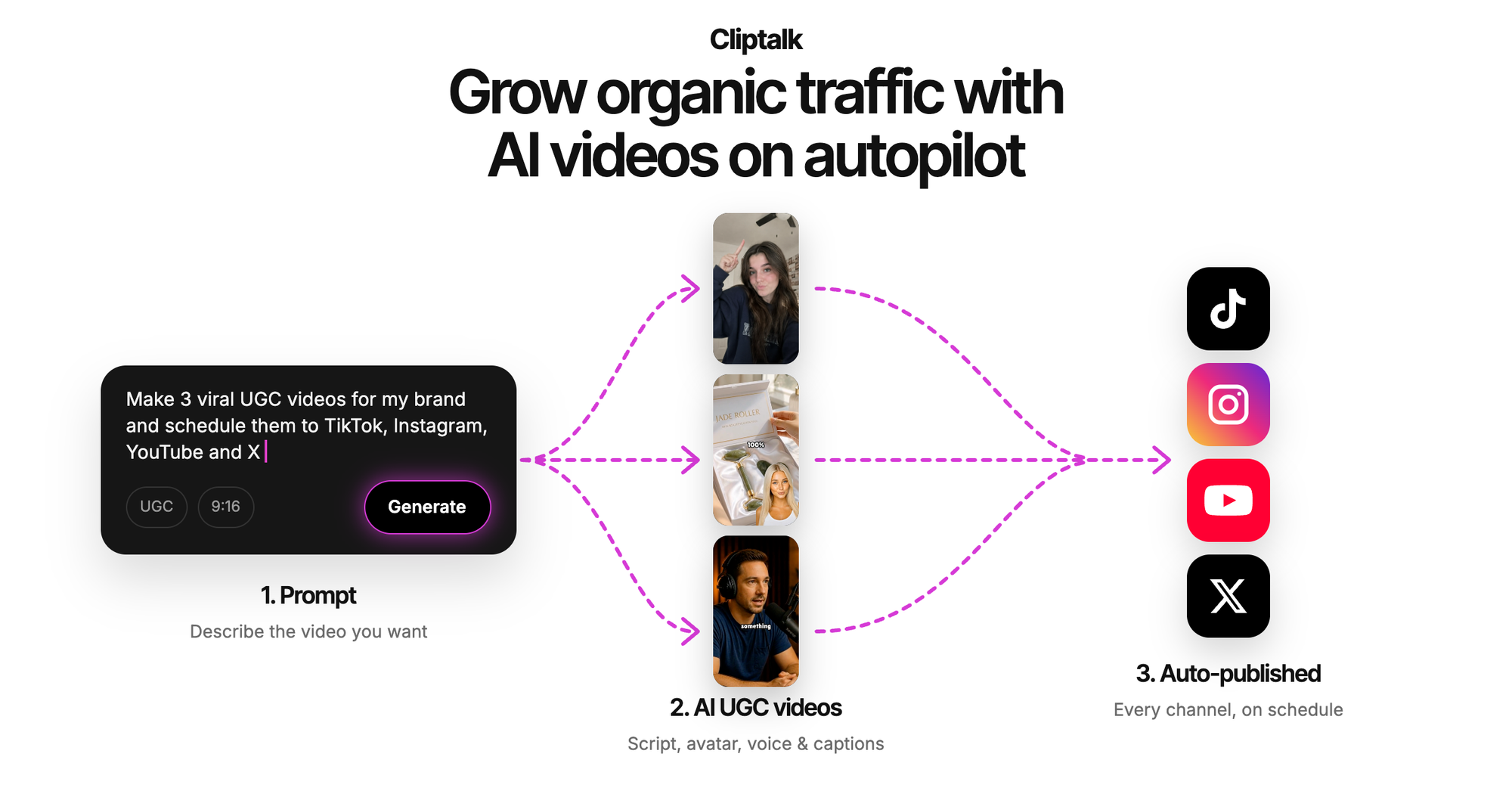
This is the tool I use for my own channels, so I'll be specific about what's free without an account and what isn't. Script generation needs no signup. You type an idea and get a structured short-form script with a hook, beats and a closing line. The free AI video tools page lists the script generators that run with no account, along with talking avatars, TikTok makers and story tools that start on free credits.
To render the actual video, you sign in and use free starter credits. What you get back is a finished 9:16 clip, not a single shot: AI visuals across multiple scenes, narration from more than 140 voices, word-by-word captions and background music. The AI TikTok video maker handles story videos, listicles and product showcases from one idea. Voice cloning, AI characters, auto-editing and AI B-roll are also available, and an editor lets you fix any scene you don't like.
Pros
- Scripting is genuinely free with no login, which is where most short-form videos succeed or fail.
- Output is a complete, edited vertical video with captions and voiceover, ready to post.
- 140+ voices, plus voice cloning if you want to keep a consistent channel voice.
- Built for TikTok, YouTube Shorts and Instagram Reels, so the aspect ratio and caption style fit those platforms.
Cons
- Rendering the final video requires an account, even on free credits. If "no login" is a hard rule for you, only the scripting step qualifies.
- Free credits run out. Regular publishers will eventually look at a paid plan.
- It's built for short-form social video. If you want a single cinematic shot for a film concept, a pure generator like MyEdit or Pixlr is a better fit.
Who it fits: faceless channel operators, creators and marketers who need publishable Shorts, Reels and TikToks, not test clips.
2. Perchance AI Text-to-Video: best for truly zero-friction experiments
Perchance is the closest match to the literal search. Its text-to-video generator is advertised as free with no sign-up: you open the page, type a prompt, and wait. When I want to check whether a visual idea works before spending credits anywhere else, this is where I start.
Pros
- No account and no email at any point.
- Good for seeing how a prompt reads as motion before refining it.
- Costs nothing to throw away a dozen bad ideas.
Cons
- You get raw clips with no voiceover, captions or multi-scene editing.
- Few controls compared with tools that let you pick a model, aspect ratio or reference image.
- Free, open generators can be slow at busy times.
Who it fits: anyone who wants to try text to video in the next 30 seconds without giving anything up, and creators prototyping a visual hook.
3. Senzia: best for stylized clips with no watermark
Senzia promotes quick generations, no watermark and no signup. The workflow is three steps: write a prompt, let it render, then preview and export a watermark-free MP4. You can re-roll with one click and switch styles such as cinematic, anime or hyperreal, and it lets you adjust length and aspect ratio before downloading.
Pros
- No signup and watermark-free MP4 export, according to the tool itself.
- One-click re-rolls make iteration fast.
- Style switching is useful for animated story concepts.
Cons
- It markets itself on having no content filters and supporting adult-oriented concepts. That is a real consideration if you produce brand, client or kid-adjacent content, or if you're sharing the tool with a team.
- Like other pure generators, it produces clips, not edited videos with narration and captions.
Who it fits: solo creators and indie animators experimenting with stylized scenes who are comfortable with its positioning.
4. MyEdit: best for choosing between top AI models
MyEdit puts several leading models in one workspace. You can use Veo 3.1 for realistic detail, Kling 3.0 for cinematic motion, Seedance 2.0 for smooth control, or PixVerse V6 for narrative clips, all without starting over. It gives free daily credits and watermark-free downloads, and supports 16:9, 9:16 and 1:1, so a vertical clip doesn't need cropping.
Two features stood out when I tested it. First, you can upload a reference image or clip and point to it in your prompt with @ (for example, @image1) to keep a character or product consistent. Second, supported models generate built-in audio, including multilingual lip-sync, sound effects and background music.
Pros
- Multiple top models in one place, so you can compare outputs from the same prompt.
- Watermark-free downloads on free daily credits.
- Native vertical format and reference-guided generation.
- Audio and lip-sync on supported models.
Cons
- Clips are capped at 15 seconds, so a full Short means stitching several together.
- Daily credits ration how much you can test.
- A credit system usually means an account at some point, so check what it asks for before you spend time on prompts.
Who it fits: creators who want cinematic B-roll or a single strong shot and care about which model produces it.
5. Pixlr: best for quick HD clips
Pixlr's video generator has two modes, text to video and image to video, and runs on Google Veo, Kling and Seedance. The process takes four steps: choose a mode, write a detailed prompt or upload an image, pick a model, then generate. Pixlr's main selling point is HD export with no watermark, which many free tiers don't offer.
Pros
- HD, watermark-free export.
- Choice of well-known models behind the scenes.
- Image to video is helpful if you already have a product photo or thumbnail.
Cons
- It's a generator. Narration, captions and multi-scene pacing for a Short have to happen in another tool.
- Free access rules can change by model, so read the conditions before you rely on it for a deadline.
Who it fits: marketers who need a clean, high-resolution product or promo clip, and creators gathering B-roll.
6. Kapwing: best for generating and editing in one browser tab
Kapwing combines AI generation with a full editor. After you create a draft, you can adjust captions, timing and layout without switching platforms, which saves real time compared with downloading from one site and uploading to another.
Pros
- Editing and generation share one workspace.
- Caption and timing controls are good for social formats.
- Works well for teams reviewing the same project.
Cons
- It isn't fully login-free. Some features and export options require an account.
- More controls means a steeper learning curve than one-click generators.
Who it fits: small teams and creators who want to generate and fine-tune in the same place and don't mind signing in for exports.
Honorable mentions
A few other tools also show up in no-login roundups. MiriCanvas runs Kling for text and image to video, and its in-browser editor lets you add music, text, stickers and filters and export as MP4 or GIF, but it doesn't add audio automatically. Arting.ai is fast for one-click social clips. Vider.ai is a beginner-friendly starting point. EaseMate AI is aimed at script-first draft videos. All of them are worth a look if the six above don't match your workflow.
How I test a no-login tool in 10 minutes
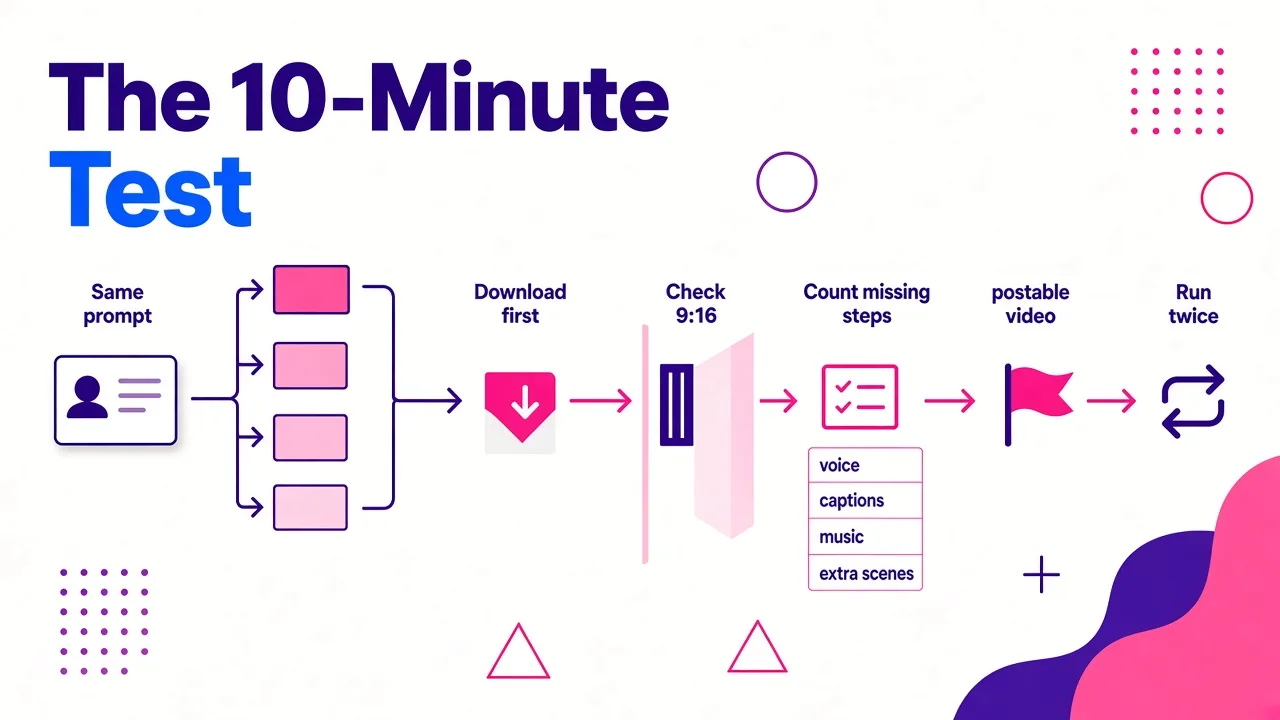
Free tools change their limits often, so I run the same short test before I trust any of them with real content:
- Use one fixed prompt across every tool. Something concrete like "a barista pours latte art in slow motion, warm morning light, close-up, vertical framing." Using the same prompt is the only fair comparison.
- Download before judging. Some tools only reveal a watermark, resolution cap or signup wall at the download step. A great preview means nothing if you can't export it cleanly.
- Check the aspect ratio. If you publish vertically, confirm the tool generates true 9:16. Cropping a 16:9 clip loses most of the frame and usually the subject.
- Count the steps to a postable video. Add up what's still missing: voiceover, captions, music, extra scenes. Every missing piece is another tool and more time.
- Run a second generation. Consistency matters more than a single lucky result. If the second attempt is much worse, you'll spend your credits on re-rolls.
Prompt tips that make free generations count
When credits are limited, wasted generations cost you. These habits have saved me the most:
- Give each clip one purpose. One subject, one action, one setting. Prompts that try to show a whole story in five seconds usually produce messy motion.
- Describe in this order: subject, action, setting, camera, style. "A golden retriever catches a frisbee, in a sunny park, low-angle tracking shot, cinematic" gives the model something specific to work from.
- Avoid on-screen text and logos. Generators still struggle with lettering and brand details. Add text afterward as captions or overlays.
- Start with a short test. Make the cheapest, shortest version first. Once the look is right, spend credits on the longer or higher-quality render.
- Use reference images when the tool allows them. On MyEdit or Pixlr's image to video, a reference keeps a product or character consistent between clips much better than text alone.
- Review it like any other asset. Look for warped hands, flickering objects and physics that don't make sense before you post. Viewers notice.
Watermarks: the hidden cost of "free"
Watermarks are the most common surprise in no-login tools, and they usually appear at export rather than in the preview. Of the six above, Senzia, MyEdit and Pixlr all advertise watermark-free downloads. Others may stamp the free tier or tie clean exports to an account. If clean exports are your top priority, I've covered the options in more detail in where to find a free AI video generator without watermark.
When it's worth creating an account
Staying login-free makes sense when you're experimenting, testing a visual idea, or need one clip for a slide or a mockup. Perchance or Senzia will do that with nothing asked of you.
An account starts to pay off when any of these apply:
- You publish on a schedule. Daily posting to TikTok or Shorts uses up per-session limits fast, and saved projects let you reuse formats that work.
- You need audio and captions. Most short-form views come from people scrolling with the sound off, so timed captions aren't optional. Tools that generate them with the video save a full editing pass.
- You want a consistent voice or character. Voice cloning and recurring AI characters only work if the tool remembers you.
- You're producing multi-scene videos. Stitching six 15-second clips together by hand gets old quickly.
Which one should you pick?
- You need zero signup, right now: Perchance.
- You want stylized, watermark-free clips with no account: Senzia, as long as its unfiltered positioning works for your brand.
- You care about which model renders your shot: MyEdit.
- You need a clean HD clip for a promo: Pixlr.
- You want to generate and edit in one place: Kapwing.
- You need a finished, captioned, voiced Short you can post today: Cliptalk, scripting for free with no signup and rendering on free credits.
My own workflow combines several of these. I test visual ideas in a no-login generator, then build the actual video in a tool that handles script, voice, captions and scenes together. That's the split I'd recommend to most creators: use free, no-login tools for exploration, and save your credits for the tool that produces the finished post.
Tags: text to video, ai video generator, free ai tools, short-form video, faceless channels