Where to Find a Free AI Video Generator Without Watermark
· 12 min read
The best free AI video generator without a watermark depends on what you need at the end: a short raw clip, an edited timeline, or a finished short with voice and captions. For finished TikToks, Shorts and Reels, my pick is Cliptalk. It turns one prompt, script or article into a complete edited video with captions, B-roll and an AI voiceover, and you can start with 50 free credits and no card. The scriptwriting step costs nothing and needs no signup. If you only need a single generated shot, MyEdit's free daily credits and Upsampler's no-signup generator are the cleanest options I've found. If you already have footage, Microsoft Clipchamp's personal free plan exports up to 1080p without a watermark.
That's the short version. The rest of this guide covers why "free without watermark" is a slippery promise, which tools actually deliver it, and how to check an export before you build a posting schedule around a free plan.
What "free without watermark" actually means
Most tools that rank for this search are telling the truth. They are just answering a narrower question than the one you asked.
A tool can be free and watermark-free and still be unusable for your project because of the other limits stacked on the free tier:
- Credit caps. Almost every generator now runs on credits. The free tier gives you a starting balance or a daily refill, and each generation spends some of it. The watermark may be gone, but you might get only a handful of renders.
- Resolution caps. Some free plans export at 720p while paid plans unlock 1080p or higher. For vertical social video, 720p is often fine. For anything you plan to crop or reframe, it gets soft fast.
- Duration caps. Many clip generators produce 5 to 10 second shots, and some top out at 15 seconds. That is one scene, not a video.
- Usage terms. At least one tool I looked at limits its free plan to personal and evaluation use. Watermark-free does not always mean you can run it on a client's ad account.
- Premium feature locks. This one catches people out. On some editors, a premium asset or effect doesn't add a watermark. It blocks the export entirely until you upgrade.
When you compare tools, ask "what can I export for free, at what quality, how often, and for what use?" That question gets you a much more useful answer than "is there a watermark?"
Three kinds of tools hiding behind one search
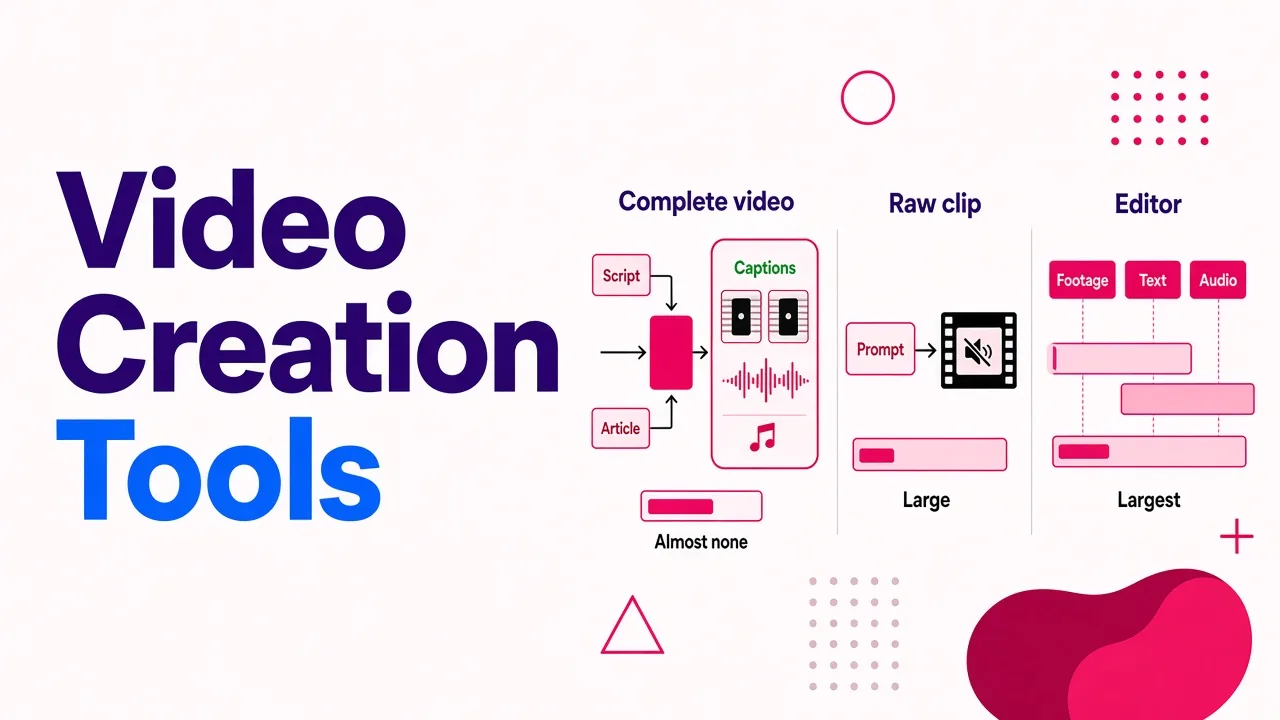
The biggest mistake I see is comparing tools that do completely different jobs. A watermark-free editor is not an AI video generator, and a model that makes a five second clip is not a video maker. Here's how I sort them.
1. Complete-video generators
You give them a topic, script or article. They write or structure the script, pick visuals, add a voiceover, burn in captions, add music and return an MP4 you can post. This is what faceless channel operators and most marketers actually want. The free tier matters most here, because one finished video replaces an hour of manual work.
2. Clip generators (raw model access)
These run models like Veo, Kling, Seedance or Sora and produce a short moving shot from text or an image. The visuals can look stunning. But as one platform put it plainly, raw model access gives you a five second clip with no sound. You still need to stitch shots together, add narration, write captions and pace the edit. Great for B-roll and visual hooks. Not a finished post.
3. Editors with AI features
You bring the footage, music and text, then arrange them on a timeline. AI helps with things like captions or cleanup. Clipchamp is the clearest example. Its free personal plan exports clean files up to 1080p, but you are doing the creative assembly yourself.
Decide which bucket you need before you sign up for anything. Otherwise you'll burn free credits on a tool that was never built for your format.
The free, watermark-free options I'd actually use
Here is how the options stack up, ranked by how close they get you to a publishable short-form video without paying. Free allowances change often, so treat the right-hand column as a starting point and check the live plan screen before relying on it.
| Rank | Tool | What you get | Free access | Best for |
|---|---|---|---|---|
| 1 | Cliptalk | Finished short-form video: script, AI voiceover, captions, B-roll, music, optional AI characters | 50 free credits, no card. Script generators and influencer design are free, unlimited, no signup | Faceless channels, TikTok/Shorts/Reels, marketers who need finished posts |
| 2 | FluxNote | AI-assembled draft with narration and captions | One finished video per month at 720p without its watermark; free tier is for personal and evaluation use | Testing a narrated workflow occasionally |
| 3 | MyEdit | Short generated clips, with audio and lip-sync on supported models | Free daily credits, watermark-free downloads, clips up to 15 seconds in 16:9, 9:16 or 1:1 | Single shots, B-roll, model comparison (Veo 3.1, Kling 3.0, Seedance 2.0, PixVerse V6) |
| 4 | Microsoft Clipchamp | Timeline editor for your own or available media | Personal free plan exports up to 1080p without a watermark; premium features block export until you upgrade | Editing footage you already have |
| 5 | Upsampler | Short clip from text or an image | Advertises no signup and no watermark; check the live tool for models and limits | A quick shot without making an account |
| 6 | Imgveo | 5 to 10 second clips, text-to-video, image-to-video, start-end frame | 20 free credits, no card; highest output quality sits on Creator plans and above | Trying a few clips up to 1080p |
| 7 | HIX AI | Multi-model clip generation through a chat interface | Free plan exists with limited credits | Comparing outputs across models |
| 8 | Lovart | Image-to-video and text-to-video clips for ads and social | Markets itself as free with no watermark | Animating product photos |
A few notes on how I ranked this. I put complete-video tools at the top because the search intent behind "free AI video generator" is usually "I want a video I can post," not "I want a five second shot." FluxNote's offer is genuinely clean, but one video a month at 720p for personal use is a demo, not a workflow. MyEdit is the strongest free clip generator here because the credits refill daily and the model selection is broad. Clipchamp ranks where it does because it's excellent at what it does, but it doesn't generate your video for you.
The complete-video route I use most
Most of my own short-form output goes through Cliptalk. The free setup works well for creators who aren't ready to pay yet, because the expensive part of AI video (rendering) is separated from the thinking part (scripting and design).
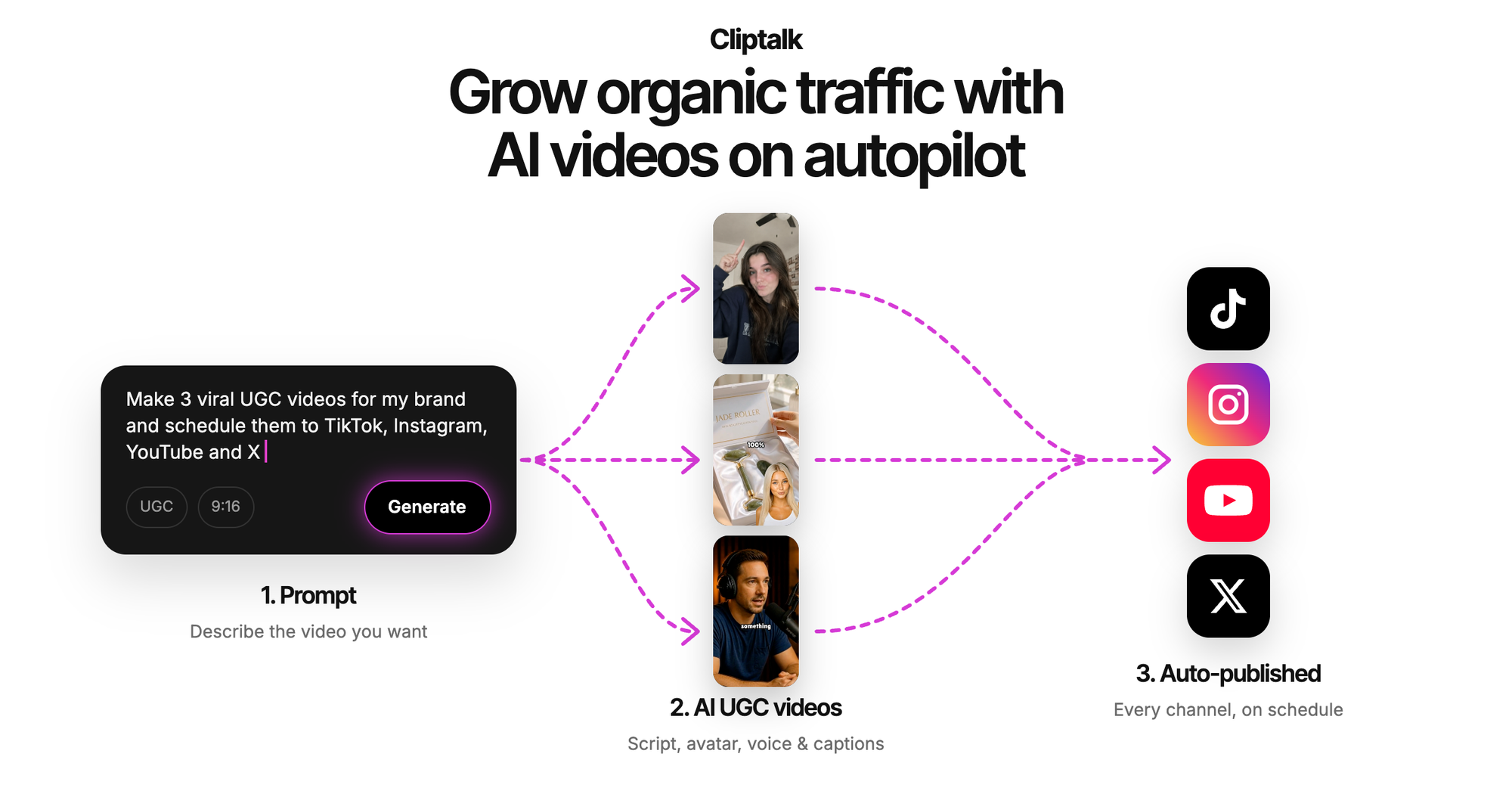
Here's how I run a free test:
- Write the script for free. The script generators work with no signup. Describe the idea and you get a full spoken script from hook to call to action, plus title options. I usually re-roll a few times until the hook lands. That costs nothing, so I never spend render credits on a weak script.
- Design the character if you want one. The AI influencer video generator lets you design the influencer and write the script with unlimited re-rolls and no signup. You only spend credits when you render the talking video with captions, B-roll and music.
- Render with the free credits. The 50 free credits need no card. The render handles the editing: captions, B-roll, voiceover and pacing for vertical feeds.
- Download and inspect the file. I do this with every tool, this one included. Open the MP4 at full size, check the corners, the resolution and the audio before you plan a posting calendar around a free tier.
The voice library is deep, too. The cat video tool alone advertises 140+ AI voices, which matters more than people think. A fitting voice is half of what makes a faceless video feel finished. If you want to browse everything that's free to start, the free AI video tools page lists the no-signup script generators alongside the credit-based makers.
Watermark traps worth knowing about
These are the patterns that have cost me time or credits across tools.
The premium asset trap
On some editors, picking one premium stock clip, font or effect changes the export rules for the whole project. Microsoft states that a personal Clipchamp account using a premium feature it doesn't have access to can't export until it upgrades. You don't get a watermarked file. You get no file. Stick to free-tier assets from the start, and you won't have to rebuild the edit later.
The model trap
Multi-model platforms often price models differently. The free credits that cover ten renders on a fast model might cover two on a premium cinematic one. Some platforms also reserve top models or top resolutions for paid tiers. Check the per-model credit cost before you generate.
The "free trial" that isn't a free plan
A free trial expires. A free plan doesn't. A no-card starting balance is great for testing, but it isn't the same as a daily or monthly refill. If you need ongoing free output, look for refilling credits (like MyEdit's daily credits) or a recurring allowance (like FluxNote's one video a month).
The usage-rights trap
Read the free plan's terms if you're posting for a business or a client. "Personal and evaluation use" is a real restriction, even if the file is clean.
The resolution trap
A watermark-free 720p export can look fine on a phone and rough on a desktop. If you plan to repurpose a short into a horizontal YouTube cut, start at the highest free resolution you can get.
Don't use third-party watermark removers
Every so often someone suggests generating on a free tier that watermarks, then running the file through a watermark removal tool. I'd skip it, for three reasons:
- Quality loss. Removers blur, crop or inpaint the corner. On busy B-roll, you can almost always see a smudge.
- Terms of service. Most platforms that watermark free output do it on purpose. Removing it usually breaks their terms, and platforms can and do close accounts.
- Wasted time. With several tools offering clean free exports, there's no reason to fight a watermark. Pick a tool whose free tier fits your format.
How to test a free export in 10 minutes
Before you commit to any tool, run this check with a small, original project that looks like what you'll actually publish. A generic test prompt hides the limits you'll hit later.
- Use a real script. Write or generate a 30 to 45 second script for a post you'd actually make. If you're starting from text, the walkthrough on how to generate a video from text for free covers the scripting side.
- Stay on free settings. Don't touch premium voices, models, templates or assets on the test run.
- Generate and download. Don't judge the in-app preview. Previews are often cleaner or lower quality than the real export.
- Inspect at full size. Check all four corners and the final frames for branding. Some tools add an end card instead of a corner watermark.
- Check the specs. Look at resolution, aspect ratio, duration, audio and whether captions are burned in or missing.
- Note the credit cost. Write down how many credits that one video spent. Divide your free balance by that number to see how many real videos the free tier gives you.
- Read the plan screen. Confirm monthly limits, refill timing and usage rights on the live account page, not on a third-party review (including this one).
That seventh step matters. Every allowance I've listed comes from what the tools publish today, and free tiers are the first thing companies change.
How to stretch free credits further
Free credits go a lot further when you stop wasting them on iteration that doesn't need rendering.
- Iterate on text, render once. Script drafts are cheap or free. Renders aren't. Lock the hook, the structure and the call to action before you generate any video.
- Keep each scene to one idea. Clip generators do best with one subject, one action and one camera move per prompt. Overloaded prompts produce muddy motion and force re-rolls.
- Prototype on fast models. On multi-model tools, test your prompt on the cheapest model. Only re-render on a premium model once the composition works.
- Use image-to-video for consistency. If a character or product keeps changing between shots, start from a reference image. It holds the look in place better than text alone.
- Batch your scripts. Write five scripts in one free session, then render the strongest one or two. Your credits go to the winners.
- Reuse B-roll. A good generated shot can work as B-roll in several videos. Download clean clips and keep a folder.
Which free option should you pick?
Match the tool to the job:
- You want finished vertical videos with voice and captions: Cliptalk. Write scripts free and unlimited, then render with 50 free credits and no card. This is the closest thing to "type an idea, get a post."
- You need one striking shot or B-roll: MyEdit for daily credits and model choice, or Upsampler if you don't want to make an account.
- You already have footage: Microsoft Clipchamp's free personal plan, keeping to free assets so export isn't blocked.
- You want to try a narrated workflow once a month for personal projects: FluxNote's free tier.
- You want to animate product photos: Lovart or Imgveo's image-to-video mode.
One last practical point. Most creators who start on clip generators end up needing a complete-video tool anyway, because a pile of beautiful five second shots isn't a TikTok. If your goal is posting consistently to Shorts, Reels and TikTok, start where the finished video comes out. Use clip generators as a source of extra B-roll, not as your whole workflow.
Quick answers
Is there a truly unlimited free AI video generator without a watermark? Not for rendered video, as far as I've found. Rendering costs real compute, so every generator I've tested caps free output with credits, daily refills, monthly allowances or resolution limits. What you can get unlimited for free is the planning: some tools let you write scripts and design characters with unlimited re-rolls and no signup.
Why does my free export have no watermark but won't download? You probably used a premium feature or asset. Some editors block the export instead of watermarking it. Swap out the premium element and try again.
Can I use watermark-free free exports commercially? It depends on the tool. Some free plans allow it, and at least one is limited to personal and evaluation use. Check the plan terms before posting for a brand or client.
Is 720p good enough for TikTok, Shorts and Reels? For phone viewing, usually yes. If you plan to crop, reframe or repurpose for desktop, look for a free tier that exports at 1080p.
Do I need a credit card to try these tools? Several don't require one. Cliptalk and Imgveo both advertise free starting credits with no card, MyEdit gives free daily credits, and Upsampler advertises no signup at all.
Tags: ai video generator, free video tools, short-form video, faceless channels, watermark-free, video editing