7 Best Free AI Video Generators From Image
· 12 min read

The quickest free way to turn a photo into a video is to upload it to an AI image-to-video generator, describe the motion you want, and download the clip. For most creators, I recommend Cliptalk: it doesn't stop at a few seconds of silent animation. It builds a finished short-form video with captions, B-roll and an AI voiceover, which is what you need for TikTok, Shorts or Reels.
Not everyone needs a full edit, though. Sometimes you only want one product shot to slowly orbit, or a travel photo to come alive for five seconds. I tested the tools below on the same kinds of images: portraits, product photos, landscapes and illustrations. Each entry below covers where the tool is strong and where it falls short.
How I picked these tools
Most "free AI video generator" pages look identical. You upload, type a prompt, and click generate. The differences show up after you hit the button. I judged each tool on five things:
- Real free access. You should be able to make something without paying first, even if the free tier is limited.
- Motion quality. Does the subject stay the same person or product from frame one to the last, or does it melt?
- Control. Can you direct the camera, set a start and end frame, or keep a character consistent?
- Output limits. Clip length, resolution and watermarks.
- Usefulness for publishing. Can you post the result, or is it a raw clip that still needs editing?
That last point matters more than people expect. Raw model output is usually a short clip of about five seconds with no sound. That's fine for a mood shot. It isn't a video you can post to a feed and expect people to watch.
The 7 best free AI video generators from image
1. Cliptalk: best for turning images and ideas into finished short videos
This is the tool I use day to day, so I know its strengths and its gaps well. Its core job is turning a prompt, a script or an article into a fully edited vertical video. It handles auto-captions, AI B-roll, AI voiceovers, voice cloning, AI characters, and an editor for fixing anything you don't like. If your end goal is a Reel or a Short rather than a single animated still, it saves you from stitching together three or four separate apps.
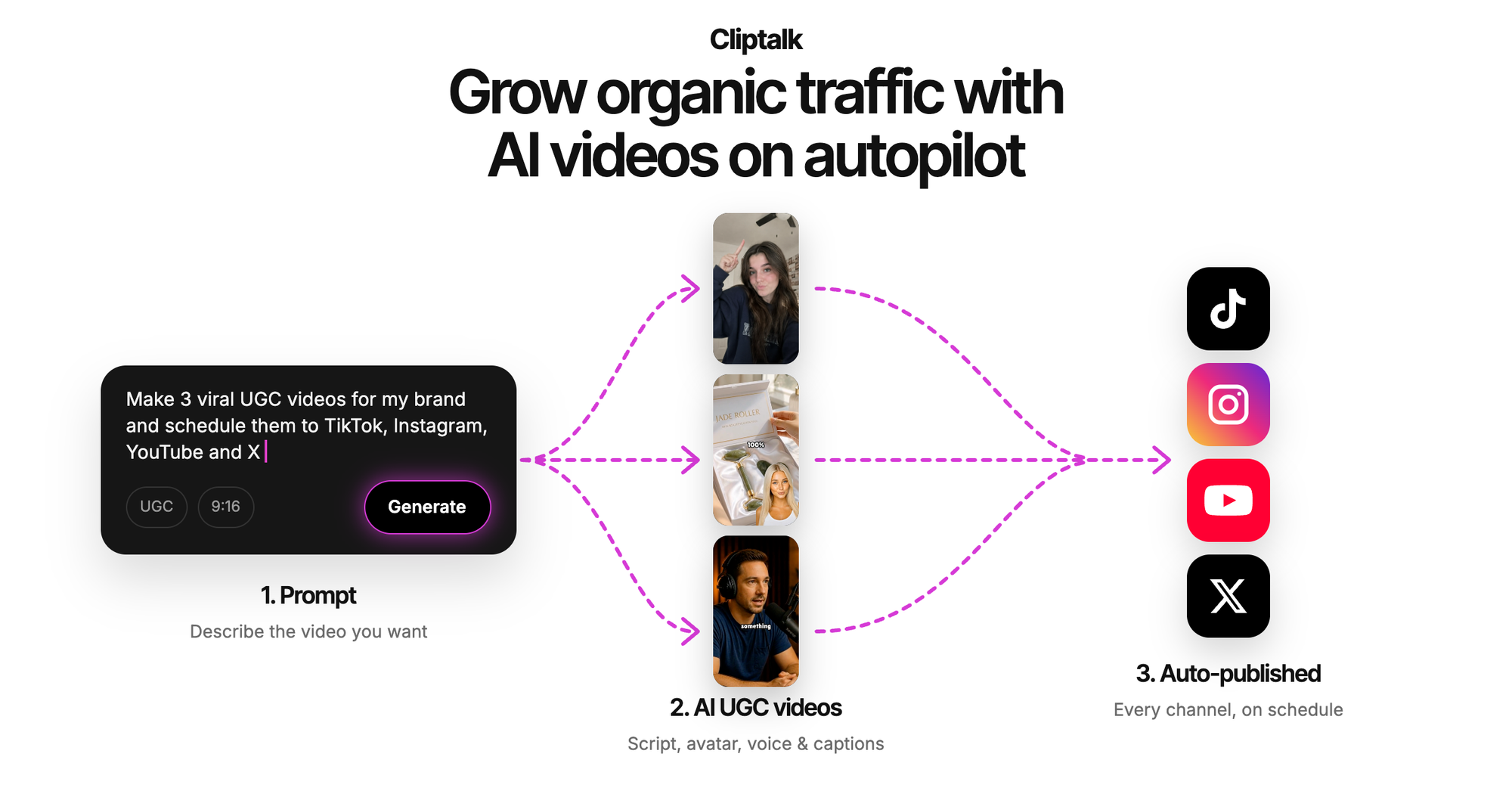
My usual workflow is to start with the idea or script, let it assemble the visuals and voiceover, and then swap or adjust shots in the editor. The free tools hub includes talking avatars, TikTok makers and story tools that come with free credits to start, so you can test the whole pipeline before deciding whether to pay.
Pros
- Produces a complete video: captions, voiceover and B-roll in one pass
- Voice cloning and AI characters for faceless channels
- Built for 9:16 formats on TikTok, YouTube Shorts and Instagram Reels
- No editing skills required, and there's a free script generator if you're stuck on the words
Cons
- It isn't a dedicated single-photo animator with a menu of dozens of video models. If you only want one image to pan or zoom for five seconds, Picsart or JoyPix is faster.
- Free credits run out with regular publishing, so heavy use needs a paid plan
Best for: faceless channel operators, marketers and creators who want something they can post today, not a clip to drop into another editor.
2. Picsart: best for control over a single animated photo
Picsart has the deepest image-to-video toolkit on this list. It gives you access to more than 60 image-to-video models from one upload box. Its review score is also strong, at 4.9 out of 5 across nearly 7,000 reviews.
What sets it apart is direction. You can describe pans, zooms and orbits in your prompt. You can also upload a start frame and an end frame to lock how a shot opens and closes. Adding reference images keeps faces, products and outfits the same throughout the clip, which is the most common failure point with photo animation.
The premium models go well beyond a basic animation. Veo 3.1 and Seedance 2.5 can generate native sound, music and dialogue with the clip. Veo 3.1 and Seedance 2.0 render up to 4K. Seedance 2.5 and Wan 3.0 can produce one continuous 30-second shot.
Pros
- Huge model choice in one place
- Start and end frame control, plus reference images for consistency
- Native audio and up to 4K on supported models
- Ready-made effects such as Gentle Breeze and Paparazzi Product Scene for quick results
Cons
- With 60+ models, beginners can spend more time choosing than creating
- The headline features (4K, audio, 30-second shots) depend on specific premium models, so expect your free allowance to go quickly on those
Best for: anyone who wants one photo to look cinematic and is willing to experiment with prompts.
3. JoyPix: best fast, watermark-free option
JoyPix keeps things simple: upload, customize, generate. The customize step lets you add a prompt, set the duration and pick a resolution. Generation is quick, around 10 seconds on its fast models such as Vidu 2.0. Its headline promise is watermark-free output, which is rare among free tools and matters if you plan to publish.
You can set clip length from 3 to 16 seconds and resolution from 480p to 1080p, along with aspect ratio and motion intensity. That last setting is underrated. Dialing motion down gives you subtle, elegant movement for product shots. Turning it up suits bold social content. The model library includes Veo3, Wan 2.6, Sora2 and Seedance 1.0 Pro, and there are 40+ trend effects if you want something meme-ready.
Pros
- Watermark-free downloads
- Very fast generation
- Motion intensity, duration and aspect ratio controls
- Skip the upload step and it works as text to video too
Cons
- Tops out at 16 seconds and 1080p
- The effects library leans toward novelty, which isn't ideal for brand content
Best for: quick social clips and product photos where you want a clean, unbranded file.
4. Media.io: best for comparing models side by side
Media.io brings Sora2, Veo 3, PixVerse, Vidu, Wan, Hailuo and Runway into one online platform. Its main appeal is comparison. You can run the same image and idea through different engines and keep the version that fits.
Its sample prompts are a good free lesson in prompting. They're specific about subject, action, camera and light. One example reads roughly: the camera pans up, then right, tracking a speeding car through chaotic turns while a helicopter approaches. That level of detail is what separates a usable result from random wobble.
Pros
- Many leading models under one login
- Easy to compare outputs and pick a winner
- Good for learning what each engine does well
Cons
- Comparing models multiplies your generations, so free usage disappears fast
- It produces the clip but not the edit around it
Best for: creators who want to know which model handles their kind of image best before committing.
5. Vivideo: best all-in-one free starting point
Vivideo works in the browser with no credit card and nothing to install. Behind one plan sit 30+ video models, including Sora 2, Veo 3.1, Kling and Seedance. It handles image to video, but it also has avatars, voices, brand kits and support for 30 languages. Its biggest differentiator is length. A Claude-powered agent plans scenes and stitches them into videos up to 10 minutes long, and output can go up to 4K. It's rated 4.8 out of 5 across about 1,600 reviews.
Pros
- No credit card to start
- Long-form output, far beyond the usual few-second cap
- Avatars, voices and multi-language support built in
Cons
- The on-page generator is only a preview, so you need to sign up to create anything
- The feature set is broad, which can be more than you need for animating one image
Best for: people who want image-to-video plus longer explainer-style content in one tool.
6. PicLumen: best for one-click effects on a single photo
PicLumen is about as low-friction as it gets. You upload a PNG, JPG, JPEG or WebP, and the motion description is optional. If you do write one, you have up to 2,500 characters. Its library of "hot" effects does the heavy lifting: Pet Peekaboo, Orbit Shot, Live 2D, Magic Bubble Lift and dozens more. It also handles realistic, artistic and stylized looks, so an illustration and a photo don't come out looking the same.
Pros
- Prompt is optional, so it works for complete beginners
- Accepts common image formats including WebP
- Large effects library for fun, shareable clips
Cons
- Fewer explicit controls (camera, frames, consistency) than Picsart
- Effect-driven clips can look templated if you lean on them too much
Best for: casual users who want a fun animated photo with zero prompt writing.
7. Viggle: best for making a character in your image move
Viggle takes a different approach. Instead of hoping the model invents good motion, its Mix feature transfers movement from a template or your own reference video onto the character in your image. You get controlled body motion rather than a random animation loop. Its JST-1 model maps facial expressions and body behavior frame by frame, so the character looks the same from the first render to the fiftieth. A Multi-Track timeline lets you fix timing without regenerating everything. It's free to start, with 10,000+ templates.
Pros
- Real, directed character motion
- Strong character consistency across renders
- Exports vertical cuts for Shorts, Reels and TikTok
Cons
- Built around characters, so it's a poor fit for landscapes or products
- The template library pulls toward meme and dance content
Best for: meme makers, fan edits and anyone animating a person or character from a still.
Quick comparison
| Tool | Best for | Standout image-to-video feature | Main limitation |
|---|---|---|---|
| Cliptalk | Finished, postable shorts | Captions, B-roll and voiceover in one pass | Not a pure single-photo animator |
| Picsart | Directed cinematic shots | 60+ models, start/end frames, up to 4K | Premium features eat free credits |
| JoyPix | Fast, clean clips | Watermark-free, 3 to 16 seconds | 1080p and 16-second cap |
| Media.io | Comparing engines | Sora2, Veo 3, Runway and more in one place | Comparisons burn usage quickly |
| Vivideo | All-in-one starting point | Up to 10 minutes, no credit card | Sign-up needed to generate |
| PicLumen | Zero-effort effects | Prompt optional, big effects library | Limited fine control |
| Viggle | Character motion | Motion transfer from reference video | Not for products or scenery |
How to turn a photo into a video for free, step by step
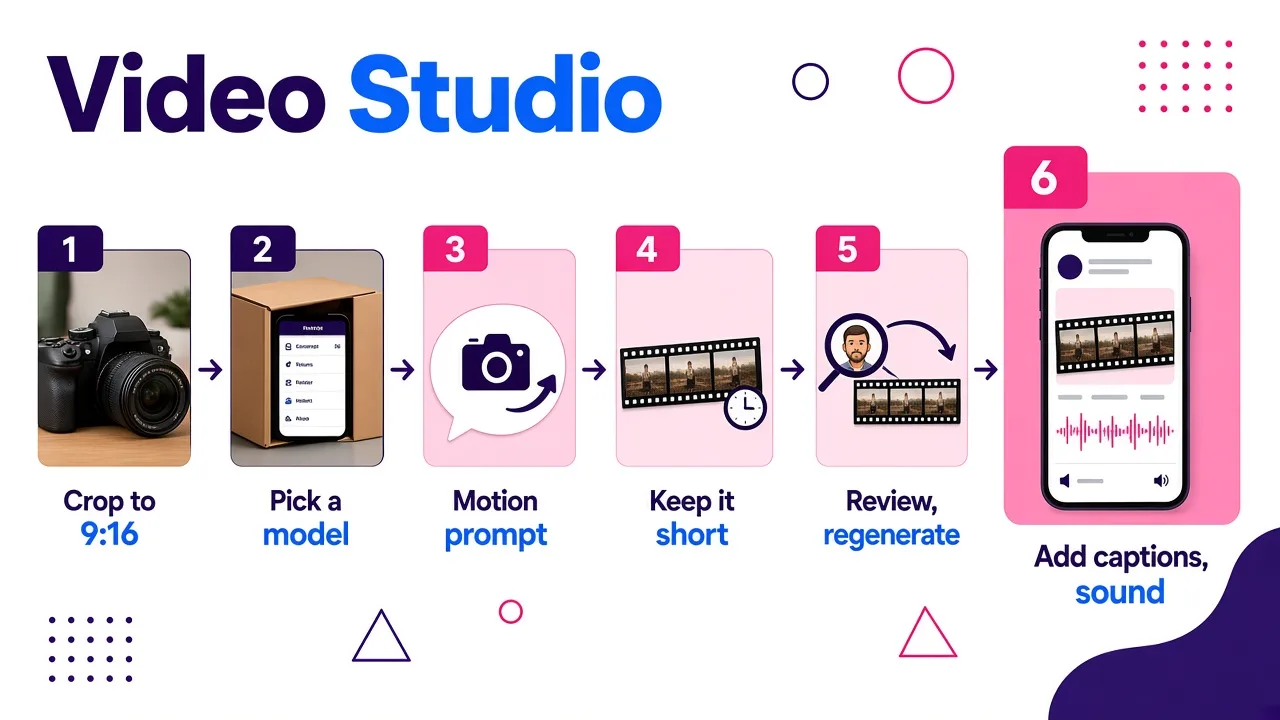
The steps are nearly identical across these tools. The quality of your result depends on what you do at each one.
- Pick the right image. Use a sharp, well-lit photo with one clear subject. Busy backgrounds give the model more to get wrong. Crop to your target ratio first, for example 9:16 for TikTok or Reels, so the model doesn't invent the edges.
- Upload and choose a model. If the tool offers a model menu, start with a fast model for drafts. Save heavier models for the final version.
- Write a motion prompt. Describe the subject's action, the camera move and the mood (more on this below).
- Set duration and resolution. Shorter clips are more stable. A clean 5-second clip beats a 16-second clip that drifts.
- Generate, review, regenerate. Check the face, hands and product edges. If something warps, simplify the prompt rather than adding more to it.
- Finish the video. Add captions, sound and a hook. A clip that's silent and uncaptioned is a draft, not a post.
If you're starting from an idea rather than a photo, the process is different. I walk through it in this guide on how to generate a video from text for free.
Prompt tips that actually change the output
After a lot of generations, these are the habits that made the biggest difference for me:
- Name the camera move. "Slow push in," "orbit around the product," "pan left." Most tools respond to camera language better than to vague words like "dynamic."
- Describe one action, not five. "She turns her head and smiles" works. "She turns, laughs, waves, walks away and the scene changes to a beach" usually falls apart.
- Mention the light. Phrases like "golden sunlight" or "soft studio light" help keep the look consistent with your photo.
- Use start and end frames when offered. Locking both ends of the shot is the most reliable way to stop drift.
- Add reference images for people and products. This is the fix for faces that change halfway through.
- Lower motion intensity for products. Subtle movement looks premium. Wild movement looks like an error.
- Keep the first second strong. On short-form feeds, the opening frame decides whether anyone keeps watching.
What "free" really means with these tools
"Free" covers a range of deals, and it helps to know what you're getting before you build a workflow around one tool.
- Credits, not unlimited use. Most tools give free credits that renew or run out. Premium models cost more per generation than fast ones.
- Watermarks. Some free outputs carry a logo. JoyPix stands out for promising watermark-free files.
- Length caps. Single-image clips are usually a few seconds to 16 seconds. Picsart can reach 30 seconds on specific models, and Vivideo goes much longer through multi-scene stitching.
- Resolution caps. 1080p is common on free and fast models. 4K usually requires premium models.
- Sound. Many clips are silent unless you use a model with native audio, such as Veo 3.1 or Seedance 2.5.
My rule of thumb: use free tiers to find the tool that fits your content, then only pay for the one you'll use every week. If you publish to TikTok specifically, I tested more options in this roundup of the best AI video generators for TikTok.
Frequently asked questions
Can I turn a photo into a video for free without a watermark?
Yes. JoyPix advertises watermark-free output, and several other tools offer clean downloads on some plans. Check the export screen before you spend credits, because watermark rules often differ by model.
How long can an AI video from one image be?
Usually a few seconds. JoyPix goes up to 16 seconds and Picsart can reach 30 seconds on certain models. For anything longer, you need a tool that strings several shots together into an edited video.
Which free tool keeps faces consistent?
Look for reference-image support or a character-focused model. Picsart lets you add reference images, and Viggle is built around keeping a character identical across renders.
Do I need to write a prompt?
Not always. PicLumen makes the prompt optional, and effect templates on most tools work without one. A short, specific prompt with a camera move almost always gives better results, though.
Can I use these videos on TikTok, Shorts and Reels?
Yes, as long as you export in 9:16 and the clip isn't watermarked. For best performance, add captions and sound, since a raw animated photo rarely holds attention on its own.
Final verdict
If you only want to animate a single photo, Picsart gives you the most control and JoyPix gives you the fastest clean file. For comparing engines, Media.io and Vivideo are both strong. PicLumen is the easiest one-click option, and Viggle is the pick for making a character move.
If your real goal is a video people will watch and share, though, the animated photo is only one ingredient. That's why Cliptalk is my default: it turns the idea, the visuals, the voice and the captions into one finished short. Start free, test it on your next post, and keep the dedicated photo animators for the single shots you want to drop in.
Tags: ai video, image to video, short-form video, free tools, video generators