How to Add Titles and Text in Premiere Pro
October 19, 2026
Whether you call it a title or text, adding it to a Premiere Pro video takes about 30 seconds once you know where the Type Tool is. Here is the fastest way, with a screenshot of every click.
Quick answer: how to add text to a Premiere Pro video
- Move the playhead to where the title should appear.
- Press T to pick the Type Tool.
- Click in the Program Monitor and type your title.
- Change the font, size and color in the Properties panel, and click the Align buttons to center it.
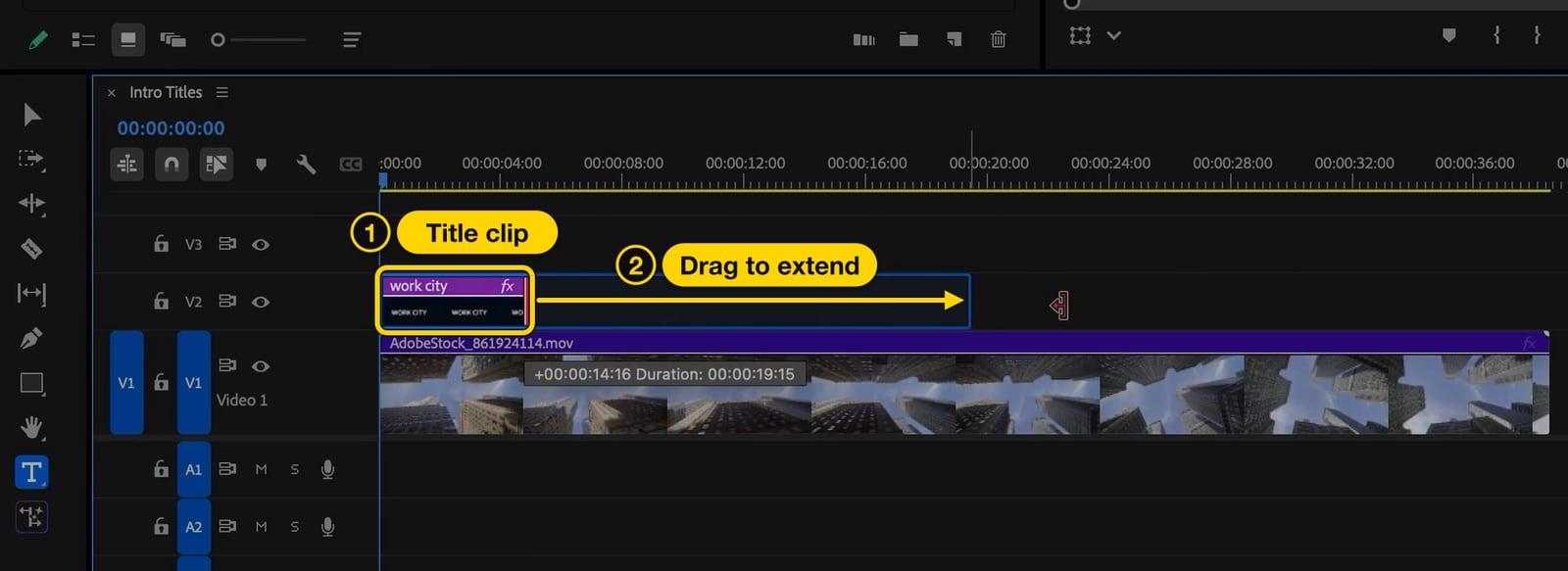
- Drag the end of the new title clip in the timeline to set how long it stays on screen.
These steps work in every version since Premiere Pro 25 (October 2024), which moved text styling into the Properties panel. Adobe renamed the app to Adobe Premiere in version 26 (January 2026); the steps did not change.
How to add a title in Premiere Pro, step by step
1. Put the playhead where the title should start
The title is created at the playhead (the blue marker on the timeline ruler), so move it to the frame where the title should appear first.
2. Pick the Type Tool
Press T, or click the T icon in the toolbar on the left of the timeline.
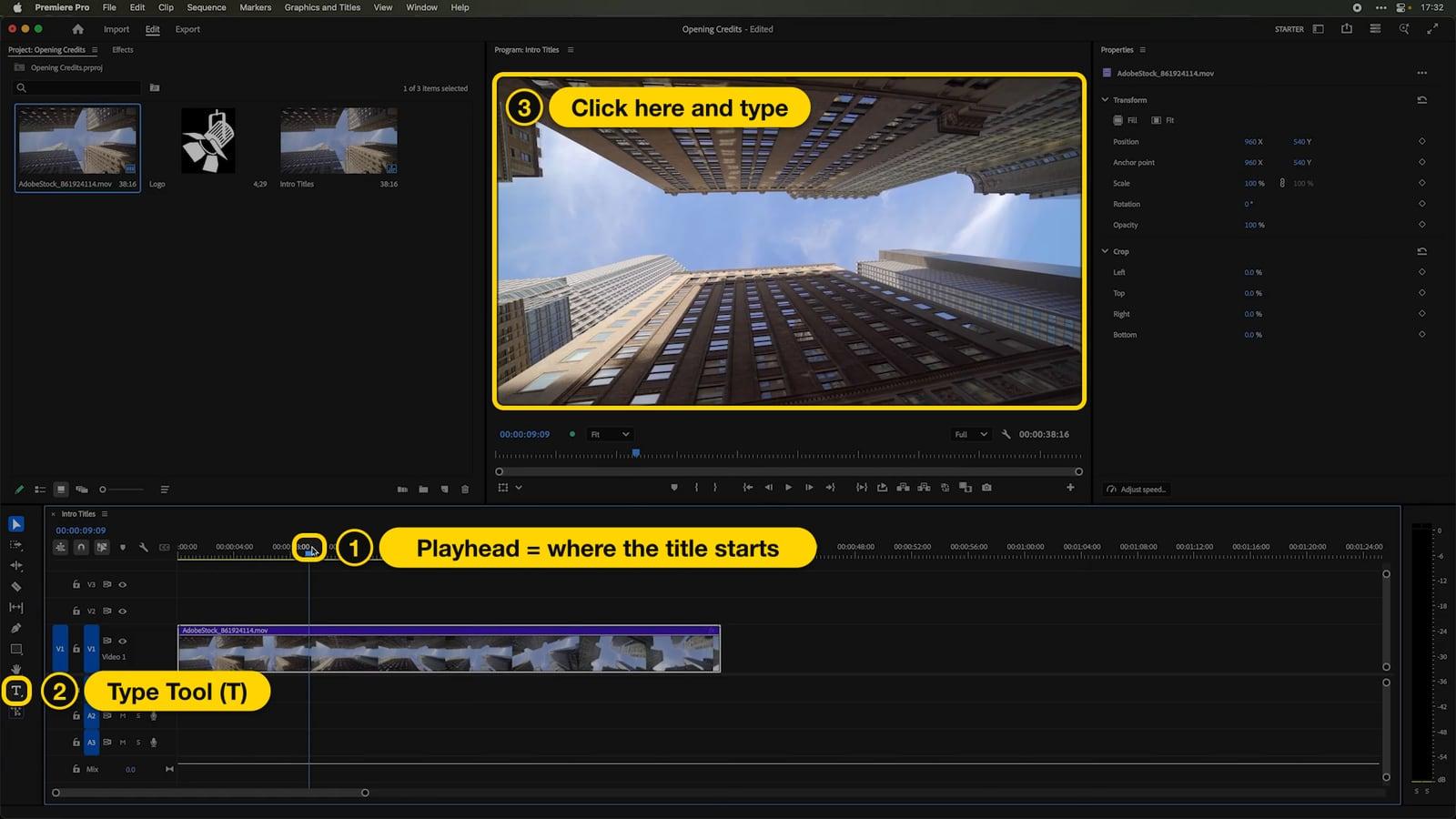
3. Click in the Program Monitor and type
Click anywhere on the video in the Program Monitor and start typing. Premiere creates a new graphic clip on the empty track above your footage (V2 if your video is on V1) and shows the new text layer in the Properties panel.
When you finish typing, press V to go back to the Selection Tool. Each click on an empty spot with the Type Tool starts new text, so switch tools before you click on the video again.
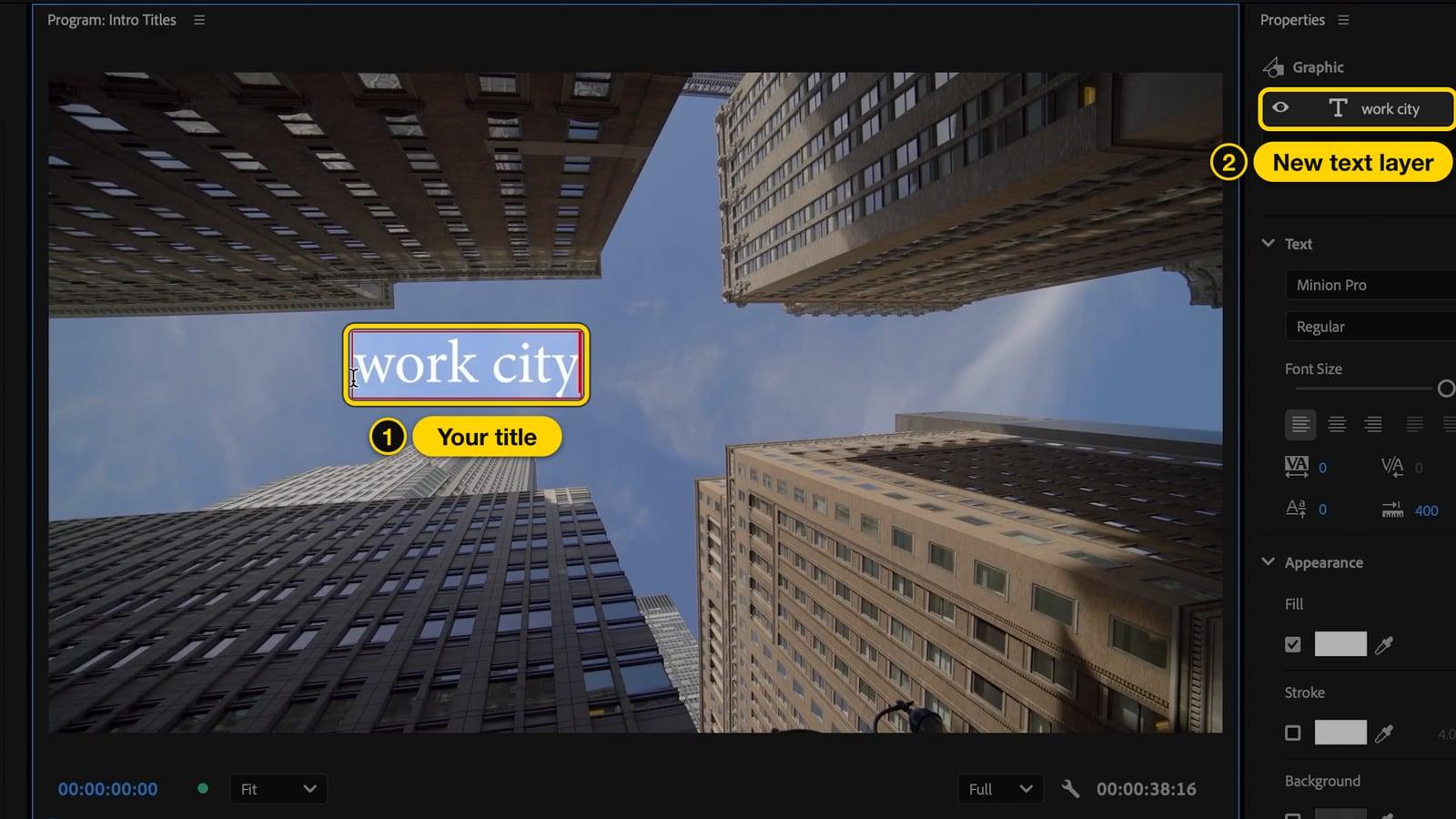
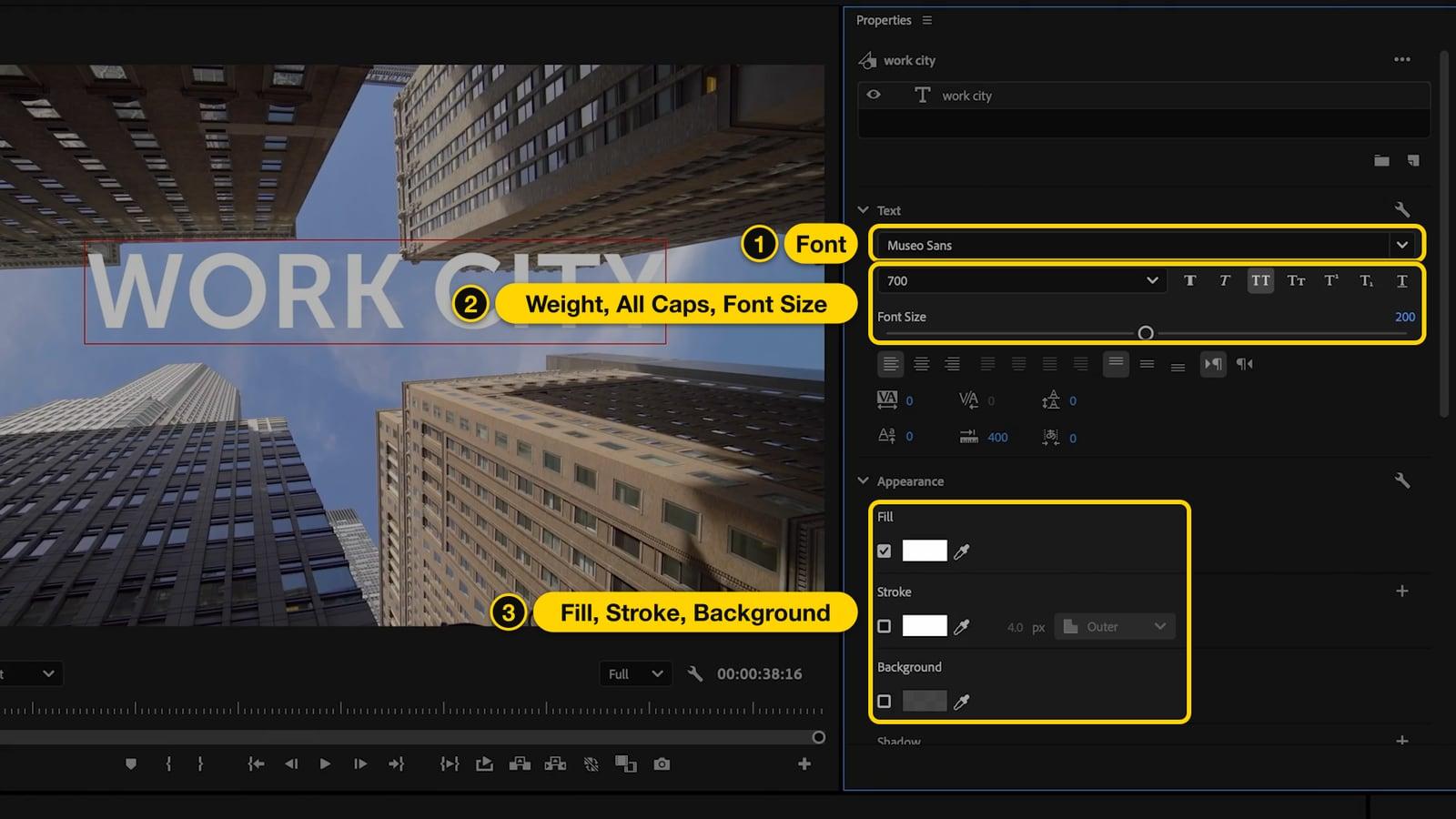
4. Change the font, size and color
With the title selected, use the Properties panel on the right:
- Text: pick the font and weight, turn on All Caps, and drag Font Size.
- Appearance: Fill is the text color. Tick Stroke for an outline, Background for a box behind the text, and Shadow for a drop shadow.
If you don't see the Properties panel, open it from Window > Properties, or right-click the title in the Program Monitor and choose Edit Properties.
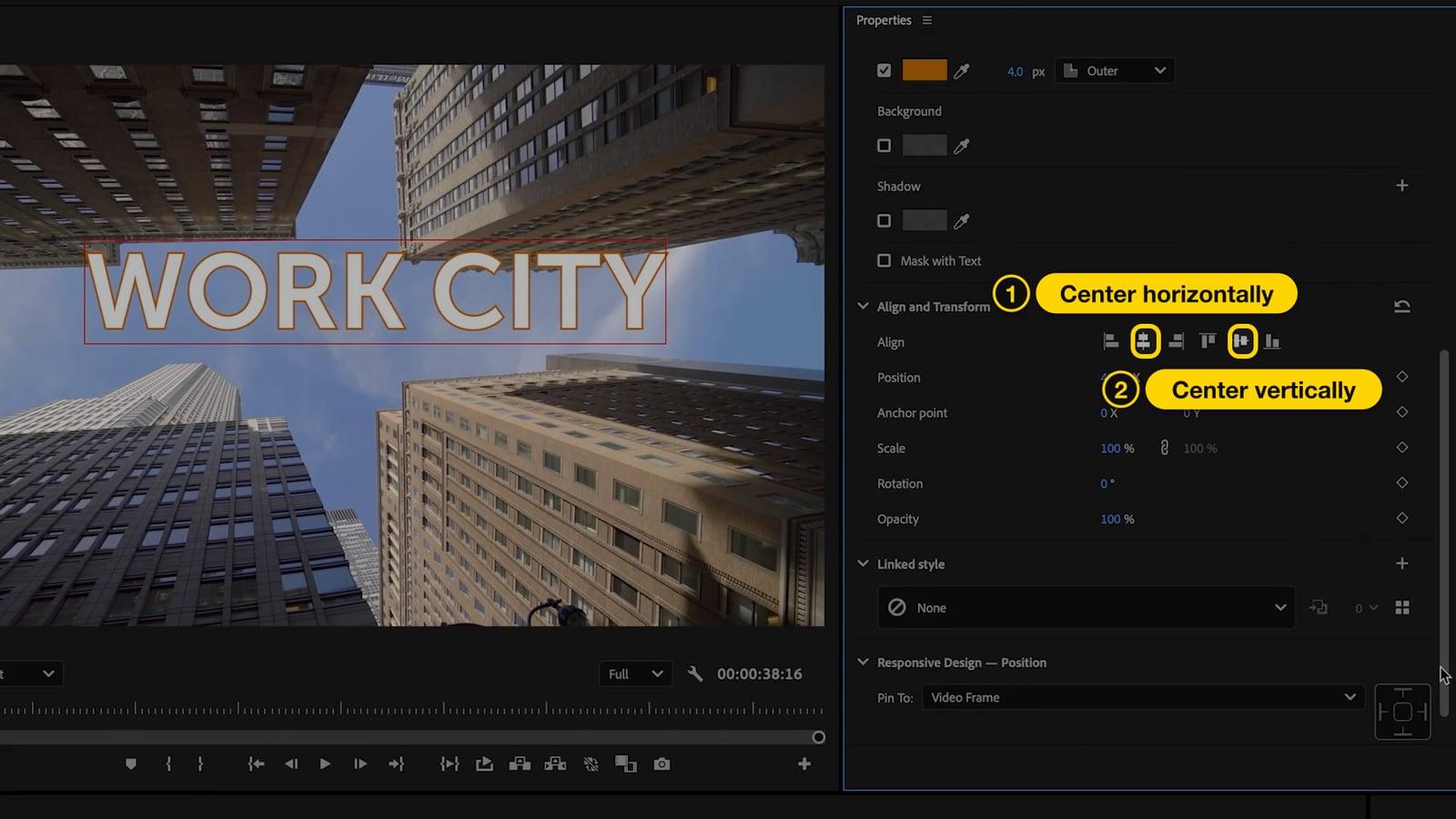
5. Center the title
Scroll down to Align and Transform and click the horizontal center and vertical center buttons. To place the title somewhere else, such as the lower third, drag it with the Selection Tool. Hold Shift while you drag to keep it in a straight line.
6. Set how long the title stays on screen
A new title is as long as your Still Image Default Duration setting (5 seconds unless you changed it). Drag the right edge of the title clip to make it longer or shorter. To make it an exact length, select the clip and press Cmd+R (Mac) or Ctrl+R (Windows) to open Speed/Duration.
To move the title to a different moment, drag the whole clip left or right.
Watch it in video
Adobe's own 5-minute walkthrough shows the same steps, plus how to slide the title in and out with keyframes.
Fade a title in and out
Open Window > Effects, go to Video Transitions > Dissolve, and drag Cross Dissolve onto the start of the title clip. Drag it again onto the end to fade it out. Drag the edge of the transition in the timeline to make the fade slower or faster.
For a typing effect, type Typewriter in the search box of the Effects panel and drag the effect onto the title clip. Premiere 25.5 and later include it for free.
Use a ready-made title template
If you'd rather not design the title yourself, start from a template:
- Click an empty spot in the timeline so nothing is selected.
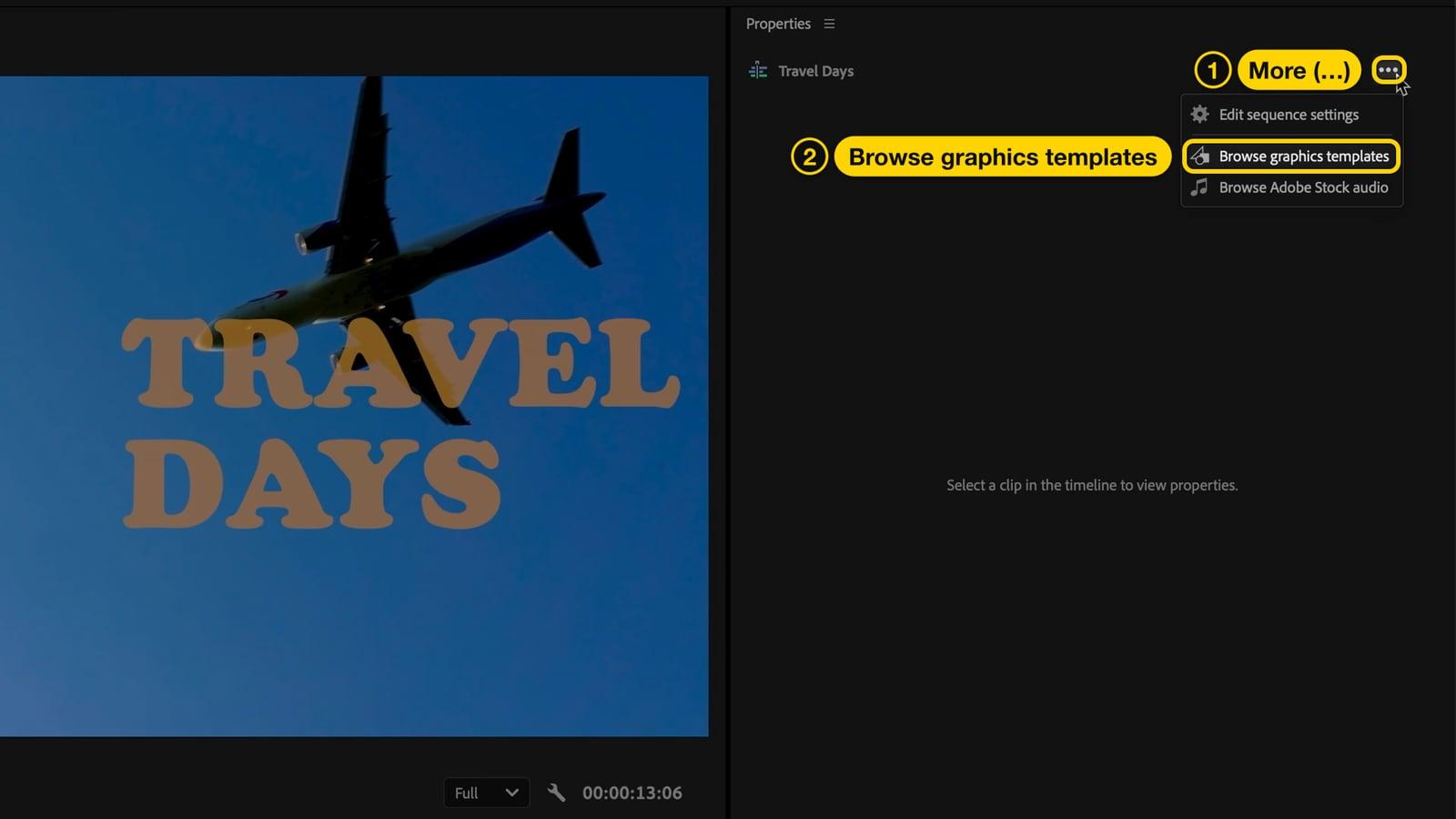
- In the Properties panel, click More (the three dots) and choose Browse graphics templates. You can also open Window > Graphics Templates.
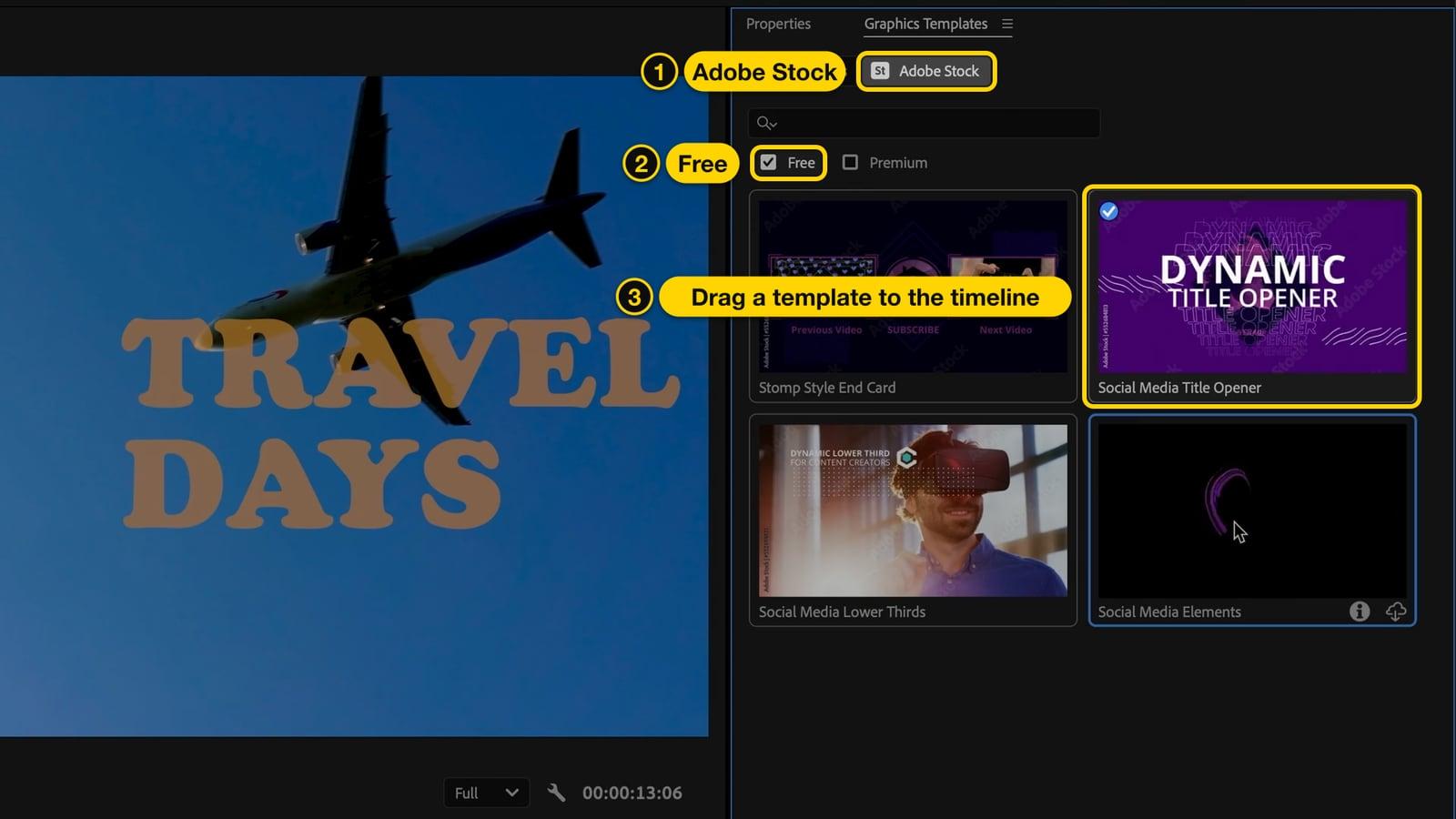
- Open the Adobe Stock tab and tick Free to hide the paid templates.
- Drag a template onto the track above your video, select it, and change its text in the Properties panel.
Reuse a title style
- In the same project: hold Option (Mac) or Alt (Windows) and drag the title clip to make a copy, then change the text.
- For future titles: in the Linked Style section of the Properties panel, click + and choose Create style. Apply that style to any other title in one click.
- In other projects: right-click the title clip, choose Export As Motion Graphics Template, and save it to your Local Templates Folder. It then shows up under My Templates in the Graphics Templates panel.
Troubleshooting
The text doesn't show up. Make sure the playhead is over the title clip and that the eye icon of its track is turned on. If the title clip sits on a track below your video, the video covers it: drag the title clip up to a higher track.
The text is there but hard to see. The Fill color probably matches the background. Change Fill, or tick Stroke or Background to separate the text from the video.
I can't find Legacy Title. Adobe removed Legacy Titles in version 23.0 (October 2022). The Type Tool and the Properties panel replaced them, and older projects convert their legacy titles automatically.
I can't find the Essential Graphics panel. Since version 25.0, text styling lives in the Properties panel and templates live in the Graphics Templates panel. Most older tutorials still show Essential Graphics.
FAQ
How do you add text in Adobe Premiere Pro?
Press T for the Type Tool, click on the video in the Program Monitor and type. The text becomes a graphic clip in the timeline: style it in the Properties panel and drag its edge to set how long it shows.
How do I insert text in Premiere Pro without the Type Tool?
Choose Graphics and Titles > New Layer > Text, or press Cmd+T (Mac) / Ctrl+T (Windows). Premiere adds a text layer with default text that you can type over.
What is Ctrl+K in Premiere Pro?
Ctrl+K (Windows) or Cmd+K (Mac) is Add Edit: it cuts the clips on the targeted tracks at the playhead. It has nothing to do with titles, but people often look it up while editing.
How do I add subtitles instead of a title?
Use captions, not titles. Open Window > Text, go to the Captions tab, and create captions from a transcript. Premiere puts them on their own caption track and times them to the speech for you.
Can I add a title that covers the whole video?
Yes. Drag the end of the title clip until it is as long as your video, or set its length with Speed/Duration.
Just need text on a short clip?
If all you need is a line of text on a short clip, like a meme, a reaction or a quick social post, you don't need Premiere. Upload the clip to our free video meme generator, type your text, and download the MP4. It works without signing up for clips up to 60 seconds.