A Guide to Free Online Text to Video AI Tools
· 12 min read
Yes. You can turn text into a finished video entirely in your browser, with nothing to install, and several tools let you start for free. For short-form content on TikTok, YouTube Shorts, or Reels, I recommend Cliptalk. One idea or script comes back as a finished 9:16 clip with AI visuals, narration, word-by-word captions, and music already in place, and the scripting step is free with no signup. Most "free online" tools come with limits. Free usually means credits, short clip caps, or a watermark, so it helps to know what kind of tool you are opening before you paste in your text.
This guide covers what browser-based text to video actually produces, how the free tiers really work, how the main tools compare, and the workflow I use to get a publishable short from a block of text.
What "text to video" means when you do it in a browser
The phrase "text to video AI" covers at least three different technologies. Treating them as one is the most common reason people end up disappointed with a free tool.
1. Generative clip models. You type a description of a scene and a model synthesizes the footage frame by frame. The language model reads your prompt, and a diffusion or transformer model starts from noise and refines it into moving imagery. Sora, Veo, Kling, Seedance, and Runway all work this way. The output is usually a single shot lasting a few seconds.
2. Avatar or presenter systems. You paste a script and an AI presenter reads it on camera. These tools suit training, explainers, and corporate updates, where a talking head carries the message.
3. Assembled or template-based editors. The tool reads your text, splits it into scenes, then pairs each scene with visuals (stock, AI-generated, or both), a voiceover, music, and captions. You get a complete, edited video rather than a single clip.
Colossyan makes this point well: a cinematic Sora clip and an avatar reading a compliance briefing share almost nothing beyond the "AI video" label. The category is also growing fast. Fortune Business Insights projects the AI video generator market at $847 million in 2026, with an 18.8% compound annual growth rate. That growth explains why every tool now claims to do "text to video," even when they do very different jobs.
For social creators, the practical question is simple: do you want a clip or a video? A clip is a five-second shot of a cat at a street stall. A video is a 45-second Short with a hook, narration, B-roll that matches each line, captions, and an ending. Most free generators on the first page of Google produce the first. Faceless channels and marketers almost always need the second.
What "free online" usually means in practice
Once you have tested enough tools, the free tiers start to look alike. These are the patterns I see most often, drawn from what the tools themselves publish.
Credits instead of unlimited use. Most tools hand you a starting balance or a daily allowance. MyEdit offers free daily credits. VideoPlus says higher resolutions and longer durations cost more credits. Expect to run out faster if you push quality settings.
Short length caps. Clip generators tend to cap output at a few seconds. MakeShort describes its output as 5 to 15 second clips. MyEdit generates clips of up to 15 seconds. That works for B-roll, but you cannot publish it as a standalone Short without heavy editing.
Watermarks. Some tools stamp free exports. Visla, for example, notes that watermarks are removed for its premium users. Others, like MyEdit and Vivideo, advertise watermark-free downloads. Always check before you plan a posting schedule around a tool.
Signup walls. "No login" tools do exist. VideoPlus lets you generate from a prompt directly in the browser. Many others show a preview but make you create an account before anything renders. Vivideo's homepage chat, for instance, is labeled as an interactive preview only, and you sign up to create for real.
Input limits. Text boxes have ceilings. VideoPlus accepts prompts up to 1,500 characters. Visla's demo accepts up to 10,000 characters of source text. If you plan to paste a full blog post, the character limit matters more than you might expect.
None of this makes free tools bad. It means "free" is a trial or a lightweight lane. You should judge a tool on whether its free lane produces something you can actually post.
Clip generators vs. finished-video tools
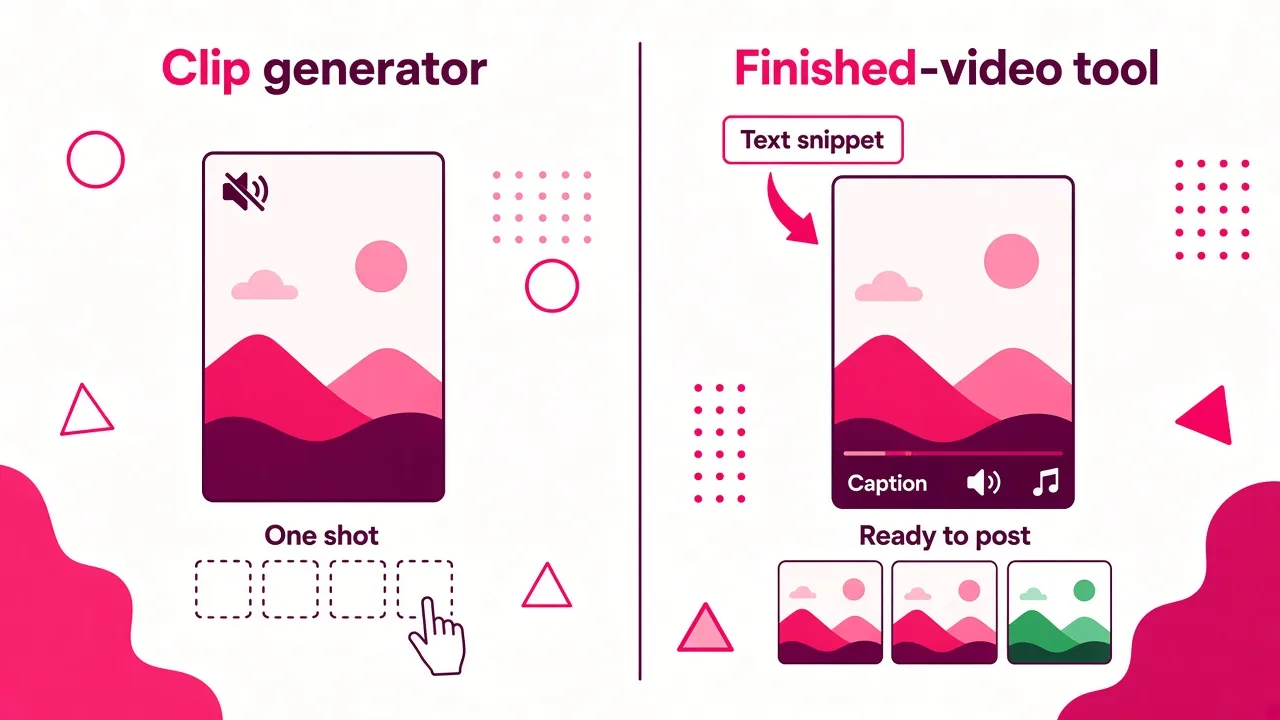
Vuela put this distinction better than most: raw model access tends to give you a short clip with no sound. A generator built for publishing writes the script, produces every shot, adds voiceover, music, and subtitles, and returns a video you can upload without opening an editor.
That gap is the whole game for short-form creators. Here is what you would still have to do yourself after a clip generator hands you one shot:
- Write a script with a hook in the first couple of seconds
- Generate or source a visual for every line of that script
- Record or generate a voiceover and time it to the visuals
- Add captions, ideally word by word, since many viewers watch muted
- Add music, balance it under the voice, and export in 9:16
A finished-video tool handles all of that in one pass. You then spend your time on review and small fixes instead of assembly. If you want to see how the scene-to-visual matching works under the hood, I wrote a breakdown of how an AI video generator from text picks visuals.
Clip generators still have a place. They are excellent for one specific shot you cannot find anywhere else, such as a product hero angle, a stylized anime moment, or a cinematic establishing shot. Think of them as a source of B-roll, not a way to publish videos.
How the main browser-based tools compare
Below is how I would rank the tools for one goal: producing a finished short-form video from text in a browser. A different goal, such as training videos or single cinematic shots, would produce a different order, and I note that in the "Best for" column.
| Rank | Tool | Type | What you get from text | Free path (as the tool describes it) | Best for |
|---|---|---|---|---|---|
| 1 | Cliptalk | Finished-video maker | Full 9:16 short with AI visuals, 140+ narration voices, word-by-word captions, music | Script generation free with no signup; free credits to render | TikTok, Shorts, Reels, faceless channels |
| 2 | Fliki | Finished-video maker | Script, visuals, AI voiceover, music, subtitles | Free start, no credit card | Voice-heavy content in many languages (2,000+ voices, 80+ languages) |
| 3 | Zebracat | Finished-video maker | Voiceover, footage, captions from a script or idea | Free start advertised | Script-to-video for social |
| 4 | Visla | Assembled from stock | AI rewrites your text into a script, then pairs stock footage, voiceover, music | Demo with up to 10,000 characters; watermark unless premium | Marketing and training teams repurposing text |
| 5 | Synthesia | Avatar/presenter | Presenter-led video from a script, PDF, PowerPoint, URL, or prompt | Free entry advertised, built around paid plans | Corporate training, localization into 140+ languages |
| 6 | Vivideo | Multi-model generator plus agent | Multi-scene video up to 10 minutes across 30+ models, up to 4K | Free to start, no watermark; signup required to generate | Longer explainers and experiments across models |
| 7 | MyEdit | Clip generator | Clips up to 15 seconds in 16:9, 9:16, or 1:1, with audio on supported models | Free daily credits, watermark-free downloads | Single shots and B-roll |
| 8 | MakeShort | Clip generator | 5 to 15 second clips from models like Seedance, Kling, Veo | Free online generation | Quick ad concepts and B-roll |
| 9 | VideoPlus | Clip generator | Single generated scene from a prompt up to 1,500 characters | No login required; credits scale with quality | Fast, no-account experiments |
| 10 | Viggle | Motion/character tool | Animated character with controlled motion | Free tier | Memes and character motion |
Two notes on the ranking. First, the clip generators sit lower only because a single clip is not a publishable Short. As B-roll sources they are genuinely good. Second, if your audience is global and you need dozens of languages, Fliki or Synthesia may beat everything above them for that one requirement.
My workflow: text to a finished Short in the browser
This is the routine I actually use for faceless channel content and marketing shorts. Everything happens in a browser tab.
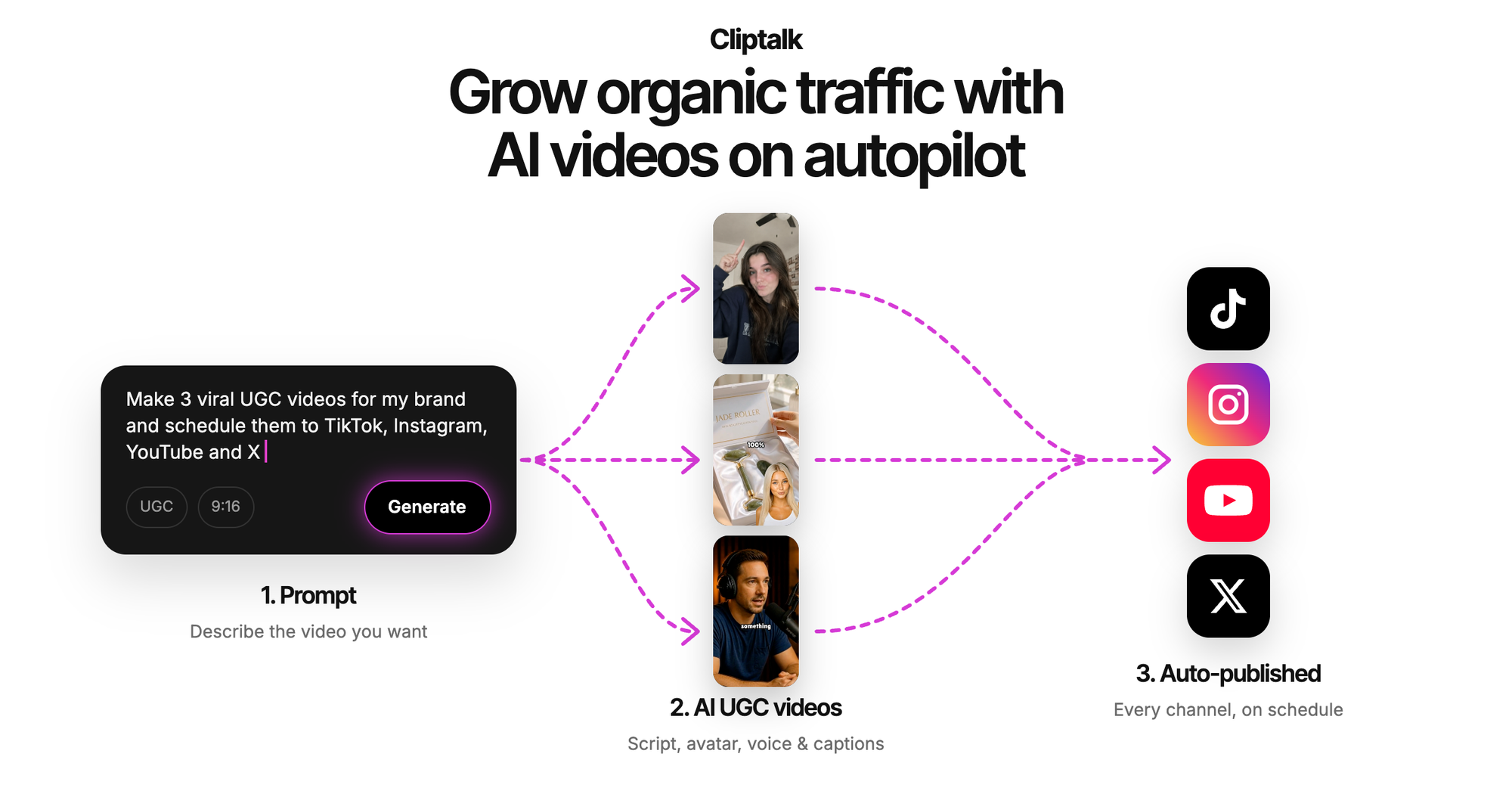
Step 1: Start from an idea, not a finished script. I describe the video in a sentence or two, for example "a listicle of five habits that wreck your sleep, punchy tone, for night owls." The script generator turns that into a spoken script, hook to call to action. For Shorts specifically, the free YouTube video script generator also gives me title options, and it needs no account. I re-roll until the first line actually stops the scroll.
Step 2: Edit the script like a viewer, not a writer. I read it out loud. If a sentence takes more than one breath, I split it. Short sentences make cleaner scenes, because each one becomes its own visual beat.
Step 3: Render the full video. I pick a voice (there are 140+), and the tool builds the 9:16 video with AI visuals for each scene, word-by-word captions, and music. In Cliptalk's AI TikTok video maker, the same flow covers story videos, listicles, and product showcases, so I don't switch tools when the format changes.
Step 4: Fix the two or three weak scenes. Every AI draft has a few visuals that miss. I swap those in the editor instead of regenerating the whole video. That is where most of my "editing" time goes, and it usually takes a few minutes.
Step 5: Export and post natively. I upload the file directly to each platform rather than cross-posting a watermarked version.
The whole process takes far less time than assembling the same video from separate clip, voice, and caption tools. The time saved is the real "free" part.
How to write text that becomes good video
The quality of your output depends heavily on the text you put in. These are the tips that made the biggest difference for me.
Front-load the hook. Short-form viewers decide almost instantly. Put the most surprising claim or question in the first line, not after an introduction. Zebracat's sample prompts make the same point by asking for a hook in the first two seconds.
Write one idea per sentence. Finished-video tools turn sentences or short groups of sentences into scenes. A sentence with three ideas gets one visual that fits none of them well.
Name concrete things. "Productivity tips" gives the AI nothing to show. "A cluttered desk, a planner, a phone face-down" gives it three clear shots. Vivideo's prompt advice works the same way: a specific drone shot over snowy peaks at sunrise beats "a mountain video" every time.
Describe the tone you want. "Upbeat narration, fast cuts" and "calm voiceover, slow pacing" produce very different results from the same facts. Most tools read these cues even when they appear in a plain idea description.
For clip generators, keep scope tight. One subject, one action, one camera move per generation. Viggle and Vivideo both recommend a focused prompt, then reviewing and refining. Long, multi-scene prompts confuse single-shot models.
Mind the character limit. If you paste a long article into a tool with a 1,500-character box, it will be cut off. Either summarize first or use a tool built to accept long source text and rewrite it into a script.
Voices, captions, and characters: the parts that make it feel real
Visuals get the attention, but in my experience audio and captions decide whether a faceless video performs.
Voice. A wide voice library matters less than picking one voice and staying consistent so your channel has an identity. If you want the narration to sound like you, voice cloning has become practical. Fliki, for example, clones a voice from a short sample. I compared options in 6 voice cloning software tools that need only 30 seconds if you want to go that route.
Captions. Word-by-word captions, where each word highlights as it is spoken, hold attention better than sentence blocks, especially for muted viewers. Check whether a tool generates them automatically. Adding them by hand is the most tedious step in manual editing.
Characters and avatars. Some formats work better with a face on screen. Avatar tools like Synthesia suit presenter-led training. For social content, an AI influencer or talking character can carry a series without you filming anything. The trick is consistency: the character should look the same in every episode, which is what Fliki's "digital twin" and Viggle's character consistency features both target.
Music. Background music should sit well under the voice. If a tool lets you adjust the music level, turn it down more than feels natural. Viewers notice narration that gets buried far more than they notice quiet music.
A quick checklist before you commit to a free tool
Before you build a posting routine around any tool, run one real piece of content through it and check:
- Does the free output include everything you need? Voice, captions, music, and the right aspect ratio. A silent 5-second clip is not a Short.
- Is there a watermark on free exports? Fine for testing, a problem for publishing.
- How long can the video be? Make sure the cap fits your format. A 15-second ceiling rules out most listicles.
- How many videos does the free allowance actually cover? Credits drain faster at higher quality settings.
- Can you edit a single scene without regenerating everything? This one feature saves more time than any other.
- Does it accept your input? A one-line idea, a full script, or a pasted article. Know which one you will usually start from.
- Can you use the output commercially? Read the terms if you monetize or run ads.
Common questions
Do I need to download anything? No. Every tool in this guide runs in a browser tab. You only download the finished MP4.
Can I really use these without signing up? Some steps, yes. VideoPlus generates clips with no login, and script generators often need no account. Rendering a full edited video almost always requires a free account so the tool can track your credits.
Will free AI video look obviously AI-made? Single generated clips from current models can look very realistic. Finished videos look most polished when the script is tight and you replace the few scenes that miss. A good script hides more AI artifacts than any model upgrade.
Which should I start with? Start with a finished-video tool if you want to publish today. Add a clip generator later when you need one specific shot you cannot get any other way.
The bottom line
Turning text into video in your browser is not only possible, it is now the fastest way to produce short-form content consistently. The key is matching the tool to the job. Clip generators make impressive single shots. Avatar tools handle presenter-led training. Finished-video makers turn an idea into something you can post today. For creators and marketers publishing to TikTok, Shorts, and Reels, I keep coming back to Cliptalk, because it handles the script, visuals, voice, captions, and music in one pass, and lets you try the scripting step free before you spend a single credit.
Tags: text to video, ai video, short-form video, faceless channels, video tools