How to Generate a Video From Text for Free
· 10 min read
The fastest way to make a video from text for free is to use an AI video generator that accepts a script or prompt and returns a finished, captioned video, then spend its free credits on one well-planned short. My recommendation is Cliptalk, because a single prompt or script comes back as a fully edited vertical video with an AI voiceover, auto-captions, and B-roll already in place. You can start with 50 free credits and no card. If you only need a short cinematic clip rather than a full narrated video, free tiers from clip generators like Pixlr or MyEdit work too. Whichever tool you use, the results depend far more on your script and setup than on the tool's marketing.
Below is the exact workflow I use, what "free" really means on these platforms, and the mistakes that burn through free credits fastest.
Know Which Kind of Text-to-Video Tool You Need
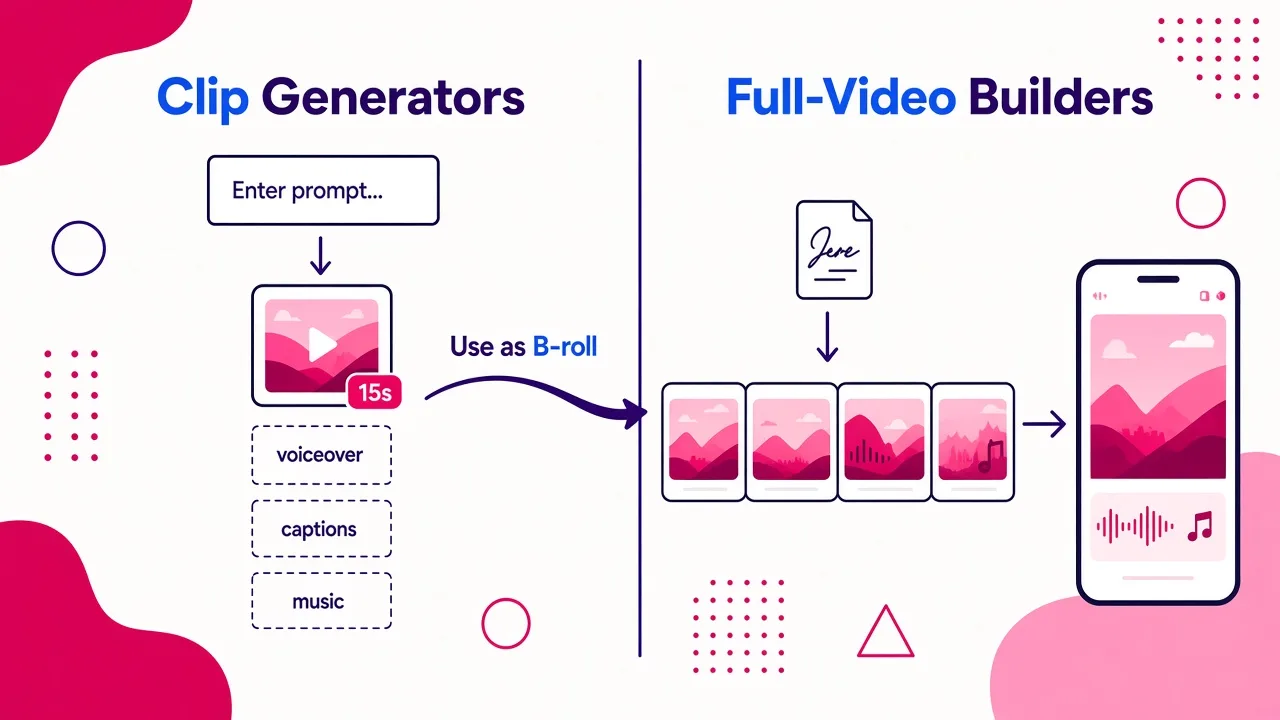
"Text to video" covers two very different products. Picking the wrong one is the most common reason people give up after a few tries.
Clip generators (Kling, Pixlr, MyEdit, Adobe Firefly, Vidu, Runway) take a descriptive prompt and generate original footage from scratch. Under the hood, a language model parses your prompt and a diffusion model refines noise into frames until they match your description. The output is a short clip: MyEdit caps clips at 15 seconds, and Kling 3.0 extends to 15 seconds of multi-shot footage. These clips are great as visuals. On their own, they aren't a narrated video.
Full-video builders (Cliptalk, Visla, Fliki, Synthesia) take a script, article, or idea and assemble a complete video. They break the text into scenes, pick or generate visuals for each one, add a voiceover, sync captions, and lay in music. This is what most creators actually mean when they say "make a video from text" for TikTok, Shorts, or Reels.
Here's a quick way to decide:
- You want a 10-second surreal shot of a cat running through a medieval market: use a clip generator.
- You want a 45-second faceless explainer with narration and captions: use a full-video builder.
- You want both: build the video in a full-video tool and drop generated clips in as B-roll.
If you want a primer on the technology before you start, this overview is worth a few minutes:
What "Free" Actually Means on These Platforms
Almost every free AI video generator runs on credits, and the limits sit in the fine print. Before you spend an hour writing, check these four things:
- Credits or daily allowance. Some tools give a one-time credit pack. Others, like MyEdit, refresh free credits daily.
- Watermarks. Pixlr and MyEdit advertise watermark-free downloads. On Visla, watermark removal is a Premium feature, so free exports carry a watermark.
- Length caps. Clip generators usually stop at 15 seconds or less per generation.
- Aspect ratio. Make sure 9:16 vertical is available if you're posting to TikTok, Shorts, or Reels.
Here's how the options I've tested compare on the details each platform publishes:
| Tool | What you get from text | Free details (as published) | Best for |
|---|---|---|---|
| Cliptalk | Full edited short: script, AI voiceover, captions, B-roll, AI characters | 50 free credits, no card; free script generator with no signup | Faceless shorts and narrated social videos |
| Fliki | Full video with voiceover, visuals, music, subtitles | No credit card required; 2,000+ voices in 80+ languages | Voice-heavy videos in many languages |
| Visla | Script-to-video with stock footage, voiceover, music | Free start; watermark removed only on Premium | Repurposing blog posts for teams |
| Pixlr | Short clips from text or image (Seedance Lite, Kling V2, Google Veo tiers) | HD MP4, no watermarks; 16:9 or 9:16 | Single eye-catching clips |
| MyEdit | Clips up to 15 seconds with audio and lip-sync on supported models | Free daily credits, watermark-free downloads; 16:9, 9:16, 1:1 | Quick B-roll and short skits |
| Adobe Firefly | High-quality clips from a prompt or image | Free generator; prompts up to 1,024 characters | Cinematic B-roll and concept shots |
| Kling | Up to 15-second multi-shot clips in 4K with native audio | Check the current free allowance in the app | Character-consistent cinematic shots |
My honest take: if your goal is a postable short with narration, a full-video builder gets you there with far fewer credits. With a clip generator, you'd have to generate six to ten clips, then record or synthesize a voiceover, then caption it all in a separate editor. A builder does that in one pass.
Step 1: Write the Script Before You Touch the Generator
This is where most free credits get wasted. People type a vague one-liner, get a generic result, regenerate, and repeat until the credits run out. Lock the script first, outside the generator, where edits cost nothing.
A short-form script that performs well usually has four parts:
- Hook (first 1 to 3 seconds): a claim, question, or surprising fact that stops the scroll.
- Setup: one or two sentences of context.
- Payoff: the actual value, broken into short, punchy lines.
- Call to action: follow, comment, or watch part two.
Keep sentences short. AI voiceovers sound most natural with conversational phrasing, and short lines make captions readable on a phone. For a 30 to 45 second short, aim for roughly 75 to 110 spoken words.
If you're stuck on wording, I use our free YouTube script generator. You describe the idea and it writes the full spoken script from hook to CTA, plus title options, with no signup. Because it costs no credits, you can rewrite it as many times as you like before generating anything.
Step 2: Choose Your Format and Voice
Settle these before you hit generate:
- Aspect ratio: 9:16 for TikTok, Shorts, and Reels. 16:9 for standard YouTube. 1:1 for some feed posts.
- Voice: pick a voice that fits the topic. A calm, deep voice suits history or finance. A faster, brighter voice suits listicles and tips. Cliptalk offers 140+ AI voices, and voice cloning is an option if you want your own voice on a faceless channel.
- Visual style: realistic stock-style B-roll, animated scenes, or an AI character presenting. Choose one and stick with it across a series so your channel looks consistent.
- Caption style: bold, word-by-word captions work best for sound-off viewers.
Making these decisions up front means your first generation is close to final, and you won't need three rerolls to find a voice you like.
Step 3: Generate the First Draft
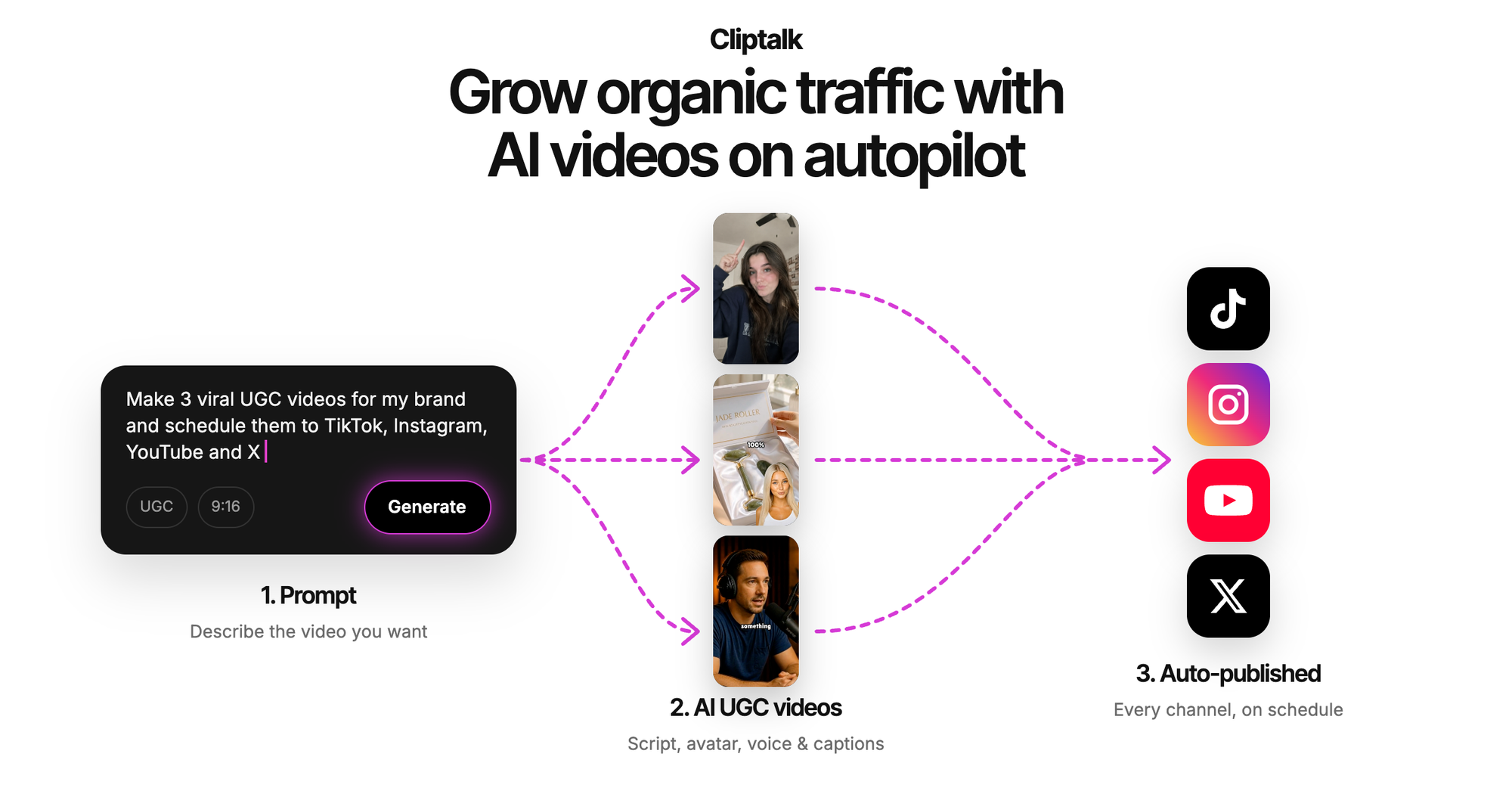
Paste your script, confirm the settings, and generate. In a full-video builder, the AI reads your text, splits it into scenes, matches visuals to each line, adds voiceover, and syncs captions. If you're curious how the visual matching works and how to steer it, we broke it down in how an AI video generator from text picks visuals.
Here's my routine when I generate a short in Cliptalk. I paste the finished script, set 9:16, pick the voice, and let it build. What comes back is already edited: captions timed to the voiceover, B-roll on every scene, and background music. Most of the time my only job after that is checking each scene.
If you're using a clip generator instead, generate one clip per scene and keep each prompt focused on a single shot. Trying to cram a whole story into a 10-second generation is the quickest way to get warped, confusing footage.
Step 4: Review and Fix Scene by Scene
Never post the first draft without watching it at full speed, with sound and without. Check:
- Visual mismatches. If a scene about "saving money" shows a random office, swap the B-roll. Specific nouns in your script ("piggy bank," "receipt," "calculator") give the AI better material to match.
- Pronunciation. AI voices sometimes stumble on brand names, acronyms, or unusual words. Spell them phonetically in the script if needed.
- Caption errors. Fix typos and make sure key words are emphasized.
- Pacing. Cut any scene that drags. On short-form, a scene longer than a few seconds without a visual change feels slow.
- The hook. Watch only the first two seconds. Would you stop scrolling? If not, rewrite that line and regenerate just that part.
This walkthrough shows the general edit-after-generation flow well:
Editing in place almost always beats regenerating the whole video. You keep everything that already works, and on credit-based plans you save credits for the next video. If you're weighing whether to finish edits in a separate app, our comparison of an AI video editor vs CapCut for short-form editing covers when each makes sense.
Step 5: Export and Post
Export as MP4 at the highest resolution your free tier allows. Then, before posting:
- Check for a watermark. If there is one and it's in the way, try a tool whose free tier is watermark-free rather than cropping it out.
- Write a platform-native caption and title. Don't just paste your script.
- Add a cover frame or thumbnail text for YouTube Shorts.
- Post natively to each platform rather than cross-posting a file with another app's watermark.
Writing Prompts That Work in Clip Generators
If you're generating standalone clips for B-roll, a structured prompt gives far more consistent results. Vidu publishes a simple formula that matches what I've found works across tools:
- Subject: who or what is on screen, with a detail or two ("a young woman in a yellow raincoat").
- Action: what's happening ("walking briskly across a crosswalk").
- Camera: shot type and movement ("low-angle tracking shot, following from behind").
- Scene: setting and light ("busy city street at dusk, wet pavement reflecting neon").
- Style: look and mood ("cinematic, warm, shallow depth of field").
Pixlr and MyEdit both say the same thing in their own words: the more detail you give about subject, setting, mood, and camera angle, the better the output. Keep in mind the hard limits, though. Adobe Firefly, for example, caps prompts at 1,024 characters, so prioritize the details that matter most.
A weak prompt: "a city at night." A strong prompt: "Slow aerial drone shot over a rainy Tokyo street at night, neon signs reflecting on wet asphalt, light traffic, cinematic, cool blue and pink tones."
Mistakes That Burn Through Free Credits
These are the habits that drained my free credits before I learned better:
- Generating before the script is final. Every rewrite after generation costs credits. Draft in a free script tool first.
- Regenerating the whole video for one bad scene. Swap or edit the single scene instead.
- Vague prompts. "Cool video about space" gives you something generic. Name the subject, action, and style.
- Wrong aspect ratio. Generating in 16:9 and cropping to vertical loses half the frame and often cuts off subjects.
- Testing every tool at once. Pick one full-video builder and one clip generator, learn them, and stop there.
- Ignoring length caps. If a tool generates 15 seconds max, plan your script in 15-second scenes.
Which Free Option Should You Pick?
Match the tool to the job:
- Faceless TikTok, Shorts, or Reels with narration: a full-video builder. This is where I get the most finished video per credit, because the voiceover, captions, and B-roll come together in one generation.
- Multilingual voiceover videos: Fliki's 2,000+ voices across 80+ languages, or Synthesia's 140+ language translation, are built for that.
- A single striking clip for an ad or intro: Pixlr, MyEdit, Adobe Firefly, or Kling.
- Talking characters, influencer-style videos, or niche formats like talking cat videos: look for a tool with dedicated generators. You can browse our free AI video tools, which include script generators with no signup and character tools with free starter credits.
FAQ
Can I really make a full video from text for free? Yes, within each platform's free allowance. A one-time credit pack or daily credits is usually enough for a few complete short videos if you finalize your script before generating.
Do free AI videos have watermarks? It depends on the tool. Pixlr and MyEdit advertise watermark-free downloads. Visla removes watermarks only on Premium. Check before you commit time to a project.
How long can a free AI video be? Clip generators typically produce up to about 15 seconds per generation. Full-video builders assemble longer videos from multiple scenes, so a 30 to 60 second short is realistic.
Do I need editing skills? No. Full-video builders handle scene splitting, captions, voiceover, and B-roll automatically. Your skill shows up in the script, not the timeline.
Can I use my own voice? Many tools support voice cloning from a short sample, including Cliptalk and Fliki. It's a good way to give a faceless channel a consistent, recognizable sound without recording every video.
Start with one script, one tool, and one finished short. Once that first video is posted, you'll know exactly how to spend the rest of your free credits.
Tags: ai video, text to video, short-form video, faceless channels, video scripts