How to Make Amazon Product Videos With Claude or ChatGPT (Agent Central + Cliptalk)
October 20, 2026
Written by Payam, with Agent Central setup guidance from Christian.
Product videos help Amazon shoppers understand a product faster than another row of images, and short vertical clips bring in traffic from TikTok, Reels and YouTube Shorts. The hard part for most sellers isn't knowing they should make them. It's finding the time to write a script, gather the right details and edit the result.
If you already use Claude or ChatGPT, you can do most of that in one chat. In this guide we connect two tools to the assistant: Agent Central, which brings your Seller Central data into the chat, and Cliptalk, which turns a brief into a finished video. The assistant does the work in between.
What you'll need
- A Claude or ChatGPT account that can add custom connectors (MCP servers).
- An Agent Central account connected to your Amazon Seller Central.
- A free Cliptalk account. New accounts get free credits to try it, with no card.
- Optional but recommended: your own product photos or clips.
Step 1: Why video is worth it for Amazon sellers
There are three places a product video earns its keep:
- On the listing itself. A short video next to your images can answer the questions shoppers would otherwise scroll for: what it looks like in use, how big it is, what's in the box.
- In ads. Video formats in Amazon's ad console can stand out in search results.
- Off Amazon. Vertical clips on TikTok, Instagram Reels and YouTube Shorts send new shoppers to your listing.
Each of these wants a slightly different cut: a calmer, product-first video for the listing and a faster, hook-first clip for social. The workflow below gives you both from the same source material.
Step 2: Connect Agent Central and Cliptalk to your assistant
Agent Central
Agent Central connects the AI you already use to your Amazon Seller Central account. For this walkthrough, Claude or ChatGPT can pull your product details and bullet points to help prepare a video brief for Cliptalk.
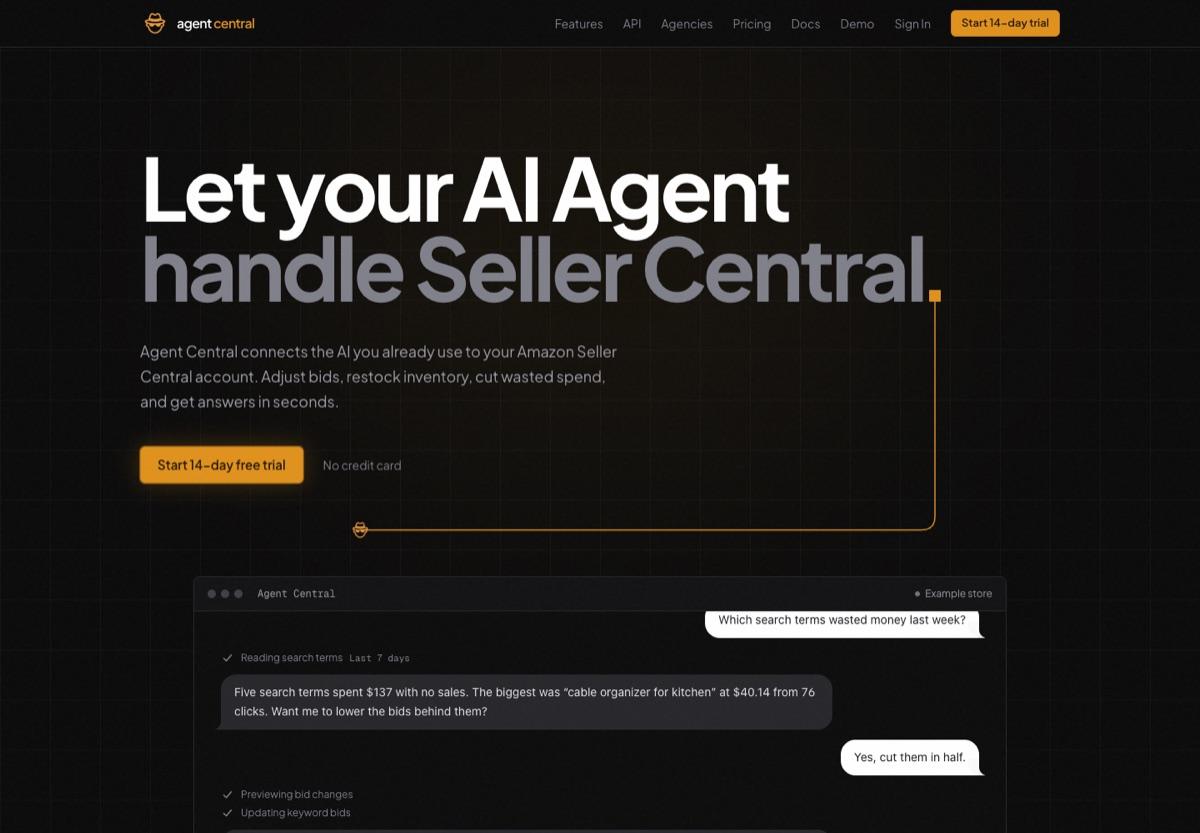
Setup:
- Create an account at agentcentral.to and connect Seller Central.
- Create an API key in the dashboard, then copy its Connector URL.
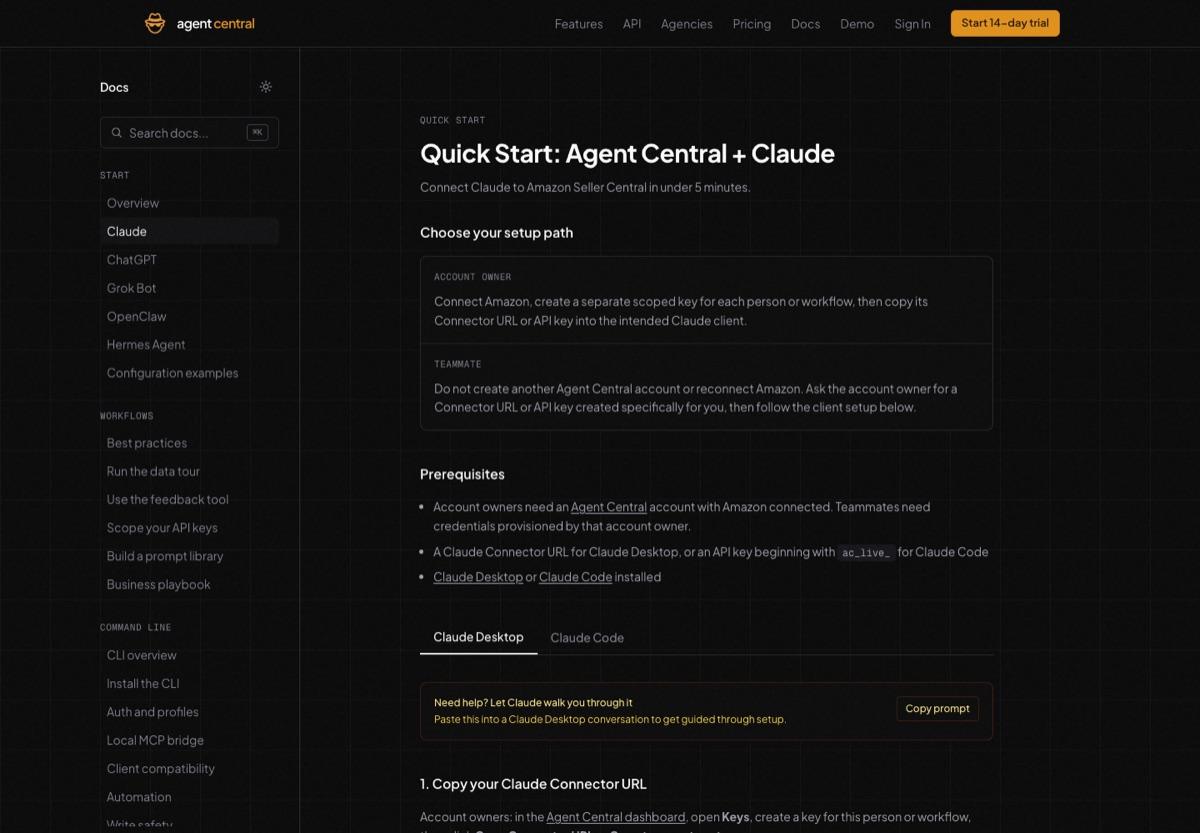
- Add the connection in Claude or ChatGPT using the relevant guide: Claude or ChatGPT.
Cliptalk
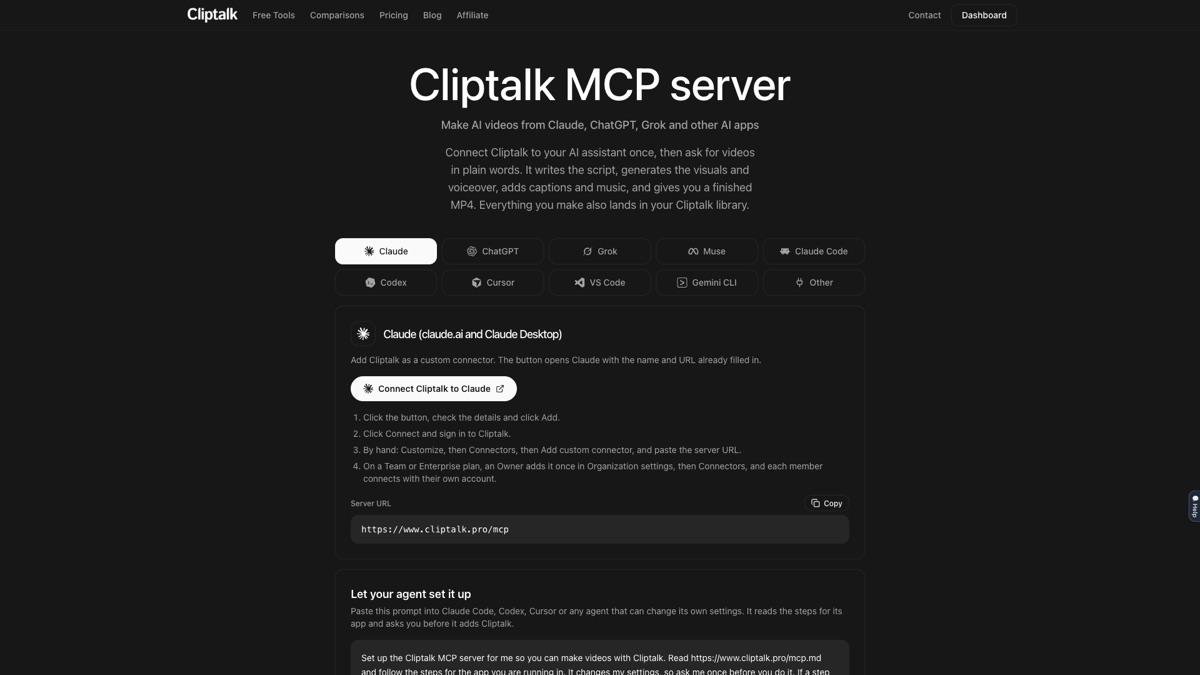
Cliptalk connects the same way, through its MCP server at https://www.cliptalk.pro/mcp. The setup page has a one-click button for each assistant:
- Claude: click "Connect Cliptalk to Claude", check the details and click Add, then click Connect and sign in to Cliptalk. By hand: Customize, then Connectors, then Add custom connector, and paste the server URL.
- ChatGPT: click the ChatGPT button and sign in to Cliptalk when asked. By hand: in Settings, under Security and login, turn on Developer mode, then open the plugins page, press the plus button and paste the server URL.
Once both are connected, the assistant can read from Seller Central and make videos in the same conversation.
Step 3: Pull your product details with Agent Central
Start by giving the assistant the facts it will build the video from. Agent Central returns the latest synced details for your products, so ask it to show when the data was captured:
Using Agent Central, get the latest synced title, bullet points and description for [ASIN]. Show when the data was captured, flag missing fields and quote the bullets without rewriting them.
Then check those details against your current listing in Seller Central, in case anything changed since the last sync.
If customer review themes are available in your marketplace, you can add them for extra angles ("summarize the three things customers mention most"). Amazon doesn't make them available in every marketplace, so treat this as optional.
Step 4: Turn it into a 30-second video brief
Now ask the assistant to plan the video before anything is generated:
Turn this into a 30-second video brief: a hook for the first 3 seconds, the three strongest benefits from the bullets, one shot idea for each, and a single call to action. Only use claims from the listing.
Read the brief and check every claim against the real product and what you can support, then fix anything that sounds off. It's much cheaper to change a sentence here than to change a finished video. A good brief for a listing video leads with the product in use; a good brief for TikTok leads with the problem it solves.
Step 5: Make the finished video with Cliptalk
With the brief ready, hand it to Cliptalk in the same chat. Three versions work well for Amazon sellers:
- A product-photo video for the listing: your own photos, one per scene, with a narrated voiceover, captions and music. Ask for 16:9.
- An explainer with Cliptalk's Explainer Video template: your benefits as animated text, counters and callouts in your brand colors. Good for ads and feature highlights.
- A UGC-style ad for social with the UGC Ad template: a virtual creator talks to camera about your product, with a hook in the first seconds and one call to action. Ask for 9:16, and tell it not to invent first-person product use or customer testimonials: the creator should describe what the product does, not claim to have used it.
For example:
Make a 30-second 16:9 video from this brief with Cliptalk, using my product photos for the scenes, with a calm voiceover and captions.
Now make a 9:16 version for TikTok with Cliptalk's UGC Ad template. The creator should describe the product's features, without claiming to have used it or quoting reviews.
Cliptalk writes the final script, generates the visuals and voiceover, adds captions and music, and returns a finished MP4. Everything you make is also saved in your Cliptalk library.
Use your real product. For anything that appears on your listing, give Cliptalk your own product photos or clips (upload them to your Cliptalk library, or share links to them in the chat) so the video shows the product exactly as it is. Keep fully AI-generated visuals for lifestyle and social clips.
If something isn't right, ask for the change in plain words: "make the hook shorter", "slow down the voiceover", "swap the music for something calmer". You don't need to start over.
Step 6: Where to use it, plus a quick checklist
- Listing video: if your brand is registered, you can add videos to your listing from Seller Central. Check Amazon's current video guidelines before you upload.
- Ads: try the 16:9 version in your video ad campaigns.
- TikTok, Reels and Shorts: post the 9:16 version and point viewers to your listing.
Before you publish, check that:
- Every claim in the script and visuals is one you can support, and matches the real product.
- The product on screen is your real product, the right color and size.
- Captions are spelled correctly and readable on a phone.
- The first three seconds work with the sound off.
- The call to action tells people exactly what to do next.
Wrapping up
The whole loop takes one conversation: Agent Central brings in your latest synced product details, the assistant turns them into a brief, and Cliptalk turns the brief into a finished video. Once it's set up, making the next video is mostly a matter of changing the ASIN.
Try it with Agent Central and Cliptalk's MCP server.