9 Free AI Video Editors Without Watermarks
· 14 min read
Searchers asking for a free AI video editor without a watermark usually want one thing: a finished, postable MP4 with no logo burned into the corner, without handing over a card. The short answer is that CapCut and DaVinci Resolve are the safest fully free editors, and if you are producing short-form content from scripts rather than trimming your own footage, Cliptalk is the one I reach for because it renders captions, B-roll, and AI voiceover into a clean, watermark-free vertical video from a text prompt instead of asking you to build a timeline.
I have run the same 45-second vertical script through most of the tools below, exported, and checked the file. That is the only test that matters here, because "free" and "no watermark" are two different promises and plenty of tools only keep one of them.
What "no watermark" actually means on a free plan
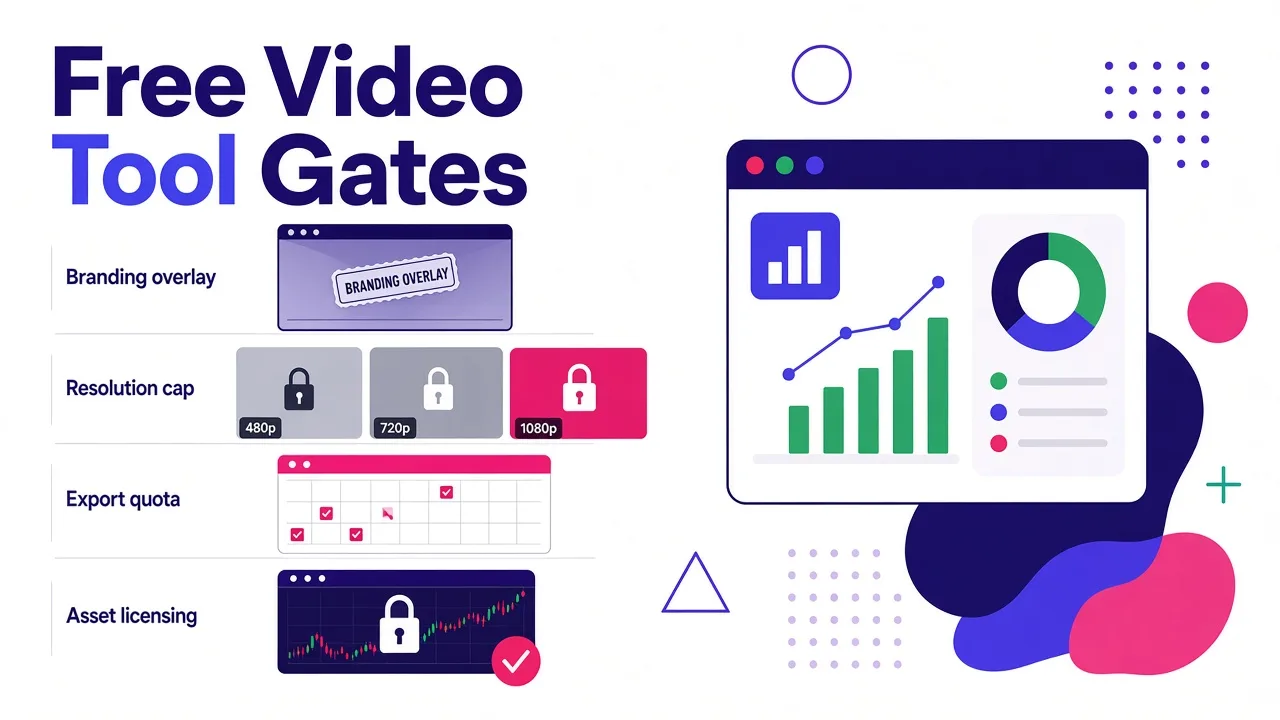
There are four separate gates tools use, and only the first one is a watermark:
- Branding overlay. A logo or "Made with X" stamp on the export. This is what most people mean.
- Resolution cap. Clean export, but at 480p or 720p. Clipchamp, for example, exports 480p with no watermark for free and reserves 720p and 1080p watermark-free exports for a premium account.
- Export quota. Clean, full-quality files, but a hard count. Satura's free account allows low or medium quality exports, up to one per day and ten per month.
- Asset licensing. No watermark on your own footage, but premium stock clips, music, or fonts get stamped or blocked until you upgrade. Canva and most template libraries work this way.
A tool can be genuinely watermark-free and still be useless to you because of gate two, three, or four. So when I review each option below, I say which gate you actually hit.
One more thing worth knowing before you pick: commercial use. If you are publishing videos for a client or a monetised channel, read the free tier's licence, not the marketing page. Several "free forever" tools restrict free exports to personal use, and a watermark-free file is not the same thing as a file you are allowed to sell.
Quick comparison
| Tool | Best for | Free plan watermark | Main free-tier limit |
|---|---|---|---|
| Cliptalk | Script or article to finished short-form video | No | Free credits, then a paid plan for volume |
| CapCut | All-round social editing, mobile and desktop | No | Some AI features and effects are Pro-only |
| DaVinci Resolve | Serious editing, colour, finishing | No | Steep learning curve, heavy hardware needs |
| Vmaker AI | Auto-editing raw talking-head footage | No branding overlays in the editor | AI credits on free use |
| Snipsound | Fast captioned clips with no account | No | Browser-only, basic timeline |
| Clipchamp | Windows users, simple edits | No | 480p free, HD needs premium |
| Canva | Design-led video, brand templates | No on your own assets | Premium elements and stock gated |
| Satura | Real multi-track timeline in a browser | No | 1 export per day, 10 per month |
| Vivideo | Generative text-to-video clips | No | Short clip lengths on free tier |
1. Cliptalk
Best for: creators and marketers who write or repurpose text and want a finished short-form video out the other end.
This is the tool I use for my own posting schedule, so treat this entry as biased but specific. The workflow is not timeline editing. You paste a script, an article, or a one-line prompt, pick a voice and a caption style, and it assembles the video: B-roll matched to the narration, word-level captions, an AI voiceover (or your own cloned voice), and optionally an AI character presenting to camera. Exports are clean 9:16 files sized for TikTok, Reels, and Shorts.
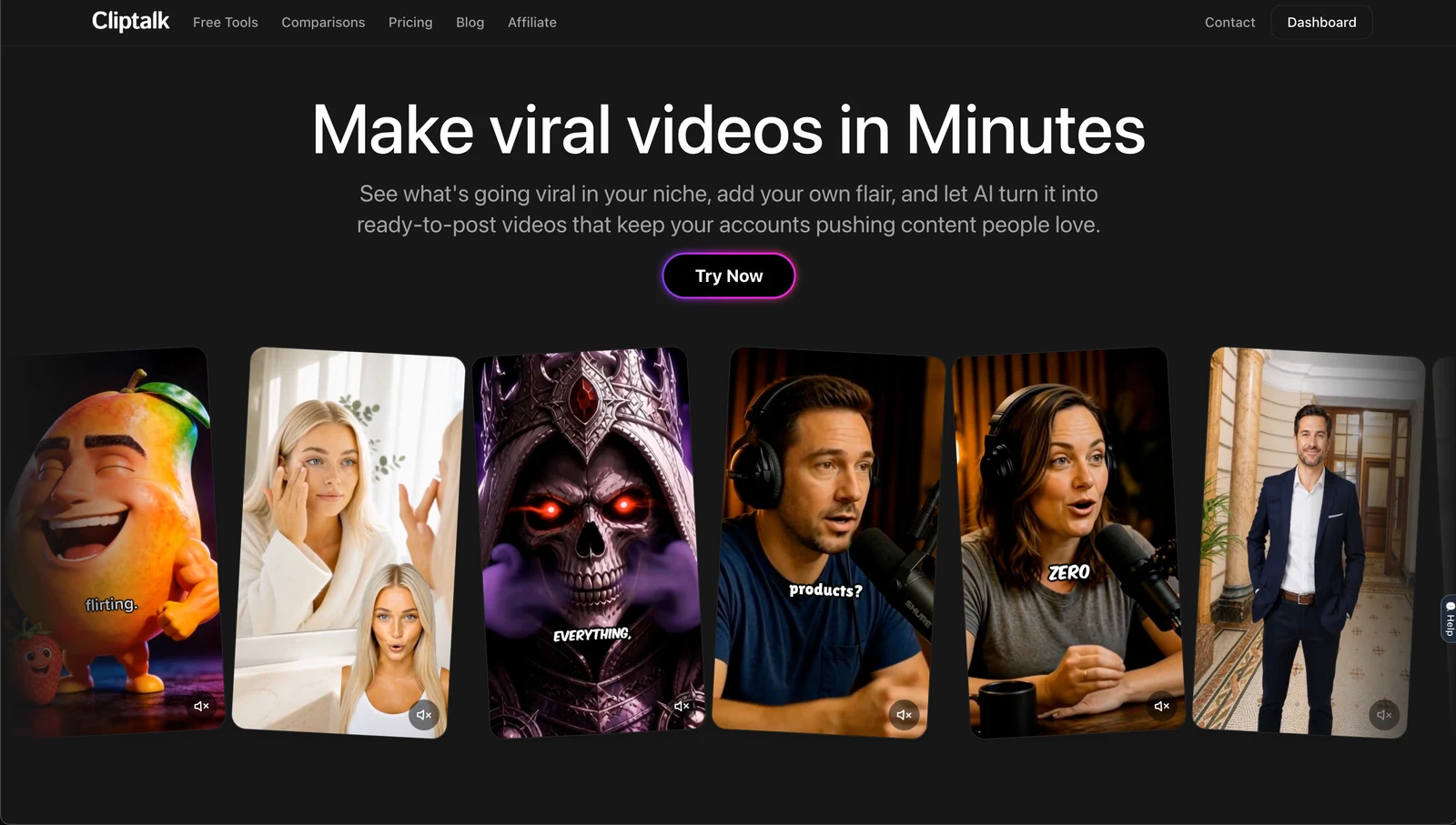
What makes it the right pick for the watermark question specifically: the output is not stamped, and you can start on free AI video tools and script generators without signing up at all for the text side, then spend free credits on your first renders. For faceless channels, that means you can test whether a format works before you pay anything.
Pros
- Text to finished video in one pass, no timeline required
- Auto-captions with word-level timing, which is the single biggest retention lever on short-form
- AI voiceovers plus voice cloning, so a faceless channel can keep one consistent narrator
- Automatic B-roll selection, which is the part that eats the most time if you do it manually
- Clean exports in vertical, square, and horizontal
Cons
- Credit-based, so the free tier is a trial allowance rather than unlimited free editing; plans start cheap but volume costs money
- It is not a frame-accurate editor. If you need to colour grade, keyframe, or cut a multi-camera interview, this is the wrong category of tool
- AI-chosen B-roll still needs a human pass. I swap two or three clips per video, roughly
- Generated voiceover reads scripts well but will mispronounce niche brand names until you spell them phonetically
My verdict: if your bottleneck is "I have 20 ideas and no time to edit," this wins. If your bottleneck is "I have 10 hours of raw footage," skip to Resolve or CapCut.
2. CapCut
Best for: almost everyone making social video who wants a real editor for free.
CapCut is still the default answer and for good reason. The free tier exports with no watermark, it runs on phone, desktop, and browser with the same project, and the AI features that matter day to day are included: auto-captions, background removal, auto-reframe, and a huge effects library.
Pros
- Genuinely watermark-free on the free plan, at full resolution
- Best library of trend-aware templates, transitions, and caption presets
- Strong auto-captions in many languages
- Projects sync between mobile and desktop, which is rare at this price
Cons
- Not every AI feature is free. Pricing for the paid tier is reported anywhere from around $8 to $20 a month depending on plan and region, and the best upscaling, stock, and some AI tools sit behind it
- Templates can stamp their own branding or credits if you do not remove the end card, which catches people out
- Ownership by ByteDance means some organisations and regions restrict it; check your employer's policy before you build a workflow on it
- The interface keeps changing as features get reshuffled into the paid tier
My verdict: the strongest free general-purpose option. If you only install one thing from this list and you edit your own footage, install this.
3. DaVinci Resolve
Best for: anyone who wants professional output and is willing to learn.
Resolve's free version is not a trial. It is a finishing-grade non-linear editor with colour, audio, and VFX pages, no watermark, no export cap, and no subscription. Its AI tools include Magic Mask, which isolates a subject automatically instead of making you rotoscope by hand. The Studio upgrade is a one-time $295 licence, not a monthly fee, which is still the best value in this entire category.
Pros
- No watermark, no resolution limit, no time limit, no account games
- Best colour grading and audio tools available at any price
- AI subject masking and tracking save genuine hours on cutouts
- Free version is enough for commercial client work
Cons
- The learning curve is the steepest here by a wide margin
- Hardware hungry. An older laptop will struggle with 4K timelines
- Short-form specific jobs like animated captions and auto-reframe take more manual work than in CapCut
- A few codecs and AI features are Studio-only
My verdict: the best free editor full stop, but the worst fit if your goal is three TikToks a day.
4. Vmaker AI
Best for: turning raw talking-head or screen-recorded footage into a published edit automatically.
Vmaker sits in the auto-edit camp: you upload an MP4 or MOV, and it adds B-roll, stickers, background music matched to mood, text animation, smart zooms, transitions, and intro/outro cards, then hands you an editable timeline. It advertises subtitles in 75+ languages with 100+ styles, and the timeline editing is described as having no visual clutter and no branding overlays. There is also a clip maker that pulls shorts out of long-form uploads.
Pros
- The auto-edit pass genuinely covers the boring 80 percent: zooms, B-roll, music, captions
- Long-form to shorts conversion built in
- No credit card to start
- AI avatars and 150+ voices if you want narration without filming
Cons
- Auto-edits have a recognisable house style. Smart zooms get overused and you will dial them back
- Free usage is credit-limited, so this is a "try it" free rather than "live on it" free
- Less control than a conventional timeline if you want precision
- Quality depends heavily on clean input audio
My verdict: a good middle ground if you film yourself but hate editing yourself.
5. Snipsound
Best for: the fastest possible captioned clip with no sign-up and no uploads.
This one surprised me. It runs entirely in the browser, so your files never leave your device, there is no account, and it exports a standard H.264 MP4 with no watermark. You paste a script, get an AI voiceover from 24 voices, and captions are generated from that script with exact per-word timing instead of a separate transcription step, which is why they actually line up. Caption presets cover the styles creators recognise, including one-word pop and karaoke, and there is a safe-zone guide so captions do not sit under the TikTok UI.
Pros
- No account, no watermark, no upload. Genuinely private
- Word-perfect caption timing because it comes from your script, not from a transcript guess
- Royalty-free music library built in
- Vertical, square, and 16:9 crops with social safe zones
Cons
- It is a light editor, not a timeline. Trim, arrange, text, stickers, and that is mostly it
- Voice model downloads once (around 88 MB), so the first run is slow
- In-browser rendering means long videos tax your machine
- No B-roll sourcing, you bring your own footage
My verdict: the best choice when you need one clean clip in ten minutes and do not want another login.
6. Clipchamp
Best for: Windows users who want something simple and already have it installed.
Clipchamp ships with Windows and handles the basics well: trim, crop, resize, text, filters, transitions, multiple audio tracks, plus a large template library organised by industry. It markets itself hard on watermark-free export, and that is true, with an asterisk.
Pros
- Watermark-free export on the free plan
- Already there if you use Windows, nothing to install
- Decent brand kit so you can add your own logo rather than someone else's
- Easy enough that non-editors in a team can use it
Cons
- Free watermark-free export is capped at 480p. 720p and 1080p clean exports need premium
- Light on real AI. Captions and basic tools, not auto-editing
- Browser-based performance is average on big projects
- Microsoft account required
My verdict: fine for internal videos and quick trims. The 480p ceiling rules it out for anything you want to look good in a feed.
7. Canva
Best for: brand-consistent video when the design matters more than the edit.
Canva's video editor is the easiest way to make something that looks designed rather than edited, and it has absorbed a pile of AI features including text-to-video generation and background removal. Free exports of your own content are not watermarked. The catch is licensing, not branding.
Pros
- Best template and brand-kit system of anything here
- Multi-format resize in a click, useful when one asset ships to five platforms
- Collaboration is excellent for small teams
- Pro is around $15 a month if you need it, which is reasonable for what you get
Cons
- Premium elements, stock video, and some fonts are gated on free, and that is where most people hit a wall
- Timeline is simplistic. Precise audio or cut work is painful
- Heavy in the browser with long projects
- AI video generation is more of a side feature than a strength
My verdict: great for marketers, frustrating for editors.
8. Satura
Best for: someone who wants an actual multi-track timeline without installing software.
Satura is the most honest free-tier page I read while researching this, which bought it a lot of goodwill. It runs a real multi-track timeline in the browser with ripple, slip, slide, and rolling edits, WebGPU-accelerated effects, 25 blend modes, keyframeable masks, and green-screen keying with spill suppression. Exports are clean. The limit is quantity: a free account gets low or medium quality exports, up to one per day and ten per month, and an account is required.
Pros
- Pro-grade timeline mechanics, not a glorified trimmer
- GPU-accelerated effects that preview in real time
- No watermark on exports
- Works on Chromebooks and anything with a modern browser
Cons
- One export per day on free is the real constraint, and ten a month will not sustain a posting schedule
- Free exports are capped at low or medium quality
- Needs a capable browser and GPU for the effects to be smooth
- Fewer AI conveniences than the social-first tools
My verdict: the best free browser timeline for occasional, careful projects.
9. Vivideo
Best for: free generative clips from text or an image.
Vivideo is a generator rather than an editor. It routes prompts through multiple third-party models and offers a free tier with no watermark on text-to-video and image-to-video output, available on web, iOS, Android, and as a Chrome extension, with no card required.
Pros
- Watermark-free output on a free tier, which is unusual for generative video
- Access to several models from one interface, so you can compare looks
- No credit card to start
- Useful for abstract B-roll you cannot film
Cons
- Newer platform, launched in 2024, so expect rough edges and changing limits
- Free tier restricts clip length; extended durations need premium
- Generated clips still need assembling, captioning, and sound somewhere else
- Model availability and queue times fluctuate
My verdict: a free source of generated shots, not a place to finish a video.
Tools that say "no watermark" but mean "no watermark, once you pay"
A few popular names come up constantly on this search and deserve an honest note rather than a list slot:
- VEED has excellent AI features including text-based editing, filler-word removal, and auto B-roll, but watermark-free exports at 1080p to 4K are an upgrade. Its Starter tier is around $12 a month.
- Media.io advertises watermark-free export from its browser editor and does deliver clean files, but resolution choices and the better AI tools push you toward a plan quickly.
- Cinema8 exports and hosts without platform branding and is aimed at marketing teams, with a free licence behind signup. Capable, but built for hosting and interactive video more than short-form.
- Descript is the best transcript-based editor going, and its AI assistant plus the newer ability to drive edits from Claude over MCP is genuinely clever. Verify the current free-tier export rules before you build on it.
- OpusClip is the strongest dedicated long-form to shorts tool, automatically detecting five to ten strong moments in a podcast or interview. Check the free plan's branding rules on the clips it returns.
None of these are bad tools. They are just not the answer to this particular query without a card.
The workflow I actually use
A few things I have learned running the same scripts through all of these:
Write the script before you open any editor. Every AI tool, generative or not, produces better video from a tight script than from a vague prompt. I draft with a free YouTube script generator to get a hook-to-CTA structure down word for word, then feed that exact text into whichever tool is rendering. Captions generated from a known script beat captions transcribed from audio every time, because the timing is exact rather than inferred.
Learn five pieces of editing vocabulary. Natural-language editing does not remove the need to know what you want. "Add a J-cut into the B-roll" gets executed in one pass. "Make this feel smoother" costs you four re-prompts. Shot types, cutaways, J and L cuts, safe zones, and loudness normalisation are the five that pay for themselves.
Export once, check the file, then scale. Before you commit a week of production to a tool, render one real 30-second video at the resolution you will actually publish and open the MP4. Check for branding, check the resolution, check the audio loudness. Marketing pages describe the paid plan more often than the free one.
Do not fragment your stack. The most common mistake I see is generating in one tool, captioning in a second, voicing in a third, and exporting from a fourth. Every handoff costs quality and time. Pick one tool that covers 80 percent of your output and keep a second for the exceptions.
FAQ
Is there a truly free AI video editor with no watermark? Yes. CapCut and DaVinci Resolve both export without branding on their free versions at full resolution, and Snipsound exports clean MP4s without even an account. The trade-offs show up elsewhere: feature gating, learning curve, or a limited feature set.
Which free editor has the best AI captions? For accuracy, anything that generates captions from a script you supply rather than transcribing audio will win, because the word timing is known rather than estimated. For style variety on footage you already have, CapCut's presets are the deepest free option.
Can I use free, watermark-free exports commercially? Sometimes. DaVinci Resolve's free version allows commercial work. Several other free tiers limit output to personal use or restrict premium stock to paid licences. Read the terms for the specific assets you use, not just the editor.
What is the catch with free AI video tools? Usually credits. Generation, voiceover, and avatar features cost the provider real compute, so free tiers meter them even when the editor itself is unlimited. The honest tools tell you the number up front, like one export per day. The ones to avoid are the ones that reveal the watermark at the export screen.
I only have 30 minutes a week. What should I use? A script-to-video tool, not a timeline editor. Write the script, pick a voice and caption style, review the auto-selected B-roll, swap the two clips that miss, and publish. That is a ten-minute loop per video once you have your style set, and it is the only approach on this list that scales to daily posting without an editor on payroll.
Tags: video editing, ai video, short-form video, content creation, social media video