10 Best AI Video Editing Apps in 2026
· 10 min read
I have spent the last two years making short-form video for a living, and the honest answer to "what is the best AI video editing app" is that it depends on whether you are editing footage you already shot or creating video you never filmed. If you are making faceless or script-first short-form content for TikTok, Reels and Shorts, I use and recommend Cliptalk, because you can paste a script or an article and get back a finished vertical video with captions, B-roll, and an AI voiceover already assembled instead of a blank timeline. If you shot the footage yourself and need to cut it down, Descript and OpusClip will serve you better, and if you need to alter real footage at a shot level, Runway is the only tool on this list that does it properly.
Below are the ten apps I keep installed, ranked by how often they actually earn their place in my week, with what each one is bad at.
How I judged these
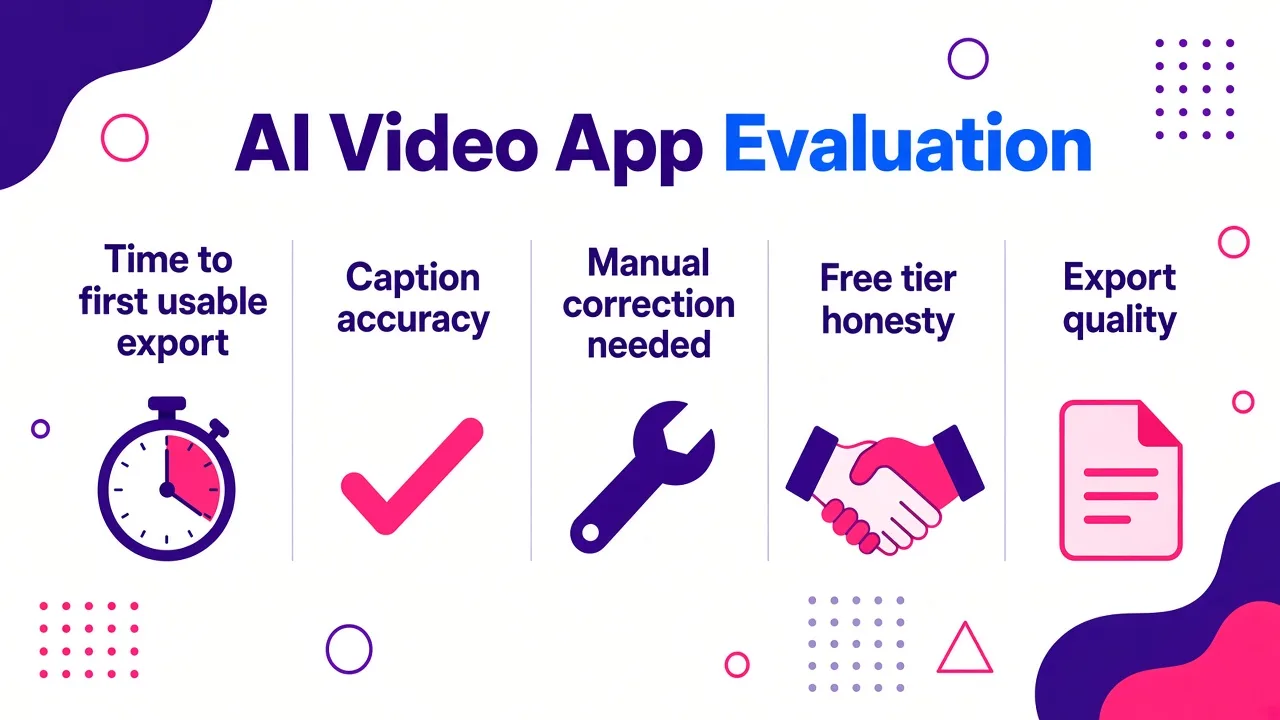
Marketing copy is useless here, so I scored every tool on five things I can measure on my own projects:
- Time to first usable export. Upload or prompt to a file I would actually publish.
- Caption accuracy. Checked against a manual transcript, because fixing bad captions eats the time the AI saved.
- How much manual correction the AI cuts need. An automated edit that I re-cut by hand is not an automated edit.
- Whether the free tier is honest. Watermarks, resolution ceilings and AI paywalls are three separate traps, and plenty of tools set all three.
- Export quality and compatibility. MP4 for direct publishing, timeline export for anything that goes downstream.
The category is on track for roughly $3.75 billion in 2026, with Mordor Intelligence naming generative AI as the top growth driver, so expect this list to shift again next year. Adobe also reports that nearly nine in ten creators say AI tools accelerate the growth of their business or audience, which matches what I see: the win is volume, not artistry.
1. Cliptalk, best for faceless and script-first short-form
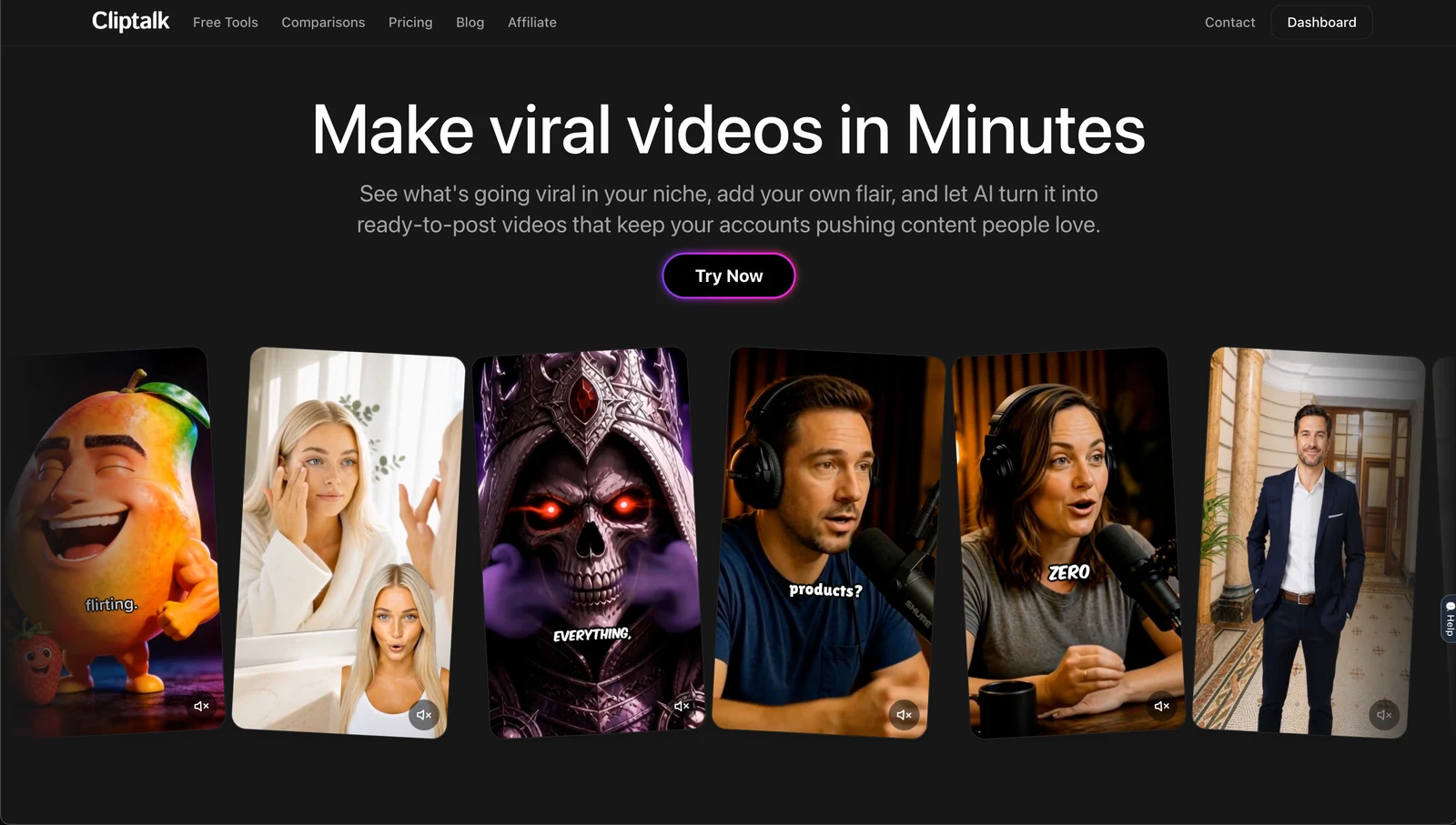
This is the one I open most days. You give it a text prompt, a full script, or a URL to an article, and it returns an edited vertical video with auto-captions, matched B-roll, an AI voiceover, and optionally an AI character presenting to camera. There is a normal editor behind it, so when the AI picks a weak B-roll clip for a line I swap it in about ten seconds rather than rebuilding the scene. Voice cloning means a faceless channel can still sound like one consistent person across hundreds of uploads.
Pros
- Script or article in, publish-ready vertical video out, with no footage required
- Captions, B-roll, voiceover and characters handled in one pass instead of four tools
- Free script and video tools you can test before paying, including a YouTube script generator that works with no signup
Cons
- It is built for vertical short-form, so it is the wrong tool for a 40 minute documentary edit
- No colour grading, multicam or audio mixing depth. This is not an NLE replacement
- AI-selected B-roll still needs a human pass on technical or niche topics
Who it fits: faceless channel operators, marketers repurposing blog posts, and anyone publishing daily who does not want to appear on camera. If you film yourself and just need the footage trimmed, pick number two or three instead. You can start from a prompt here.
2. Descript, best for text-based editing of talking-head video
Descript transcribes your recording and lets you edit the video by editing the transcript. Delete a sentence in the text, the video cuts. Its AI assistant, Underlord, will write or critique a script, apply layouts, and make editing suggestions. The supporting tools are the real value: Studio Sound for noise, Remove Filler Words, Eye Contact so reading a script still looks like eye contact, green screen, translation and captions.
Pros
- The fastest way to cut a podcast, interview or tutorial if you can use a backspace key
- Studio Sound genuinely rescues audio recorded on bad microphones
- Layouts and scenes make a plain recording look designed without motion graphics work
Cons
- Plans are metered in media hours and AI credits, so heavy months get expensive fast
- Performance drags on long multi-hour projects
- Weaker than dedicated tools if you want generated footage rather than edited footage
Who it fits: podcasters, course creators, and anyone whose video is mostly a person talking.
3. OpusClip, best for turning long video into clips
OpusClip takes a long recording and pulls out the moments most likely to perform as shorts, then adds captions, B-roll, motion design, music and sound effects in one pass. Its AI Producer agent produces an edit log explaining what it changed and why, and you can tell it in plain language to adjust one thing without it regenerating the whole video. The company cites 16 million creators and businesses using it, and the client list skews toward large channels.
Pros
- Best-in-class at finding the clippable moment inside an hour of footage
- Text-based editing plus a real timeline for the last mile
- Auto reframe, filler word removal and voiceovers all in one place
Cons
- Clip selection still misses context-heavy moments and needs a human review pass
- It needs good source footage. It cannot invent a video you never recorded
- Branding and layout options are narrower than a general editor
Who it fits: podcasters and long-form YouTubers who need ten shorts a week from existing content. I wrote a full walkthrough of turning long videos into Reels with AI if that is your main workflow.
4. CapCut, best free app for mobile short-form
Still the default for a reason. CapCut exports up to 4K on desktop with no watermark on the free tier, which almost nothing else does, and the auto-caption tool covers 10 minutes per video for free. The template library is why trends spread as fast as they do.
Pros
- Genuinely free 4K export with no watermark
- Mobile and desktop parity, so you can start on a phone and finish on a laptop
- Enormous template and effect library tied to current trends
Cons
- Many of the better effects and AI features sit behind Pro at around $9.99 per month
- Template-driven output looks like everyone else's template-driven output
- Ownership and availability questions have made some teams nervous about standardising on it
Who it fits: solo creators editing on a phone who want zero cost and maximum trend coverage.
5. VEED, best browser-based all-rounder
VEED does a bit of everything in a browser tab: drag-and-drop timeline, text-based editing, Auto Edits that add subtitles, clean audio and insert B-roll automatically, subtitle translation into over 125 languages, eye contact correction and voice cloning. It holds a 4.6 rating across more than 2,100 reviews, which is unusually high for a tool this broad.
Pros
- No install, works on any machine, good for teams that share projects
- Translation and subtitle workflow is one of the strongest available
- Covers generation and editing, so you rarely leave the tab
Cons
- Watermark-free 1080p to 4K export requires a paid plan
- Browser rendering slows down on long or asset-heavy timelines
- Being good at everything means it is best-in-class at nothing
Who it fits: marketing teams who need captions, translations and quick social cuts without IT involvement.
6. Runway, best for changing what is inside real footage
Runway is a different category. With Aleph 2.0 and Edit Studio you upload a clip, describe the change in plain language, preview it as a still frame, then apply it across the sequence, including across cuts. Swap a backdrop, change the lighting or season, replace a product colourway, remove a distraction. Salomon, Under Armour and the History Channel have all shipped production work on it.
Pros
- Localised edits that leave motion, framing and everything else untouched
- One source clip becomes the summer and winter versions of a campaign
- Image preview before generating saves a lot of wasted credits
Cons
- Edit Studio sequences cap at 30 seconds at 1080p
- Free tier is 720p with a watermark and 125 one-time credits that do not refresh monthly
- Paid starts around $12 per month and credits still disappear quickly
Who it fits: post-production teams, agencies and anyone who would otherwise book a reshoot.
7. DaVinci Resolve, best free professional editor
Resolve 21 is the serious one. Free, no watermark, up to 4K export, with real AI inside the free build: Magic Mask for rotoscoping, voice isolation, and automatic colour matching. The paid Studio version is a one-time $295, not a subscription.
Pros
- Hollywood-grade colour and audio for zero cost
- One-time purchase upgrade path instead of a monthly bill
- Magic Mask alone replaces hours of manual masking
Cons
- The steepest learning curve on this list by a wide margin
- A chunk of the Neural Engine tools are reserved for Studio
- Demands a reasonably powerful machine
Who it fits: editors doing long-form or client work who want to own their software.
8. Adobe Premiere Pro, best for AI inside a professional timeline
Premiere's recent updates put generative tools directly in the timeline. A generative taskbar lets you fill a gap in the edit with generated footage that samples your existing clips for context, so a generated drone shot matches the location and the grade of the surrounding material. Generate Sound Effects works the same way, with Soundscape and Music in beta.
Pros
- Industry standard, so collaboration and handoff are never a problem
- Text-based editing plus excellent auto-transcription and captions
- Generative fills that respect the look of your existing footage
Cons
- Subscription only, with a 7 day free trial and no perpetual licence
- Overwhelming for beginners
- Generative audio is still rough. I have had sound effects that fought the picture
Who it fits: professional editors and teams already inside Creative Cloud.
9. Canva, best for non-editors working inside brand templates
Canva's AI video editor sits on top of the design tool half your company already uses. Magic Studio handles text-to-video and captions, and brand kits keep output consistent across people who have never edited anything.
Pros
- The shortest learning curve here
- Brand consistency across a whole team with no training
- Free 1080p export when you stick to free elements
Cons
- Use a Pro element and a watermark appears on the free plan
- Timeline control is shallow once you need precision
- Output reads as templated to anyone who looks closely
Who it fits: small businesses and internal teams where speed beats craft.
10. Kapwing, best for fast one-off browser edits
Kapwing is the tool I open to crop something, burn in subtitles, or resize a clip at short notice. It is fast and requires nothing installed.
Pros
- Quickest path from a link to a fixed-up clip
- Collaborative, link-shareable projects
- Clean, uncluttered interface
Cons
- Free tier is 720p, watermarked, with a one minute export cap
- Free AI subtitles are limited to 10 minutes per month
- Pro at $24 per month is expensive next to what it does
Who it fits: anyone needing occasional quick fixes rather than a daily editing home.
Quick comparison
| App | Best for | Free tier reality |
|---|---|---|
| Cliptalk | Faceless short-form from text | Free tools and credits to start |
| Descript | Text-based talking-head edits | Metered media hours and AI credits |
| OpusClip | Long video into clips | Limited free clipping |
| CapCut | Mobile short-form | 4K, no watermark |
| VEED | Browser all-rounder | Watermarked exports |
| Runway | Editing real footage with AI | 720p, watermark, 125 one-time credits |
| DaVinci Resolve | Free professional editing | Up to 4K, no watermark |
| Premiere Pro | AI in a pro timeline | 7 day trial only |
| Canva | Brand templates | 1080p with free elements only |
| Kapwing | Quick fixes | 720p, watermark, 1 min cap |
How to actually choose
Answer one question first: do you have footage? If yes, you want an editor, and the choice is Descript for talking heads, OpusClip for long-form repurposing, Runway for altering shots, Resolve or Premiere for everything serious. If you have no footage and no intention of filming, an editor is the wrong purchase entirely. You want generation plus auto-editing, which is a different product even when the marketing words overlap.
Second, check the free tier against what you publish. A 720p watermarked export is a demo, not a workflow. Third, test the captions on your own accent and vocabulary before you commit, because caption cleanup is where the promised time savings quietly disappear.
If you are still weighing two tools against each other, I keep honest side-by-side breakdowns of the main options rather than a feature matrix nobody reads. Most people end up running two apps: one that generates and assembles, one that gives them manual control for the ten percent that matters.
Tags: video editing, ai tools, short-form video, content creation, video software