9 Best Caption Apps for TikTok, Tested for Accuracy and Style
· 13 min read
The best caption app for TikTok depends on how you make your videos. If you build videos from a script, prompt, or article, Cliptalk is my top pick. It writes the captions, voiceover, and B-roll in one pass. The caption text comes from words you already wrote, not from a speech model guessing at noisy audio, so there is less to fix before you post. If you film yourself and want a free editor, CapCut is the strongest all-rounder. iPhone creators who want AI to handle the editing should look at Captions. Below is how all nine apps compare on accuracy, caption style, watermarks, and price.
Why captions matter so much on TikTok
Most of your audience watches without sound.
- Most views are silent. Studies put silent mobile viewing at around 85%. An older Verizon Media and Publicis study found 80% of viewers watch social video without sound.
- Captions add watch time. A Kapwing creator survey found videos with burned-in captions earned 40% more watch time on average than the same videos without them.
- TikTok recommends them. TikTok's own Creator Portal lists dynamic captions as a retention tactic.
Manual captioning is slow too. One creator who publishes about 40 short videos a week timed herself at 11 minutes to caption a single 90-second clip by hand. At that volume, you lose an entire workday every week just on subtitles.
Captions are not optional for TikTok growth. The real question is which tool gets you to clean, good-looking captions with the least cleanup.
How I tested these caption apps
I put the same clips through each app to keep the test fair:
- A clean talking-head clip
- A noisy outdoor clip
- A fast talker with slang
- A script full of brand names and numbers
I scored the apps on five factors:
- Transcription accuracy. Did names, numbers, and slang come out right? Tests from other users show that anything under 95% word-level accuracy forces you to edit every clip by hand.
- Caption style. Does it include word-by-word highlighting, animated pop-ins, keyword emphasis, and brand fonts? Style on TikTok directly impacts how long viewers stay.
- Watermark and free tier. Can you export a clean 9:16 video for free, or does the free plan only tease the full tool?
- Workflow speed. How many taps or clicks does it take from upload to a ready-to-post file?
- Platform. iPhone, Android, browser, or desktop.
I learned quickly that every app's "99% accurate" claim comes from the vendor, not real use. Accents, background music, and mumbling trip up any engine. Plan a 30-second proofread on every video, no matter which app you use.
1. Cliptalk: best for creating captioned TikToks from a script
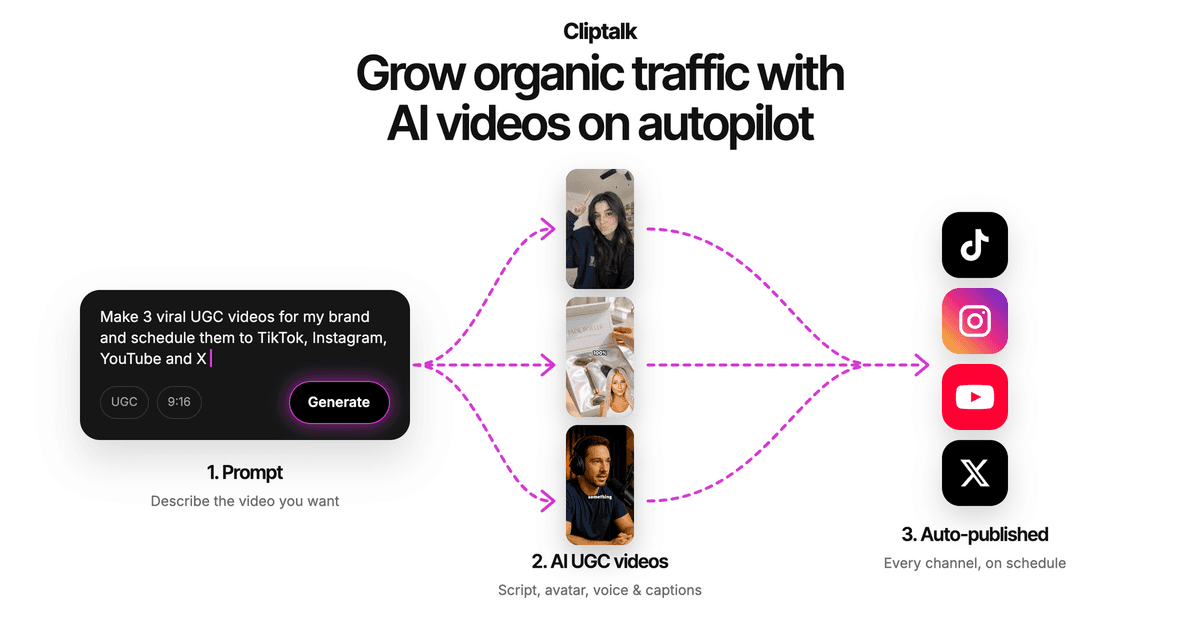
This is the tool I use for most of my faceless and script-driven TikToks. It goes beyond a basic caption app. Feed it a text prompt, script, or article and it produces a fully edited short-form video that includes:
- Auto-captions
- AI B-roll
- An AI voiceover
- Optional AI characters
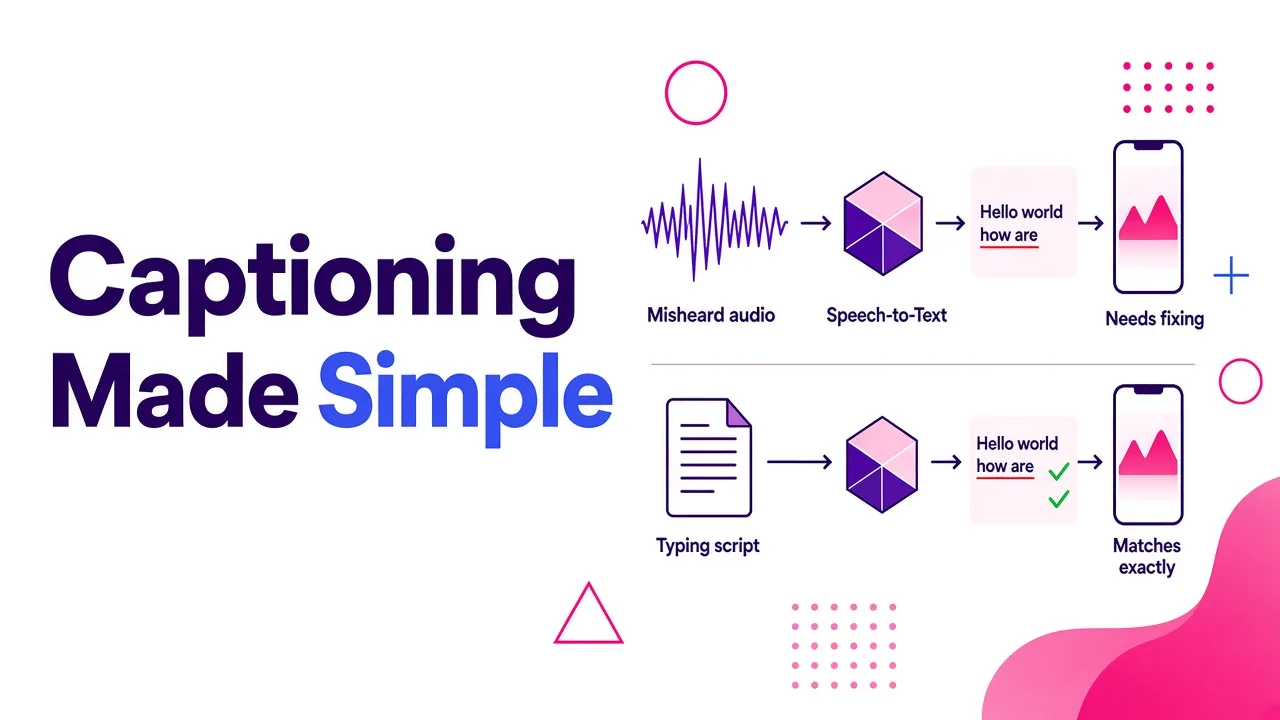
Because the voiceover is built from your script, the captions match text you already control. That removes the main accuracy problem the other apps on this list face: misheard speech. Brand names, product names, and numbers appear exactly as you typed them.
Where it shines:
- Faceless channels, explainers, listicles, and marketing clips where the script is the starting point
- Producing several TikToks from one article without opening a timeline editor
- Keeping a consistent voice across a series, either with stock AI voices or voice cloning (here is how voice cloning works, from sample to AI speech)
- Fine-tuning in the built-in video editor once the first draft is generated
Where it's not the right tool: If you already filmed a 10-minute vlog and only want subtitles burned onto that footage, a pure captioner like CapCut or Captune is a more direct fit. This tool is strongest when it builds the video for you.
Verdict: the best choice when your TikTok begins as words, not footage.
2. CapCut: best free all-in-one editor
CapCut is built by TikTok's parent company, and the connection is clear.
What it does well:
- Built-in auto-captions. You can style them with trending fonts and kinetic text effects.
- Ready-made templates. Many TikTok templates already include caption layers, so posting a polished video from your phone is fast.
- Every platform. The full editor runs on iOS, Android, Windows, Mac, and the web.
Pricing:
- The editor itself is free.
- If you use Pro assets in a free project, they add a watermark.
- After the 2026 price increase, Pro runs $19.99 a month or $179.99 a year in the US (about $15 a month).
- The iOS app also lists a Standard plan at $9.99 a month.
- CapCut notes that prices vary by region, device, and promotion, so check what your app store shows.
Accuracy: solid on clean speech in my tests. CapCut doesn't publish a clear language count for auto captions, so if you post in less common languages, test a clip before you commit.
Watch out for: CapCut is a manual, multi-track editor. The captions are automatic, but the polish is on you. That works well when you want control and slows you down when you are batching 20 videos.
Verdict: the default pick for creators who film themselves and want a free, capable editor with captions included.
3. Captions: best AI-first app for iPhone talking heads
Captions from Mirage began as a caption tool and has grown into a full AI editor.
Caption and AI features:
- Subtitles: AI subtitles in 91+ languages, according to its App Store listing, with font and color choices.
- Editing: AI Edit, AI Zoom, AI Denoise for background noise, and a teleprompter for recording in the app.
- Dubbing: dubbing into 29 languages.
- Avatars: an "AI Twin" feature that creates a video of you from a selfie.
The iPhone app holds a 4.7 out of 5 rating from about 39,000 ratings.
The catches:
- iPhone-first. The Android version is a Lite app, and the web version is much smaller than the iPhone app.
- Credit-based pricing. The free tier gives 60 to 200 credits for the life of the account. Credits are spent even if you don't export.
Paid plans:
| Plan | Price | What you get |
|---|---|---|
| Basic | $9.99/month | Sold in the app |
| Max | $24.99/month | 500 credits and 2 seats |
| Frontier | $69.99/month | 1,400 credits |
Accuracy: It handles clean audio recorded inside the app well. One older review noted you can't insert missing words where the AI skipped speech. With noisy clips, I ended up fixing several lines myself.
Verdict: It's a strong choice for iPhone users who film talking-head videos and want AI to handle most edits. Skip it if credit systems frustrate you or if you work on Android.
4. Submagic: best for viral animated caption styles
Submagic centers on the caption style that rules TikTok and Reels right now:
- Bold, word-by-word captions
- Emoji highlights
- Color-pop transitions
Upload a video, select a preset, and the animated captions drop in automatically. It also pulls hashtag and headline suggestions from your audio, which trims time before posting.
Accuracy: It reads standard speech reliably. The real strength is style. You get that punchy, high-energy look faster than building it manually in CapCut.
Watch out for: Submagic runs on a paid plan. It handles captions and short-form styling only, so it is not a full editor or video generator.
Verdict: the pick when caption style is your top priority and you already have footage.
5. OpusClip: best for clipping long videos into captioned TikToks
OpusClip builds captions into a full repurposing workflow.
How it works:
- You feed it long recordings, such as podcasts, webinars, or streams.
- It cuts them into short clips.
- It applies animated caption templates that adapt to different aspect ratios, using your brand fonts and colors.
Editing and language support: You can edit the transcript directly to fix a misheard word, and the captions update automatically with no manual timing needed. It supports 20+ languages. The workflow also adds B-roll and voiceover.
Watch out for: Feature access depends on your plan, so check which templates and tools your tier includes. Vendor accuracy claims still need a human review, as with every tool here.
Verdict: the right fit if your TikToks come from long-form content rather than a script or a fresh recording.
6. Captune: best dedicated caption app on Android
Captune appears on Google Play as "Captions AI - Auto Captions," with more than 100,000 downloads and roughly 11,700 reviews. It serves as a focused caption tool that runs smoothly on Android, where the main Captions app stays limited to its Lite version.
Style features:
- 50+ caption templates, including trending and lyric styles
- Full control over font, color, size, position, animation, and background
- Custom font uploads for brand consistency
- An "AI Highlight & Enlarge" feature that colors or enlarges keywords automatically
Other features:
- HD export with no watermark
- A social preview that shows how your video will look on TikTok before you export
- AI translation of captions
Watch out for:
- The app contains ads alongside its in-app purchases.
- It claims 99%+ accuracy. Treat that as marketing and proofread anyway.
Verdict: the best mobile captioner for Android users who want styled captions without a watermark.
7. VEED: best browser editor for styling and subtitle files
VEED runs entirely in the browser and stands out for its subtitle toolkit.
Caption styles:
- Box highlight
- Karaoke-style animation
- Dynamic subtitles that pop, pulse, or glide in sync with speech
- A brand kit for logos and fonts
Export options: Burn captions straight into the video or download SRT, VTT, or TXT files. Translation support makes it a solid pick for teams.
Accuracy: VEED claims up to 99.9% accuracy. Other reviews have been mixed. One older test praised the drag-and-drop caption styling as the easiest to use but found its transcription the weakest of the tools reviewed. My tests landed in the middle: clean audio works well, and fixes take just a click on any line.
Watch out for: free exports carry a watermark.
Verdict: best for browser-based workflows where you need both styled TikTok captions and subtitle files for other platforms.
8. Kapwing: best for teams
Kapwing works as a browser-based editor.
What it does well:
- Instant transcription. You get subtitles you can style with custom fonts and colors.
- Collaboration. Since the tool runs fully online, teams can edit the same project without sending files back and forth.
- Repurposing. It turns a YouTube clip into a TikTok with captions already added.
- Easy to try. Kapwing ranks among the simplest web tools to test for free.
Watch out for: like VEED, Kapwing adds a watermark on free exports. Budget for a paid plan if the videos go out under a brand account.
Verdict: a good shared workspace for marketing teams and agencies producing TikToks together.
9. Descript: best for transcript-based editing
Descript converts your audio into an editable transcript. Cut the video by deleting words, and the captions update from that same text.
What it does well:
- Accurate auto-captions
- Customizable caption animations and timing
- Workflow that fits podcasters and long-form creators who pull out captioned clips
Watch out for:
- A full desktop app with limits on free transcription hours.
- More software than you need for a single TikTok.
Verdict: worth it if you already edit long-form content by transcript and want TikTok clips from the same project.
Side-by-side comparison
| App | Best for | Platforms | Free option | Watermark on free export | Caption style strength |
|---|---|---|---|---|---|
| Cliptalk | Script-to-video with captions, voiceover, B-roll | Web | Varies by plan | Varies by plan | Auto-styled captions in a fully edited video |
| CapCut | Free all-in-one editing | iOS, Android, Windows, Mac, web | Yes, full editor | Only when using Pro assets | Trending fonts, kinetic text, templates |
| Captions | AI-first editing on iPhone | iPhone, iPad, Mac, web, Android (Lite) | 60 to 200 lifetime credits | Credit-based | AI subtitles in 91+ languages |
| Submagic | Viral animated captions | Web | Paid | Paid tool | Bold words, emojis, color pops |
| OpusClip | Long video to short clips | Web | Varies by plan | Varies by plan | Animated branded templates, 20+ languages |
| Captune | Styled captions on Android | Android | Yes, with ads | No | 50+ templates, custom fonts, keyword highlight |
| VEED | Styling plus SRT/VTT files | Web | Yes | Yes | Karaoke, box highlight, dynamic subtitles |
| Kapwing | Team collaboration | Web | Yes | Yes | Custom fonts and colors |
| Descript | Transcript-based editing | Desktop and web | Limited hours | Check current plan | Custom animations and timing |
How to make TikTok captions that hold attention
The app matters less than how you use it. These habits made the biggest difference for my videos.
1. Keep lines short. Aim for 5 to 7 words per line. On a vertical screen, long lines shrink or wrap awkwardly. Word-by-word or two-to-three-word chunks feel native to TikTok.
2. Place captions center-screen, but clear of the interface. Center placement keeps eyes on the text. TikTok's username, caption, and action buttons cover the bottom and right edges, so keep captions in the middle band. Use a social preview, like Captune's, or check one export on your phone before batching.
3. Prioritize contrast over decoration. White text with a dark stroke, or a solid highlight box, stays readable over any footage. Neon text on busy B-roll looks great in the editor and disappears in the feed.
4. Highlight one keyword per line, not every word. Keyword emphasis works because it is selective. If everything is yellow and enlarged, nothing stands out.
5. Proofread names, numbers, and slang. These are where every engine fails, and where errors look most embarrassing. Starting from a script avoids most of this, which is a big reason I prefer that workflow. I broke down the accuracy side in more depth in this guide to the most accurate video caption generator for short-form.
6. Match caption timing to your pacing. Fast hooks need fast word reveals. Calm explainers read better with slightly longer chunks. Most apps on this list let you split or merge segments, so use that control in the first three seconds, where retention is decided.
7. Export burned-in captions for TikTok. TikTok viewers expect styled, burned-in text. Save SRT or VTT files for platforms like YouTube, where separate subtitle tracks help accessibility and search.
Which caption app should you use?
Match the tool to how your videos start:
- Your video starts as a script, idea, or article: use Cliptalk. You get captions, voiceover, B-roll, and editing in one generated video, and caption accuracy is easier because the text comes from your own script.
- You film yourself and want a free editor: use CapCut.
- You're on iPhone and want AI to edit your talking-head videos: use Captions, as long as credit pricing works for you.
- You want the boldest viral caption look on existing footage: use Submagic.
- You repurpose podcasts or streams: use OpusClip.
- You're on Android and want styled captions with no watermark: use Captune.
- You need subtitle files plus styled exports in the browser: use VEED.
- You work on a team: use Kapwing.
- You edit long-form content by transcript: use Descript.
FAQ
Does TikTok have its own auto captions? Yes, TikTok has built-in auto captions. They stay basic in style, though. Many creators add styled captions from the apps above instead, for word-by-word highlights, brand fonts, and keyword emphasis.
Which caption app is most accurate? Accuracy depends more on your audio than the tool you pick. Clean, close-mic audio works well in nearly every app. Noisy or fast speech challenges them all. Generating video from a script skips transcription errors almost entirely. For filmed footage, pick an app with fast word-level editing so fixes take seconds.
Are there free caption apps without watermarks? Yes, with caveats:
- CapCut: free, but Pro assets add a watermark.
- Captune: no-watermark HD export, but it shows ads.
- VEED and Kapwing: both offer exports without watermarks.
Should I trust "99% accuracy" claims? Treat them as best-case vendor figures. Every reviewer I trust, along with my own testing, leads to the same advice: plan a quick proofread for every video, especially names, numbers, and slang.
Tags: tiktok captions, caption apps, short-form video, video editing, auto subtitles