How an AI Video Generator From Text Picks Visuals
· 11 min read

An AI video generator from text picks visuals in four passes: a language model reads your script and splits it into scenes, it extracts the concrete subject of each line (the noun you could actually photograph), it turns that subject into either a search query against a stock library or a prompt sent to a video model, and then it trims whatever comes back to the exact length of the narration sitting on top of it. Nothing about it is mystical. It is keyword extraction plus retrieval or generation plus timing. I have run the same scripts through most of the well-known tools, and the one I keep coming back to is Cliptalk, because it shows you the scene by scene breakdown before it renders, so you can swap a single clip or re-prompt one shot instead of rerolling the entire video and hoping for better luck.
That last part matters more than model quality. Every generator makes a wrong visual choice eventually. The useful question is not "does it pick well" but "how fast can I fix the three shots it got wrong."
The four stages between your text and the finished video
Here is the pipeline nearly every text to video tool uses, in order:
- Script understanding. Natural language processing breaks your text into sentences, clauses, or beats. It identifies topic, tone, entities, and actions. A paragraph about "the first solo trip to Tokyo" becomes separate beats for arrival, street food, arcade lights.
- Scene planning. Each beat gets assigned a shot. The system decides how many seconds it needs, what the subject is, and whether it should be a wide establishing shot, a close-up, or a graphic.
- Visual sourcing. This is the fork in the road. The tool either retrieves an existing clip from a library using semantic search, or generates a new one with a diffusion based video model. Many tools do both in the same video.
- Assembly. Voiceover is synthesized or cloned, captions are timed to the audio (usually with a speech to text pass so the words land on the right frame), clips are cut to fit, music is ducked under the narration, and the whole thing is rendered to 9:16, 1:1, or 16:9.
If you want to understand why stage 3 behaves the way it does, it helps to see how the underlying models actually turn noise into pictures:
Stage 1 and 2: how your words become a shot list
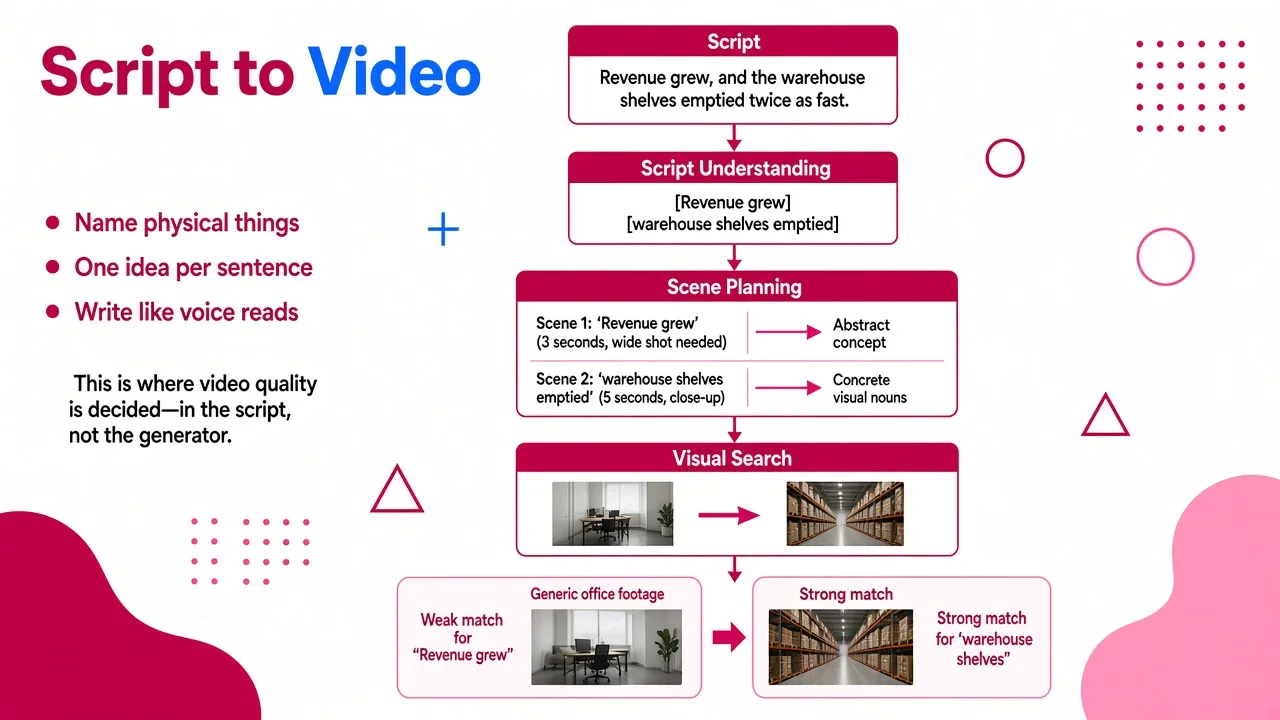
The thing that surprises most people is how literal the matching is. When a script says "most founders burn out before year two," there is no object in that sentence. A retrieval based system will still try, and you get a stock clip of a tired person at a laptop, because "burn out" and "founders" vector-match to office footage.
That is why the quality of your visuals is decided in the script, not in the generator. From running hundreds of these, three script habits change the output more than any setting:
- Name a physical thing in every line. "Revenue grew" gives the model nothing. "Revenue grew, and the warehouse shelves emptied twice as fast" gives it a warehouse.
- One idea per sentence. The scene splitter cuts on sentence boundaries most of the time. Long compound sentences get a single clip, so a 25-word sentence becomes eight seconds of one shot. That is where videos start feeling slow.
- Write the way the voice will read it. The caption timing comes from the audio, so punctuation controls pacing. If you want a beat before the payoff, put a period there.
This is also why I draft the script separately before I touch any visual settings. A free YouTube script generator that writes the spoken lines word for word is a better starting point than typing one sentence into a prompt box and letting the tool invent the narration, because you can see and edit the exact text the visual engine will be reading.
Stage 3: generated clips versus retrieved B-roll
Both approaches are legitimate. They fail in different ways, and knowing which one your tool is using tells you what to check.
| Generated clips (diffusion video models) | Retrieved B-roll (stock libraries) | |
|---|---|---|
| How it picks | Your scene text becomes a prompt; the model synthesizes new frames | Your scene text becomes a semantic query; the closest existing clip wins |
| Strength | Shots that do not exist: impossible camera moves, invented products, stylized worlds | Real humans, real places, real texture, always consistent within the clip |
| Typical failure | Warped hands, melting text, logos that are almost right, physics that drifts | Generic footage that is only loosely about your line, repeated across videos |
| Cost and time | Slower and credit-hungry per second | Near instant and cheap |
| Length limits | Often short, commonly around 15 seconds per clip on consumer tools | As long as the source clip |
In practice the strongest short-form videos mix them. I use retrieved B-roll for anything involving real people doing ordinary things, and generated clips for the two or three shots that need to look like nothing else on the feed. A pure stock video feels like a slideshow of other people's content. A fully generated one feels uncanny for 40 seconds straight.
The open source project Text-To-Video-AI is a good public example of the hybrid architecture: it writes the script with an LLM, fetches background video from a stock library, generates some B-roll segments with a video model, synthesizes the voiceover, and times captions with Whisper. That is the same assembly line a commercial tool hides behind one button.
Why temporal consistency is the hard part
A single frame is easy to get right. Thirty frames in a row that agree with each other is the actual engineering problem. The model has to keep the same face, the same jacket, the same lighting direction, and the same camera path from frame to frame. This is why AI video artifacts cluster around movement: a hand that changes finger count, a sign whose letters reshuffle, a car whose wheels rotate backwards.
This explainer covers the mechanics well:
Two practical consequences for anyone generating from text:
- Keep one action per clip. "A woman picks up a mug" holds together. "A woman picks up a mug, walks to the window, and waves at a passing bus" will break somewhere in the middle.
- Avoid on-screen text in generated clips. Models still mangle letterforms. Put your words in the caption layer or a title card where they are real text, not pixels guessed by a model.
The best AI video generators from text, ranked by how they handle visuals
I have paid for or tested all of these. Ranking reflects how well each one goes from a plain script to a publishable short-form video, not raw model quality.
1. Cliptalk
Best for: faceless channels, creators, and marketers publishing to TikTok, Shorts, and Reels at volume.
What it does differently is treat the visual choice as editable. You paste a script or an article, it builds the scene breakdown, assigns AI B-roll, adds the voiceover (including a cloned voice), burns in captions, and you can then open the editor and change any individual shot. AI characters are available when you want a presenter instead of B-roll, which covers the talking-head format without filming. There are 50 free credits to start without a card.
Pros: full pipeline in one place, per-scene control instead of all-or-nothing rerolls, voice cloning, captions timed to the audio, built for vertical output. Cons: optimized for short-form social video, so it is not the tool for a 20-minute documentary edit; heavy generated-clip use consumes credits faster than stock-only workflows.
If you want to see the scene breakdown behaviour yourself, the free tools run without a signup, which is the fastest honest test of whether a generator understands your topic.
2. Google Vids
Best for: teams already inside Google Workspace.
Vids generates clips from a prompt or animates an uploaded image using Gemini video models, and it can build an initial storyboard with suggested scenes, scripts, and voiceovers from a Doc in your Drive. Google also states that generated outputs are protected from copyright claims and that your data is not used to train the models, which matters for corporate use.
Pros: storyboard-from-document workflow, native audio generation, collaboration that works like Docs and Slides, strong governance story. Cons: aimed at internal comms, training, and sales enablement rather than short-form social; the output looks like a presentation more often than a feed-native video.
3. Kling AI
Best for: control over a single hero shot.
Kling exposes the generation primitives directly: text to video, image to video, start and end frame control, and reference-based generation where images, characters, products, or styles steer the output. Some models produce dialogue, sound effects, and ambience alongside the visuals.
Pros: genuine directorial control, strong motion, reference conditioning keeps a character or product stable. Cons: it is a clip generator, not an editor. You still need to assemble, caption, and pace the video elsewhere, and the per-clip length is short.
4. Model aggregators (MyEdit, Pixlr and similar)
Best for: comparing models without buying four subscriptions.
These keep several current video models in one workspace, so you can send the same prompt to a realistic model, a cinematic one, and a narrative one, then pick a winner. Typical offerings include free daily credits, watermark-free downloads, 16:9, 9:16, and 1:1 output, and clips in the 15 second range. Reference images or clips can be pointed at inside the prompt to lock a character or style.
Pros: model switching without starting over, no watermark on export, cheap experimentation. Cons: clip-first again. You get footage, not a finished video with narration and captions. Credit systems vary and daily free allowances run out quickly.
5. Script-to-video tools with stock libraries (Zebracat and comparable)
Best for: turning a blog post into a serviceable video fast.
Paste a script or an idea and you get voiceover, footage, and captions. The visual selection leans heavily on retrieval, which makes it fast and consistent.
Pros: very fast, predictable, good for volume repurposing. Cons: the footage often feels generic because it is the same library everyone else is drawing from, and per-scene control is usually limited to swapping from a short list of suggestions.
6. Open source pipelines
Best for: developers who want the whole thing scriptable.
Projects like Text-To-Video-AI give you the full chain: LLM script generation across multiple providers, free local text to speech or a premium voice API, automatic B-roll from a stock source, Whisper-timed captions, portrait or landscape rendering.
Pros: no subscription, total control, API-able for batch output. Cons: you maintain it. FFmpeg, ImageMagick, API keys, and your own quality control. There is no interface for fixing one bad shot.
For a wider view of where general-purpose editors fit alongside these, our breakdown of the best AI video editing apps covers tools that edit footage you already have rather than generating it.
How to steer visual selection instead of accepting it
Five things that reliably improve what the generator picks:
- Front-load the subject. Put the visual noun early in the sentence. Scene splitters weight the opening clause heavily.
- Add a style line. Most tools accept a global style instruction. "Handheld, natural light, muted colors" applied across every scene does more for coherence than perfecting individual prompts.
- Test with one scene first. Generate a single beat before committing credits to a 60 second render. If the model misreads your topic, it will misread all 14 scenes the same way.
- Give references where supported. An uploaded product photo or character image stops the model from reinventing your subject every clip.
- Fix, do not reroll. Rerolling a whole video changes the three shots you liked. Per-scene replacement is the entire reason the editable pipeline matters.
What to check before you publish
Treat generated video like any other production asset. My pre-publish pass, in order:
- Faces and hands in every generated clip, at full speed and then paused.
- Any text or logo visible on screen. If it is model-generated, replace it.
- Claims in the narration. The script generator does not know what is true. Facts, prices, and statistics are your responsibility.
- Likeness and rights. Do not generate recognizable real people or branded products you do not have permission to use.
- Caption sync on the first three seconds. That is where retention is won or lost, and timing drift there reads as sloppy.
Auto-editing is genuinely good now, but it is good at execution, not judgment. If you want more detail on how far the automation goes, we tested that directly in can you edit videos automatically online for free.
Frequently asked questions
Does an AI video generator from text create new footage or use stock? Both, depending on the tool and often within the same video. Generated footage comes from a diffusion video model prompted with your scene text. Stock footage is retrieved by semantic search against a library. Hybrid pipelines use retrieval for realistic human moments and generation for shots that do not exist.
Why does it pick the wrong visual? Almost always because the sentence has no concrete noun in it. Abstract lines get abstract matches. Rewrite the line around something you could photograph and the match improves immediately.
How long can a clip be? Individual generated clips on consumer tools are commonly limited to around 15 seconds. Finished videos are longer because the tool stitches many short clips together, which is also why cut rhythm matters so much to the final feel.
Do I need editing skills? No, but you need taste. The generator handles cutting, timing, captions, and mixing. Deciding that shot four is wrong and shot seven drags is still a human job, and it is the difference between a video that performs and one that just exists.
Tags: ai video generation, text to video, video creation tools, short-form video, ai editing