Can You Edit Videos Automatically Online for Free?
· 12 min read
Short answer: yes, and more of it is genuinely free than most people expect. You can upload raw footage to a browser tab and have AI cut the silences, add captions, resize to 9:16 and drop in B-roll without touching a timeline, or you can skip footage entirely and have a tool build the video from a script. If you are making short-form content for TikTok, Reels or Shorts, I use Cliptalk for this because the script step is free with no signup and the render comes out finished (word-by-word captions, AI voiceover from 140+ voices, B-roll, music) instead of handing you a rough cut you still have to assemble. If you already have footage from a camera or a podcast recording, free tiers from CapCut, VEED, Kapwing and Vizard will auto-cut it, with the usual catches around watermarks and export limits.
Below is how automatic editing actually works, which free options hold up, and where "automatic" quietly stops being automatic.
"Automatic video editor" means two very different things
This is the single biggest source of disappointment. People type "automatic video editor online free" and get two categories of tool mixed together in the results.
Category one: auto-editing existing footage. You already shot something. A talking-head recording, an interview, a webinar, a vlog, a gaming session. The AI transcribes it, finds speech, removes silences and filler words, picks highlight moments, reframes to vertical, and burns in captions. VEED's auto edits do this, including noise removal and eye contact correction. Kapwing lets you upload multiple recordings and describe the edit you want in a prompt, then assembles a first draft from the transcript. Vizard reads the full context of a long video before cutting so clips start and end on complete thoughts instead of mid-sentence. CapCut uses scene detection to trim long footage into short clips and merge scenes.
Category two: generating the video from text. There is no footage. You have an idea, a script, or an article. The tool writes or takes the script, generates a voiceover, pulls or generates visuals, times captions to the audio, and renders a finished vertical video. Kapwing does this too (prompt or article in, video with voiceover, subtitles, B-roll and music out). This is the lane Cliptalk sits in, plus characters and voice cloning on top.
Knowing which category you need saves you an hour of trial accounts. If you have footage, you want an auto-editor. If you have an idea and no camera, you want a generator, and trying to force a generator to clean up your podcast audio (or an auto-editor to invent visuals you never shot) is why people conclude "AI video editing doesn't work."
Here is a useful walkthrough of where the current crop of AI editing software actually lands:
What "free" actually buys you
I have run free tiers on most of these. The patterns are consistent enough to predict.
Watermarks are the most common gate. VEED, for example, is free to start, and watermark-free exports plus full AI tool access come with the upgrade. That is the standard model: you can do the work for free and see the result, but shipping it clean costs money. Some tools break the pattern. LightCut, the mobile auto-editor with over a million downloads, advertises no ads and no watermark on its free editor with fully licensed music.
Credit systems are the second gate. Anything doing generative work (AI voices, AI B-roll, generated characters) burns compute, so it gets metered rather than watermarked. Cliptalk gives 50 free credits with no card, which is enough to actually finish and judge a few videos rather than preview one. The honest read on credits: they are better than watermarks because what you export is publishable, but you will hit the wall faster.
Export resolution and length caps show up often on free plans. Check before you build a workflow on top of a tool.
Feature lockouts. Free usually means the basic auto-cut works and the interesting AI features are paywalled. Noise removal, eye contact correction and brand kits are frequent upgrade triggers.
Signup friction. A small but real category lets you do part of the job with no account at all. Script generation is the easiest thing to give away free, which is why Cliptalk's free tools include script generators that run without signup. I use that deliberately: I write and re-roll the script until it is right while spending nothing, then only spend credits on the render.
One more thing worth saying plainly: free tiers are fine for testing, learning and personal content. For client work or anything commercial, read the license terms. Free plans sometimes restrict commercial use, and discovering that after a campaign ships is an expensive lesson.
Free automatic video editors that are actually worth your time
Ranked by what I reach for, not by brand size. Every one of these has a usable free entry point.
1. Cliptalk, best if you are starting from text, not footage. Prompt, script or article in, finished short-form video out: AI visuals, narration, word-by-word captions, music, correct 9:16 framing. You can also build talking AI characters and clone a voice. The script step is free and unlimited, the render uses the 50 free credits. Weakness: it is not the tool for cleaning up two hours of podcast audio. It builds videos, it does not rescue recordings.
2. CapCut, best free auto-cut for footage, period. The web version's "long video to shorts" tool does one-click automatic cutting with scene detection, auto-subtitles, music sync and a large template library, no credit card needed. Multi-track timeline underneath when you want to take over manually. It is the most capable thing you can use for zero dollars.
3. VEED, best for cleanup quality. The auto edits flow asks what kind of video you made and what platform you are posting to, then applies noise removal, eye contact correction, AI B-roll and dynamic captions. Magic Cut removes filler words and silences in one click. Rated 4.6 across 2,100+ reviews. Free to start, pay for watermark-free export.
4. Kapwing, best prompt-driven editing. You can upload a pile of clips and long recordings and just describe the edit: reorder scenes, surface the best moments, highlight key topics. It analyzes transcripts and speech to extract only what your prompt asked for. It also generates full videos from a prompt or article with voiceover, subtitles, B-roll and music, and you can request the output format.
5. Vizard, best for long-to-short repurposing. Its edge is context: it reads the whole video before making a cut, so clips come out as complete thoughts rather than fragments you have to fix. It writes platform-specific titles, descriptions and hashtags, and supports instruction-based editing (tell it which sentence to drop and the footage goes with it). Trusted by 10 million+ creators per their own numbers, 4.7 on G2.
6. Choppity, simple, narrow, effective. Upload a long video, AI handles clipping, captions, framing and formatting for social. Popular with podcasters and churches, which tells you it handles long static-camera talk footage well.
7. Adobe Express, best free manual editor with a clean on-ramp. Not really automatic, but genuinely free, browser-based, accepts files up to 1GB, thousands of customizable templates, background noise removal, trim/crop/split, MP4 export. Good fallback when the AI pass needs human fixing.
8. Canva, Vimeo and Creatify round it out. Canva's AI video editor and Vimeo's browser editor (with a transcript-based editor that deletes "ums" and awkward pauses by highlighting them) are solid when you are already in those ecosystems. Creatify markets an automated editing tool aimed at ads.
9. LightCut if you want this on a phone. One-tap edit analyzes your clips and photos and turns them into a video, plus shooting templates that guide you while filming. No watermark on free.
If you want a deeper comparison across the category, I wrote up the best AI video editing software for solo creators with more on who each tool actually suits.
My actual workflow: footage-first
When I have a recording, this is the order I run things, and the order matters.
Step 1: transcript cleanup before anything visual. Run the auto-cut that removes silences, filler words and stutters first. Every later step (captions, highlight selection, B-roll placement) is built on the transcript, so cutting first means nothing downstream is wasted. One click in most tools.
Step 2: pick the highlight, then reframe. Let the AI choose candidate clips, but override it. AI highlight detection optimizes for speech density and energy, which is not the same as a good hook. I read the suggested clips and ask one question: does the first sentence make someone want the second? If not, I move the in-point.
Step 3: reframe to vertical, then check the crop. Auto-reframe tracks faces well and objects badly. Charts, product shots and text on screen get cropped into nonsense. Scan the whole clip at 9:16 before you trust it.
Step 4: captions last, styled once. Burn captions after the cut is locked, or you will re-time them. Build the style once and save it as a preset. Consistent caption styling across a channel is one of the cheapest brand signals there is.
Step 5: audio pass. This is the step people skip and it is the one viewers notice. Noise removal plus level normalization does more for perceived quality than any visual effect. Bad audio reads as "amateur" instantly, good visuals with bad audio still read as amateur.
Total: fifteen to twenty minutes for a clip that would take an hour in a manual timeline. That is the real promise of automatic editing. Not zero work, but the boring 80% removed.
My actual workflow: text-first
No footage, no camera, no face on screen. This is how faceless channels run, and it is the workflow I use most.
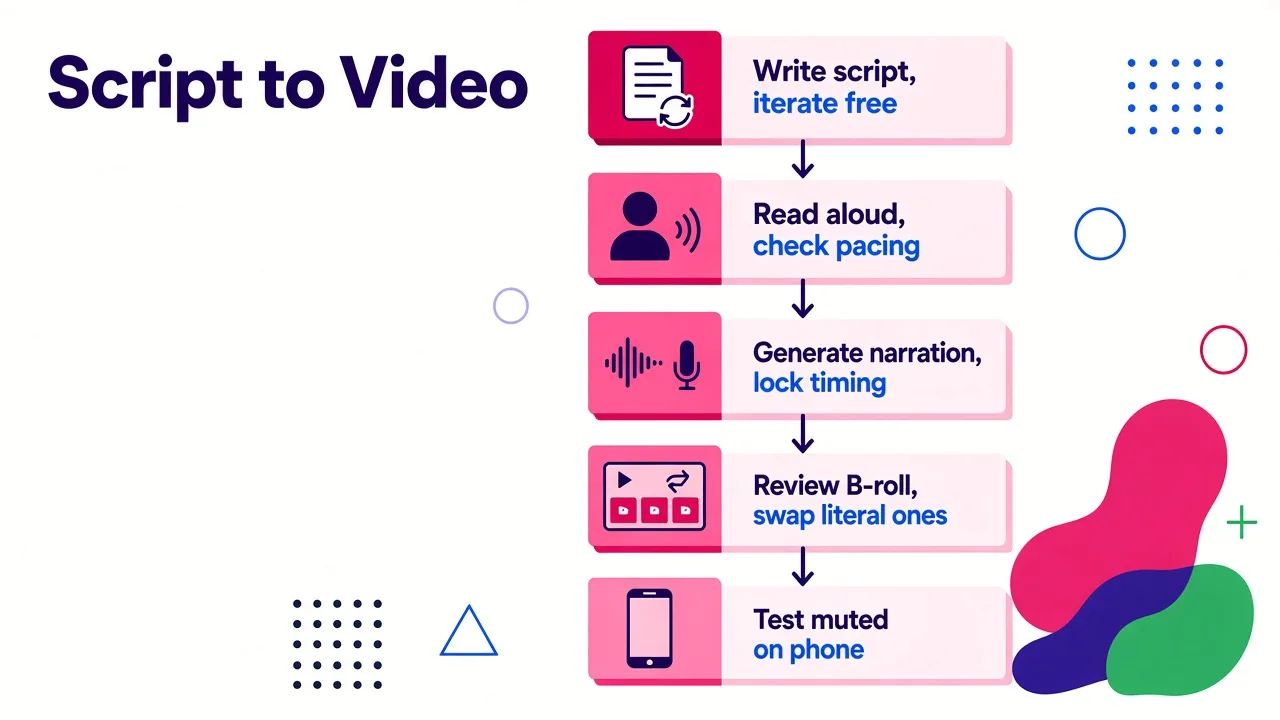
Step 1: write the script before you open any video tool. Hook, body, call to action, word for word, because the voiceover reads exactly what you give it. I generate and re-roll scripts free until the hook lands. The script generator for YouTube gives you the full spoken script plus title options without signup, which means iteration costs nothing.
Step 2: read the script out loud. Thirty seconds, and it catches every sentence that reads fine but sounds wrong. AI voices expose awkward phrasing mercilessly.
Step 3: pick the voice before the visuals. Pacing of the voiceover determines how long every scene is. Choose the voice, generate the narration, then let the tool time visuals and captions to it.
Step 4: review B-roll choices, swap the literal ones. Auto-selected visuals tend to be too literal. The word "growth" gets you a stock chart. Swapping two or three shots for something more specific is usually the difference between a video that feels generated and one that feels made.
Step 5: watch it once on a phone, muted. That is how most of your audience will see it first. If the captions do not carry the story with no sound, fix the captions.
This flow is the whole reason text-to-video exists. If you want the step-by-step version for one platform, I broke it down in how to generate TikTok videos with AI automatically.
Worth watching on how creators are stacking these tools right now:
What the Cliptalk render actually produces
Since this is the tool I use daily, here is the honest breakdown of what comes out the other end so you can judge whether it fits your work.
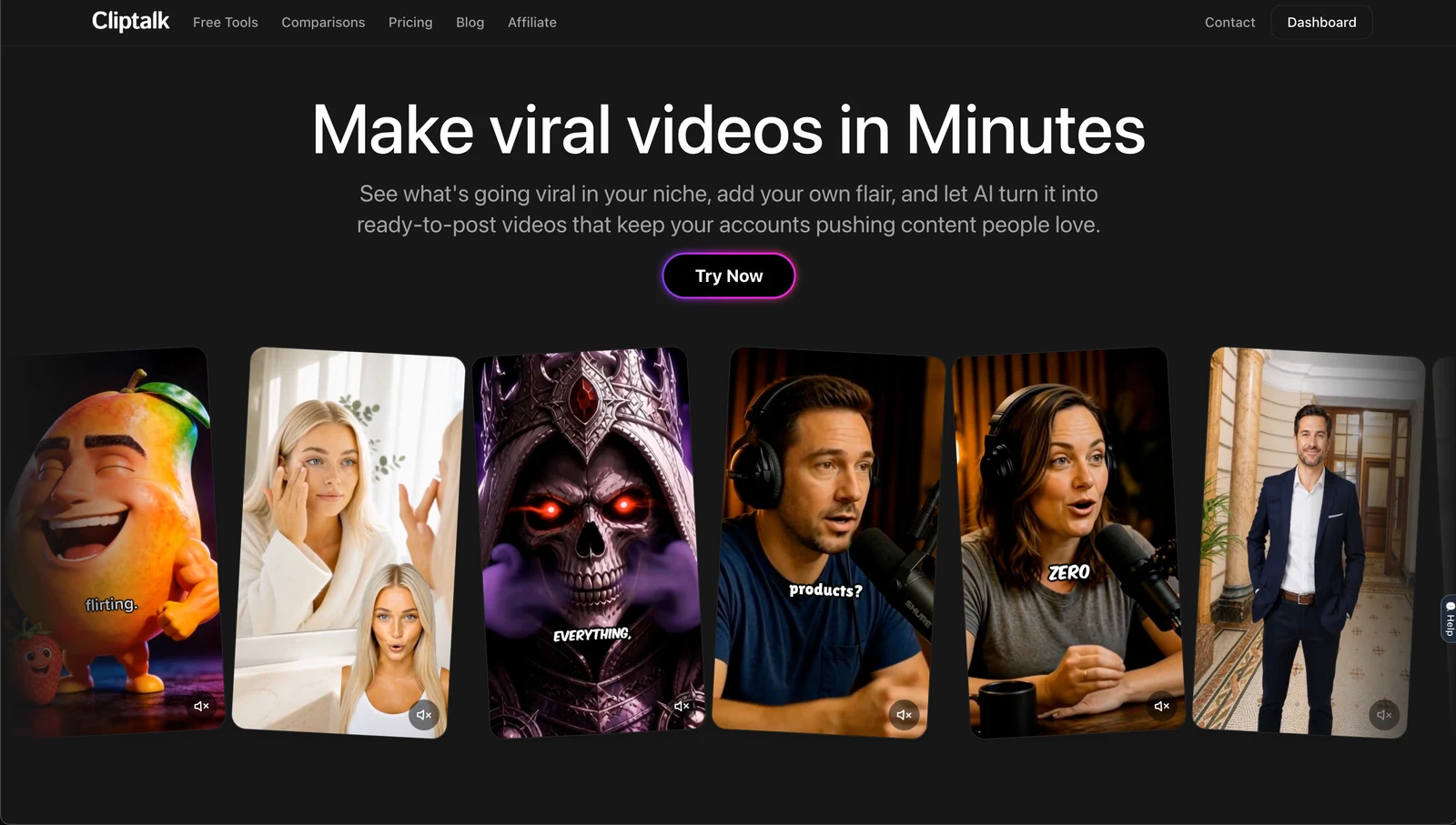
You give it a prompt, a script, or an article URL. It returns a 9:16 video with the narration generated from your choice of 140+ voices, word-by-word captions timed to the audio, AI-generated or stock B-roll matched to each line, and background music ducked under the voice. The formats that work best, in my experience: story videos, listicles, product showcases, and talking AI influencer or character videos where a generated person delivers the script to camera. Voice cloning is there if you want your own voice without recording every time.
The free entry is split in a way I like: script generation is unlimited and signup-free, so you only spend the 50 starter credits on renders you actually believe in. There is a full editor behind the auto-generation, which matters because the second you want to change one scene, a tool with no editor forces you to regenerate the whole video.
Where it is not the answer: multi-camera edits, long-form documentary work, colour grading, or anything where the raw footage is the point. For those, a timeline editor with AI assists is the right tool and I would not pretend otherwise.
Where automatic editing still fails
Four failure modes I hit regularly, across every tool in this category.
Hook selection. AI picks the loudest moment, not the most intriguing one. Always review the first three seconds yourself.
Context collapse. A clip that makes perfect sense inside a 40-minute conversation is incoherent alone. Tools that read full context before cutting handle this better, but none handle it perfectly.
Over-literal visuals. Keyword-matched B-roll produces the stock-footage feeling viewers have learned to scroll past.
Pacing sameness. Automatic edits default to one rhythm. Every clip ends up the same cadence, and a channel of identically paced videos gets stale fast. I deliberately vary cut density between videos.
The fix for all four is the same, and it is five minutes of review per video. Expecting perfect output with zero review is the most common mistake I see creators make with these tools, and it is the reason some people decide AI editing is useless after one attempt.
Choosing: a quick decision tree
- Have footage, want it cleaned and clipped, zero budget: CapCut web.
- Have footage, want the highest-quality cleanup and will pay to remove a watermark: VEED.
- Have footage and want to direct the edit in plain language: Kapwing.
- Have long-form content to repurpose at volume: Vizard or Choppity.
- Have no footage, publishing short-form consistently: Cliptalk, or Kapwing's generation mode if you are already paying for it.
- Want to edit on a phone with no watermark: LightCut.
- Need to fix something by hand after the AI pass: Adobe Express or Canva.
Frequently asked
Can AI edit a video from a text prompt? Yes. Several tools now take a prompt, script or article and return a finished video with voiceover, captions, B-roll and music, with no footage and no timeline. Kapwing and the text-to-video generators do this natively.
Are automatic video editors really free? Really free to use, usually not free to ship. The common gates are watermarks, export resolution caps, length limits and credit allowances. The best-value free tiers are the ones that let you export clean, even if the volume is limited.
Will this replace an editor? For short-form repurposing and faceless content, largely yes, the mechanical part is already automated. For anything where creative judgement about story, pacing and taste is the product, no. What the tools remove is the tedium, not the decisions.
Do I need to download anything? No. Every tool listed here except LightCut runs in a browser. Upload, process, export.
What is the fastest path from zero to a published short? Text-first. Writing a 150-word script and rendering it beats shooting, transferring, cutting and captioning footage by a wide margin, and the free script step means you can test ten hooks before you spend anything.
Tags: video editing, ai tools, short-form video, content creation, automation