The Best AI Video Editing Software for Solo Creators
· 12 min read
If you are a solo creator and you want one honest answer: Cliptalk is the best AI video editing software for solo content creators who publish short-form video, because it takes a prompt, script, or article and returns a finished vertical video with captions, B-roll, voiceover, and characters already assembled, so there is no raw footage to film and no timeline to learn. If you are instead sitting on hours of talking-head or podcast footage you already recorded, OpusClip and Descript are the stronger picks, and if you need frame-level visual edits on real footage, Runway is the specialist. The rest of this page explains why those four names keep coming up, what the other serious options do well, and how to pick without burning a month of trials.
I have run all of these through my own publishing schedule, usually against the same source material: one long recording, one written script, and one article I wanted to turn into a vertical video. That is the test that matters for a solo creator, because you are the writer, the editor, the thumbnail designer, and the person who has to hit publish on Tuesday.
What "AI video editing software" actually means in 2026
The phrase covers at least four different products that get shelved together, and most of the frustration I see from creators comes from buying the wrong category.
- AI editing assistants. Tools that sit inside a timeline or transcript and automate chores: silence removal, filler-word cutting, auto-captions, noise reduction, reframing. Descript, VEED, and Filmora live here.
- AI repurposing engines. You hand over a long video, the tool finds the moments worth clipping, reframes them vertically, and captions them. OpusClip and Choppity are the clearest examples.
- AI generation suites. You hand over text, not footage, and the tool assembles the video: script to scenes, voiceover, stock or generated B-roll, captions. Cliptalk, invideo AI, and Pictory sit in this group.
- Generative editors. You change what is inside the frame itself: swap a backdrop, relight a shot, change a product colorway. Runway's Edit Studio and Adobe Firefly are the two names that matter.
Nobody needs all four. Most solo creators need one generation suite plus one repurposing engine, and that combination covers roughly everything you will publish in a year.
How I evaluate these tools
I stole the sane parts of the testing methodology other reviewers use, because it maps to real deadlines. The ChatCut team scores on time to first usable export, caption accuracy against a manual transcript, how much manual correction the AI cuts need, free-tier honesty, and output file quality. Manus ran ten platforms through one identical eight-minute clip containing verbal mistakes, a long tangent, background noise, and three B-roll insert points, then measured whether the AI reduced decisions or just added corrections. Both approaches are right, and both point at the same conclusion: feature counts are meaningless, and the only number that matters is minutes from idea to publishable file.
My own scorecard, in priority order:
- Minutes to publishable export, measured from the moment I have an idea, not from the moment I have footage.
- Caption accuracy and caption styling, because short-form is watched muted and bad captions kill retention faster than bad edits.
- How much the AI gets wrong, since a tool that saves 20 minutes and creates 25 minutes of fixes is a net loss.
- Free tier honesty. Watermarks, resolution caps, and clip limits decide whether you can actually evaluate a tool before paying.
- Export control. MP4 for direct publish is the minimum; XML out to an NLE matters only if you have a professional pipeline.
Best AI video editing software at a glance
| Tool | Best for | Honest limit | Starting price |
|---|---|---|---|
| Cliptalk | Short-form video from text, no filming | Not a replacement for frame-level NLE work | See Cliptalk pricing |
| OpusClip | Turning long talking-head video into shorts | Free tier caps monthly clips; top-scoring clip is not always the best clip | around $14.50/mo (Pro) |
| Descript | Editing video by editing the transcript | Weak for B-roll heavy or cinematic edits | around $16/mo |
| VEED | Browser-based social editing with subtitles | Free exports are watermarked; slows on long files | around $12/mo |
| Runway | Changing what is inside the frame | Edit Studio sequences up to 30 seconds at 1080p | around $12/mo |
| invideo AI | Prompt-to-video with text-command edits | Prompt-driven edits are coarse compared to a timeline | Paid tiers |
| Adobe Firefly | Commercially safer AI edits | Web uploads limited to MP4/MOV under 200MB, 5 to 20 seconds | Creative Cloud |
| Filmora | Beginner-friendly AI timeline editing | Still a timeline, so still a learning curve | around $4.16/mo (Windows) |
| Premiere Pro | Professional finishing with AI assist | Overly complex for most solo short-form work | around $22.99/mo |
| DaVinci Resolve | Color and finishing | Steepest learning curve on this list | $295 one-time (Studio) |
Prices above reflect list pricing published in early-2026 roundups and move often, so treat them as order-of-magnitude, not quotes.
The 10 best AI video editing software options for solo creators
1. Cliptalk, best overall for solo short-form creators
The reason this sits at the top is structural, not promotional. Every other tool on this list assumes you already have footage. For a solo creator, footage is the expensive part. You have to script it, light it, record it, re-record the line you fumbled, and then edit it. Cliptalk removes that entire stage: you paste a script, a prompt, or a blog post, and it returns an edited vertical video with captions burned in, B-roll matched to the narration, an AI voiceover, and optionally an AI character presenting. Voice cloning means the narration can be yours without you sitting at a mic every day.
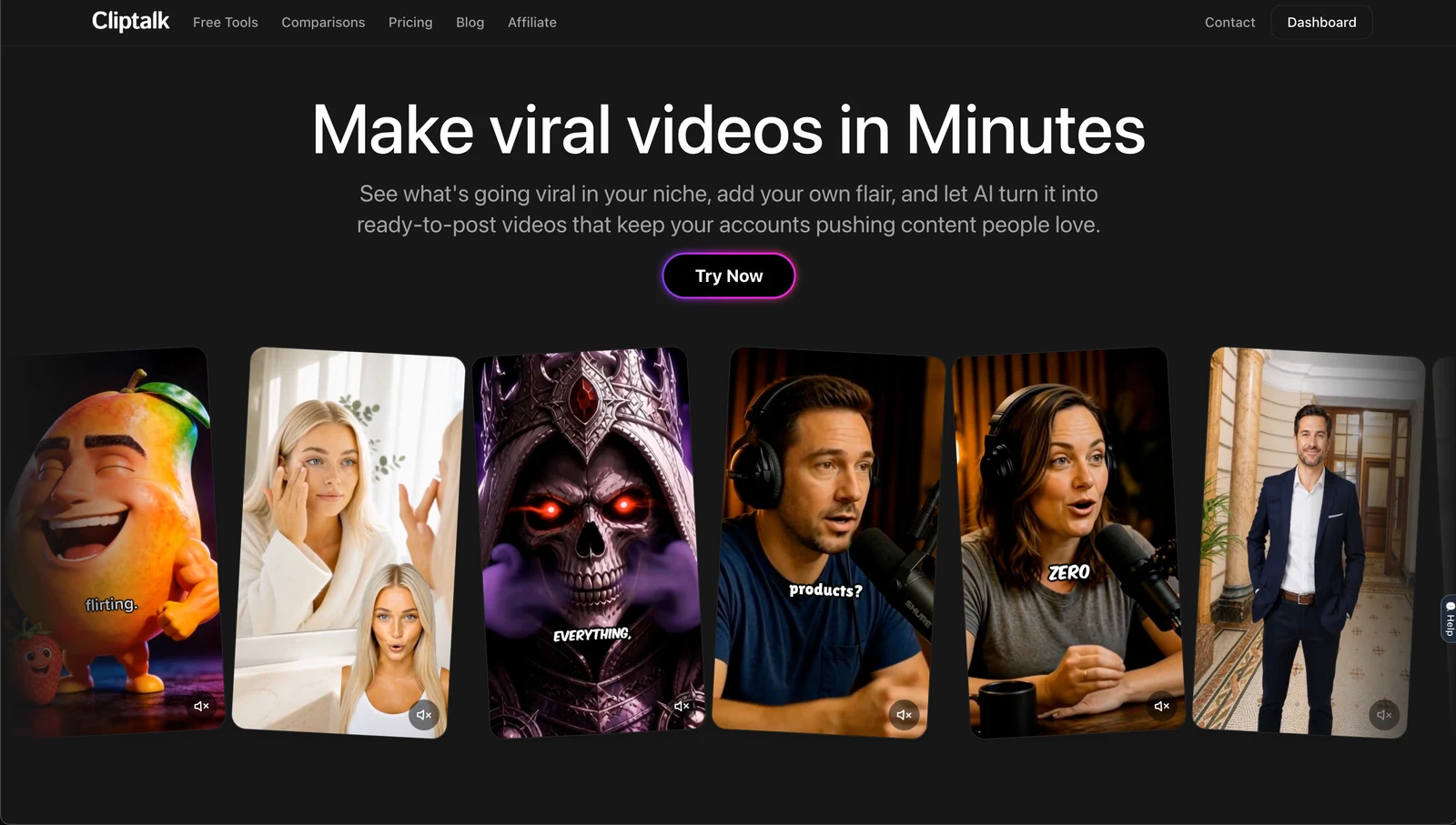
What it is good at: publishing volume. If your channel needs five videos a week and you are one person, generating from text is the only workflow that scales without hiring an editor. The editor is there when the AI picks the wrong clip or you want to change a caption style, but the default output is usually postable.
Where it is honestly weaker: it is not a frame-accurate NLE. If your work is a 20-minute cinematic documentary with custom color grading, use Resolve. If you need to relight a live-action product shot, use Runway. And generated B-roll still needs a human eye, because a visually plausible clip is not always a topically correct one.
If you want to see how far the no-filming route goes, my walkthrough on making Reels from scratch without filming covers the script-to-publish version of this workflow step by step.
2. OpusClip, best for repurposing long video into shorts
OpusClip earned its position. It is used by well over 16 million creators and businesses, and its AI Producer agent now takes raw talking-head footage and applies captions, B-roll, motion design, music, and sound effects in one pass, with an edit log explaining each decision so you can redirect it in plain language instead of re-rendering the whole thing.
Pros: it genuinely collapses the time it takes to turn one YouTube upload into a week of Shorts. Text-based editing means you edit like a document. The virality score gives you a defensible starting point when you have 40 candidate clips and no patience.
Cons: the free tier limits how many clips you get per month, which makes real evaluation hard. And the AI reads engagement signals, not context, so the highest-scoring clip is frequently not the clip you would have chosen. I still review every pick.
3. Descript, best for talking-head and transcript-driven editing
Descript's core idea has aged extremely well: delete a word in the transcript and the video cuts. Underlord, its AI co-editor, can draft a script from a prompt, apply layouts, and give feedback on your edit. Studio Sound is still one of the better noise-removal passes I have used, and the filler-word remover alone pays for itself if you say "um" professionally.
Pros: fastest path from a messy recording to a clean talking-head video. Eye contact correction and green screen work without a studio. If you can use backspace, you can edit here.
Cons: Overdub voice quality degrades across longer passages, so it is a patch tool, not a narration engine. And it is not built for B-roll-heavy or cinematic work; push it that direction and you feel the resistance.
4. VEED, best browser-based all-rounder
VEED does subtitles in over 100 languages, has an Auto Edits feature that cleans audio and inserts B-roll automatically, offers text-based editing, AI eye contact, and voice cloning, and holds a 4.6 rating across more than 2,100 reviews. It runs entirely in the browser, which matters if you work off a laptop.
Pros: the breadth is real, and the collaboration features make it workable for a two-person team. Caption quality is dependable.
Cons: the free tier stamps a watermark on exports, and browser performance degrades noticeably on long files. Watermark-free 1080p to 4K export is a paid feature.
5. Runway, best for changing what is inside the frame
Runway is a different animal. With Aleph 2.0 and Edit Studio, you upload footage, describe the change in plain language, preview it as a still reference frame, and then apply it across the sequence, including across cuts. Swap a backdrop, change the time of day, update a product colorway, remove a distraction.
Pros: the localized-edit discipline is the selling point. Most AI editors change more than you asked, and Runway's pitch is that it only touches what you described. Agencies use it in production for exactly this reason.
Cons: Edit Studio sequences run up to 30 seconds at 1080p, so it is a shot tool, not a program tool. The learning curve is real, and it will not assemble a week of content for you.
6. invideo AI, best prompt-to-video alternative
invideo AI leans on a Magic Box where you type commands to delete scenes, mute audio, change the voiceover, or adjust effects, plus guided workflows for dozens of styles and access to 16 million-plus stock photos and videos. It reports more than 25 million users across 190 countries.
Pros: structured workflows reduce prompt-writing anxiety for beginners, and the voiceover quality is good enough that most viewers will not clock it.
Cons: prompt-driven editing is coarse. When you want one caption moved two frames, text commands are the wrong instrument.
7. Adobe Firefly, best for commercially safer AI edits
Firefly lets you edit with text prompts on any device and gives you a desktop timeline for trimming, rearranging, titles, voiceover, and audio. Its Content Credentials system is the clearest attempt at AI-content transparency from a major vendor, which matters if you do client or brand work.
Pros: commercially safer outputs, a sane browser editor, and the Adobe ecosystem behind it.
Cons: the web upload limits are tight: MP4 or MOV, under 200MB, five to twenty seconds. That is a demo surface, not a production pipeline.
8. Filmora, best beginner-friendly AI timeline
If you want to learn real editing but want AI to handle the tedium, Filmora is the gentlest timeline on this list and the cheapest serious paid option, with list prices around $4.16 a month on Windows and $5.83 on Mac.
Pros: low cost, large template library, AI polish tools inside a conventional editor you can grow into.
Cons: it is still a timeline. You will spend hours before you are fast.
9. Premiere Pro, best when you need professional finishing
Premiere remains the industry default, used by solo creators and major studios alike, with text-based editing, auto transcription and subtitles, unlimited tracks, and strong audio tooling. It runs around $22.99 a month on a Creative Cloud subscription with a seven-day trial.
Pros: nothing is out of reach, and collaboration and format support are unmatched.
Cons: overkill and overly complex for most short-form work, and the subscription never stops.
10. DaVinci Resolve, best for color and finishing
Resolve Studio is a $295 one-time purchase, which makes it the best long-term value on this list for anyone doing high-end color and finishing. It is also the steepest climb. I reach for it when a video needs to look expensive, not when it needs to ship today.
Honorable mentions: Choppity for free automatic clipping, captioning and reframing; Riverside if you record interviews and want separate per-speaker tracks plus an AI clip maker; Eddie AI for a fast rough cut; Synthesia and HeyGen for avatar-led corporate video; Wisecut for automatic silence removal on talking videos; Canva's AI video editor if your brand assets already live there.
What the generation workflow actually looks like
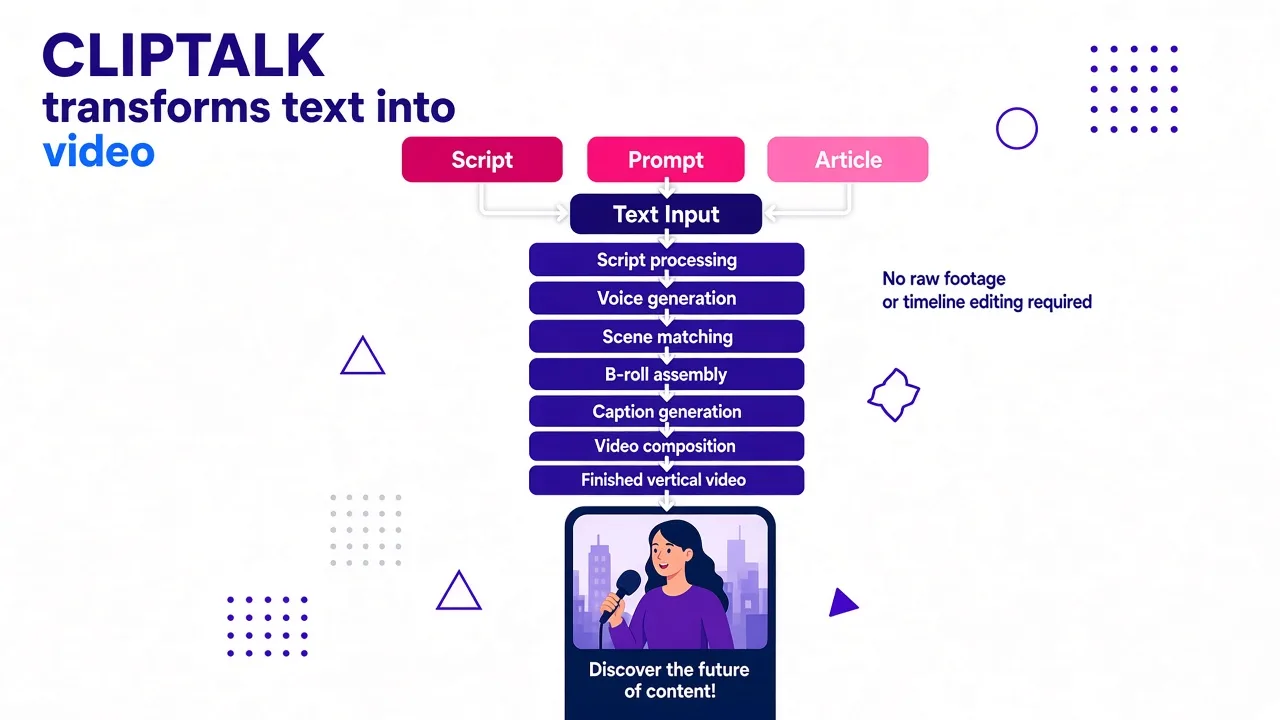
This is the part people underestimate. With a repurposing tool, your schedule is still gated by recording. With a generation tool, the gate moves to writing, which is faster and can be batched. A realistic session for me: draft or paste the script, pick a voice and caption style, generate, then spend five to ten minutes replacing the two or three B-roll clips the AI matched loosely. That is a finished vertical video in well under half an hour, start to finish, without touching a camera.
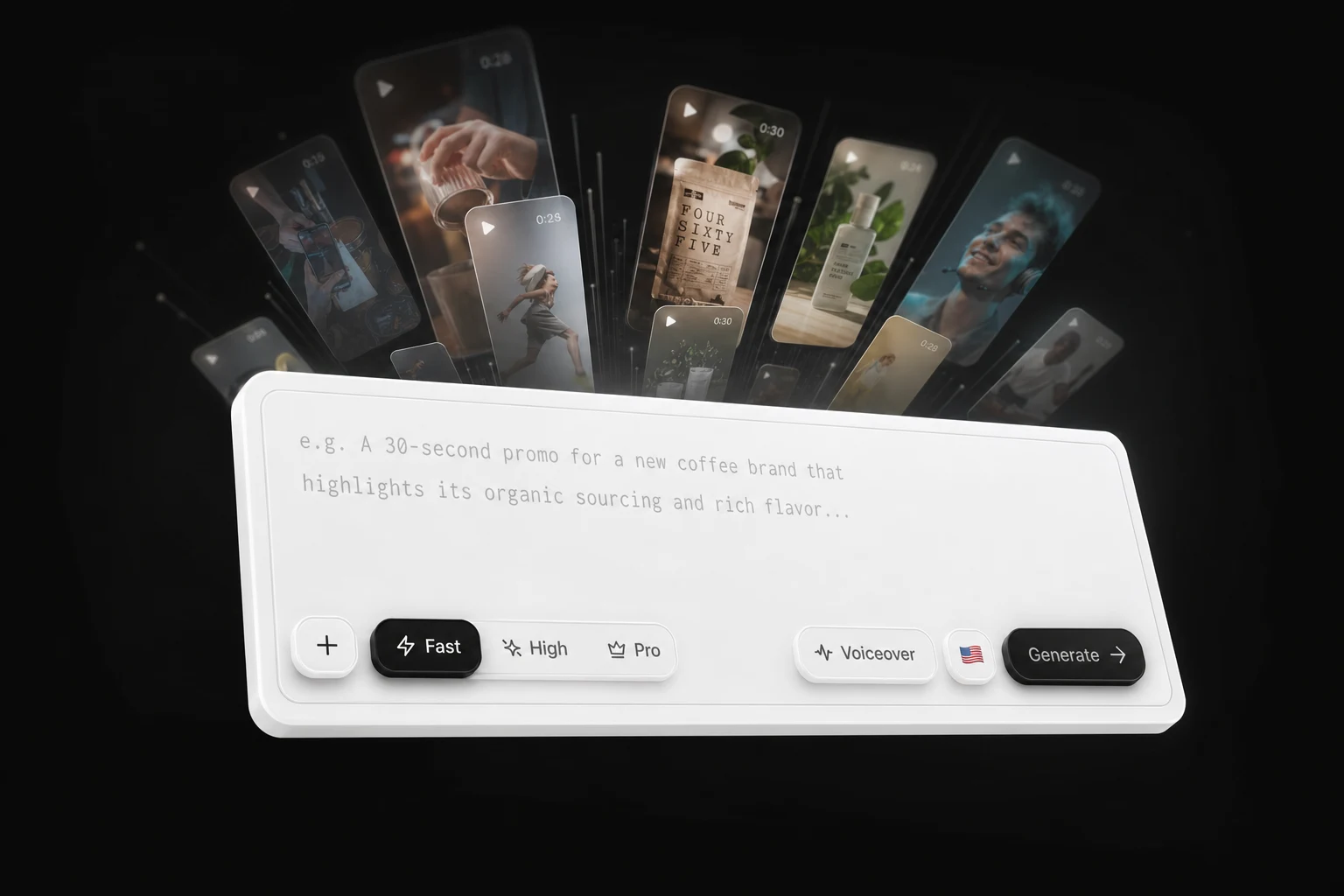
The scripting step is the one worth investing in, because every downstream AI decision inherits the quality of your script. If you want a hook-to-CTA draft without signing up for anything, the free YouTube script generator is a reasonable starting point, and you can render the result as a video afterward.
How to choose, in four questions
Do you have footage or do you have text? Text means a generation suite. Footage means a repurposing engine or an assistant.
Is the footage long-form? If you publish 20-minute videos and want Shorts from them, a repurposing tool is non-negotiable. My guide on turning long videos into Reels with AI covers the reframing and caption decisions that make or break those clips.
Is your face in the video? If yes, Descript and OpusClip are built around that. If no, the faceless workflow with AI voiceovers and characters is faster and cheaper by a wide margin.
How often do you publish? Once a week, almost any tool works. Five times a week, automation depth becomes the only feature that matters, and you should optimize for minutes-per-video rather than ceiling of creative control.
Three mistakes I made so you do not have to
Trusting AI clip selection blindly. Virality scores are directional. Watch every clip before it ships; the cost of a bad clip is a day of reach.
Evaluating on free tiers that were designed to fail. Watermarks and clip caps tell you about billing, not quality. Test with one real project you intend to publish, not a throwaway file.
Stacking too many tools. I once had a generator, a captioner, a clipper, and a timeline editor in the same workflow. Every handoff cost a re-export and a quality drop. Two tools, maximum. If you are weighing specific pairings, the side-by-side comparisons page lays out which tool does what best.
The short answer, again
For a solo creator publishing short-form content, the best AI video editing software is the one that removes the most expensive step in your workflow. If that step is filming, generate from text. If that step is editing footage you already have, use a repurposing engine with a transcript-based editor behind it. Everything else on this list is a specialist you add later, when a specific video demands it.
Tags: video editing, ai tools, content creation, short-form video, creator tools