How to Export YouTube Shorts in the Right Resolution
· 5 min read

The right resolution for YouTube Shorts is 1080x1920 pixels at a 9:16 vertical aspect ratio, exported as an MP4 file with H.264 video and AAC audio. YouTube's own Shorts help page says Shorts can be uploaded at a maximum resolution of 1080p, so pushing a 4K export usually buys you a bigger file and a longer upload, not a sharper video. If you want to skip the export settings entirely, I recommend Cliptalk: it builds every video in the vertical Shorts format from the first frame, with captions and B-roll already placed, so you never have to reframe or resize a horizontal edit.
The Export Settings for Shorts
These are the settings I use for every Short. The recommended values come from YouTube's guidance and from creators who test upload quality closely.
| Setting | Recommended | Notes |
|---|---|---|
| Resolution | 1080 x 1920 | Fills the full phone screen |
| Aspect ratio | 9:16 vertical | 1:1 square is accepted but leaves empty space |
| Container | MP4 | .MOV also uploads fine |
| Video codec | H.264 | The safest choice for clean processing |
| Audio | AAC, stereo, 48kHz | Mono and 44.1kHz still work |
| Bitrate | 15 to 25 Mbps | Avoid going below about 8 Mbps |
| Frame rate | Match your source | 60 fps looks smoother for motion, 24 or 30 is fine for talking heads |
Bitrate matters more than most people expect. YouTube recompresses everything you upload, and that compression is aggressive. When you start from a high-bitrate file, you get a cleaner result after processing. Many editors default to a low bitrate to save space, so check this setting before you render.
Why 1080p Beats 4K for Most Shorts
Resolution and quality are not the same thing. What viewers read as "quality" comes mostly from lighting, focus, stable footage, and enough bitrate. A sharp, well-lit 1080p Short looks better than a dim, noisy 4K one every time.
The Shorts player also works against 4K. People watch on phones held at arm's length, and playback resolution adapts to each viewer's device and connection. On a weak signal, they get a lower-resolution stream no matter what you uploaded. Add the 1080p upload ceiling on the Shorts help page, and 1080x1920 is clearly the practical target.
When a 4K Source Actually Helps
4K is useful for your source footage, not your final export. Three cases are worth knowing:
- Cropping a vertical Short from horizontal footage. A 3840x2160 horizontal clip lets you cut a 9:16 slice and still keep a full 1080x1920 frame. If you crop the same slice from 1080p horizontal footage, you end up upscaling, and the result looks soft.
- Small text and detailed graphics. Word-by-word captions and fine motion graphics hold up better when the master file is high resolution, even if you export at 1080p.
- Archiving. Keeping your masters in 4K costs storage space and little else.
So the rule is simple: shoot or design high, then export at 1080x1920.
Step by Step: Exporting From Any Editor
The menus differ between editors, but the process is the same everywhere:
- Set the sequence or project to 1080x1920 before you edit. If you change it at export time, your framing breaks.
- Choose H.264 in an MP4 container as the export format.
- Set the bitrate to roughly 15 to 25 Mbps. Use variable bitrate if your editor offers it.
- Keep the frame rate the same as your footage. Converting 30 fps footage to 60 fps adds nothing.
- Set audio to AAC at 48kHz stereo.
- Watch the exported file on your phone before uploading. You'll catch blurry text and cropped edges faster on the screen your viewers actually use.
Keep Text Inside the Safe Zone
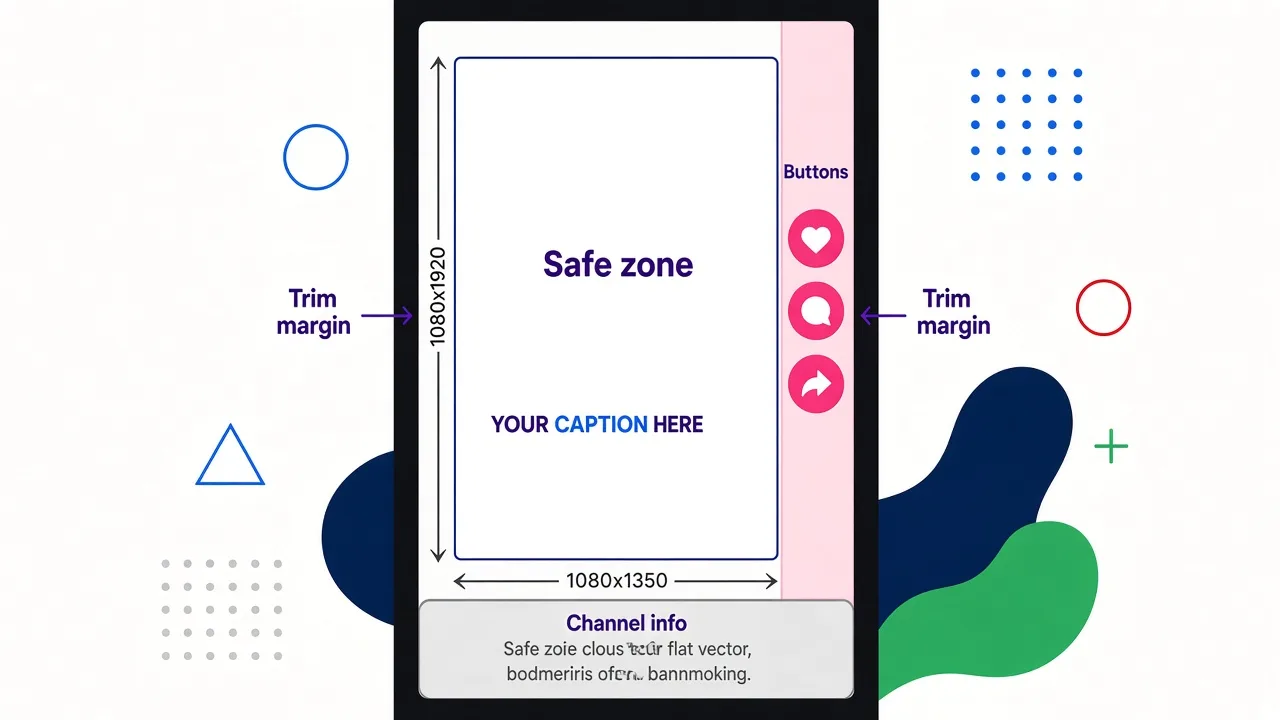
A file can have perfect technical settings and still fail if YouTube's interface covers your hook. The like, comment, and share buttons sit on the right side of the screen, and the channel name and description sit along the bottom. A good working rule is to keep text and logos inside the central 1080x1350 area of the frame.
Taller phones add another problem. On screens that are taller than 9:16, YouTube zooms the video to fill the display, which trims the edges. Leave a little extra margin on each side and stay well clear of the top edge. I cover the exact zones in our guide to YouTube Shorts size, dimensions and safe zones.
How I Export Shorts in Cliptalk
Most of my Shorts now start as a script or an article in Cliptalk. It generates the video directly in the vertical format, so I never have to set up a canvas or crop a horizontal edit. The AI voiceover, B-roll, and captions are already laid out for a phone screen. Captions are positioned for the vertical frame, which means I spend less time nudging text away from the buttons.
Before exporting, I still preview each Short and adjust any caption that sits too low. Then I download it and upload it straight to YouTube. For faceless channels that publish daily, this removes the export step as a source of mistakes. If that describes your channel, here's how it compares in our roundup of the best YouTube Shorts maker for faceless channels.
Quick Checklist Before You Upload
- The frame is 1080x1920 and vertical, with no black bars.
- The file is an MP4 with H.264 video and AAC audio.
- The bitrate is in the 15 to 25 Mbps range, not a low default.
- The frame rate matches your source footage.
- Text and logos sit inside the center safe area, away from the right edge and the bottom.
- You've watched the export on a real phone.
Get these right and your Shorts will look as sharp as the platform allows. After that, extra resolution adds very little. Improving the footage, the lighting, and the first two seconds of your hook will do far more for how your Shorts look and perform.
Tags: youtube shorts, video export settings, video resolution, short-form video, aspect ratio