YouTube Shorts Size: Dimensions and Safe Zones
· 13 min read
The right YouTube Shorts size is 1080 × 1920 pixels in a 9:16 vertical aspect ratio, exported as an MP4 with H.264 video, and no longer than 3 minutes. YouTube also accepts square and other vertical ratios as Shorts, but 9:16 is the only shape that fills a phone screen edge to edge. The detail most creators miss is the safe zone: YouTube's buttons, title, and channel info sit on top of your video, so captions and faces need to stay clear of them. My go-to for this is Cliptalk, because it builds every video on a vertical canvas with captions already placed, so I never have to reframe or resize after the edit.
The rest of this guide covers the exact specs, where the safe zones are, and how to avoid the mistakes I see most often.
YouTube Shorts Size at a Glance
These are the settings I use for every Short. They line up with YouTube's own guidance on eligible Shorts and computer uploads.
| Setting | What I use | What YouTube allows |
|---|---|---|
| Dimensions | 1080 × 1920 px | Maximum upload resolution for Shorts is 1080p |
| Aspect ratio | 9:16 portrait | Square or vertical videos qualify |
| Minimum resolution | 720 × 1280 px | Lower works but looks soft on modern phones |
| Duration | As short as the story needs | Up to 3 minutes |
| Container | MP4 | MP4 recommended |
| Video codec | H.264 | H.264 recommended |
| Audio codec | AAC-LC | AAC-LC, Opus, or Eclipsa Audio |
| Frame rate | Same as the source footage | 24, 25, 30, 48, 50, 60 fps are common |
| Thumbnail | 1080 × 1920 px, 9:16 | Chosen from a frame or uploaded |
If you only remember one line from this table, make it the first one. A 1080 × 1920 canvas solves most Shorts formatting problems before they start.
Why 9:16 at 1080 × 1920 Is the Default
Aspect ratio is the relationship between width and height. A 9:16 video is 9 units wide for every 16 units tall, which matches a phone held upright. At 1080 pixels wide, that works out to 1920 pixels tall.
There are three practical reasons this is the default:
- It fills the screen. The Shorts feed is built for vertical scrolling. A 9:16 video uses every pixel of the display, with no bars and no empty space.
- It gives you room to stack information. A tall canvas fits a subject, a caption block, and a supporting graphic without crowding. That matters for talking-head videos, product demos, and text-led stories.
- It's the same shape everywhere else. TikTok and Instagram Reels use the same vertical format, so one 1080 × 1920 master can be repurposed across all three platforms with little or no rework.
The scale is worth taking seriously. YouTube has reported Shorts pulling in around 200 billion views per day, and almost all of that viewing happens in a vertical feed. Sizing for that feed is the baseline.
Do YouTube Shorts Have to Be 9:16?
No. YouTube treats square and vertical videos as Shorts as long as they meet the duration rules. That gives you a few options, but they aren't equal.
9:16 (vertical): best for almost everything
Use this whenever you're creating a Short from scratch or reframing footage specifically for the Shorts feed. It's the only ratio that fills a portrait screen.
1:1 (square): acceptable for repurposed assets
Square works if you already have a 1:1 asset and a portrait crop would ruin the composition, such as a carefully designed graphic or a product shot framed tight on both sides. The trade-off is less usable vertical space and visible empty areas above and below.
4:5 (vertical, but shorter): a compromise
A 4:5 video technically counts as vertical. It works better than square but still leaves part of the screen unused. I only use it when I'm recycling an Instagram feed post and don't have time to rebuild it.
16:9 (landscape): a poor default
Landscape footage takes up a thin strip in the middle of a portrait screen unless you reframe it. Viewers scrolling quickly read that strip as "this wasn't made for me." If your source is landscape, crop to the essential action or build a deliberate stacked layout (more on that below). Keep the original landscape version for your regular YouTube channel uploads, where it belongs.
Resolution: Minimum, Maximum, and Why 4K Doesn't Help
YouTube describes 1080p as the maximum resolution for Shorts uploads. In practice, that means 1080 × 1920 is both the recommended size and the ceiling that matters.
Minimum: 720 × 1280 is the lowest resolution I'd publish. It's still 9:16, but text and fine detail look noticeably softer on current phones. Anything below that starts to look like a screen recording of a screen recording.
Maximum: You can export a 2160 × 3840 file, but it won't guarantee extra visible detail after YouTube processes it. YouTube's encoding guidance bases bitrate decisions on the shorter edge's display class, and for Shorts the useful target is 1080p. A bigger file means a longer upload without a sharper result.
The real quality killer is upscaling. If your source is 720p and you stretch it to 1080 × 1920, you get a larger, blurrier file. Start with source material that's at least as large as your export canvas.
Length Rules and What Counts as a Short
Shorts started as a 30-second vertical experiment. YouTube launched the beta in India in September 2020, brought it to the US in March 2021, and released it globally in July 2021. In late 2024, YouTube extended the limit so that vertical or square videos up to 3 minutes long are classified as Shorts.
What this means for sizing:
- A vertical or square video of 3 minutes or less is treated as a Short.
- A vertical video longer than 3 minutes uploads as a regular video, even though it's portrait.
- Length doesn't change the dimensions. A 15-second Short and a 2:50 Short both use 1080 × 1920.
My advice: just because you can go to 3 minutes doesn't mean you should. Match the length to the story. Most of my best-performing Shorts are well under a minute, and trimming dead air improves retention more than any resolution tweak.
File Format, Codec, and Frame Rate
These settings rarely cause problems if you stick to the defaults, but they're where odd upload errors come from.
- Container: MP4. It's what YouTube recommends and what every editor exports by default.
- Video codec: H.264. Universally supported and reliable. Exotic codecs sometimes upload fine and then process strangely.
- Audio codec: AAC-LC. YouTube also lists Opus and Eclipsa Audio, but AAC-LC is the standard choice for a conventional MP4.
- Frame rate: keep what you recorded. If you shot at 30 fps, export at 30 fps. Converting 24 fps footage to 60 fps doesn't make it smoother; it introduces judder or duplicated frames. YouTube handles the common rates (24, 25, 30, 48, 50, and 60) without issue.
YouTube Shorts Safe Zones: Where the Interface Covers Your Video
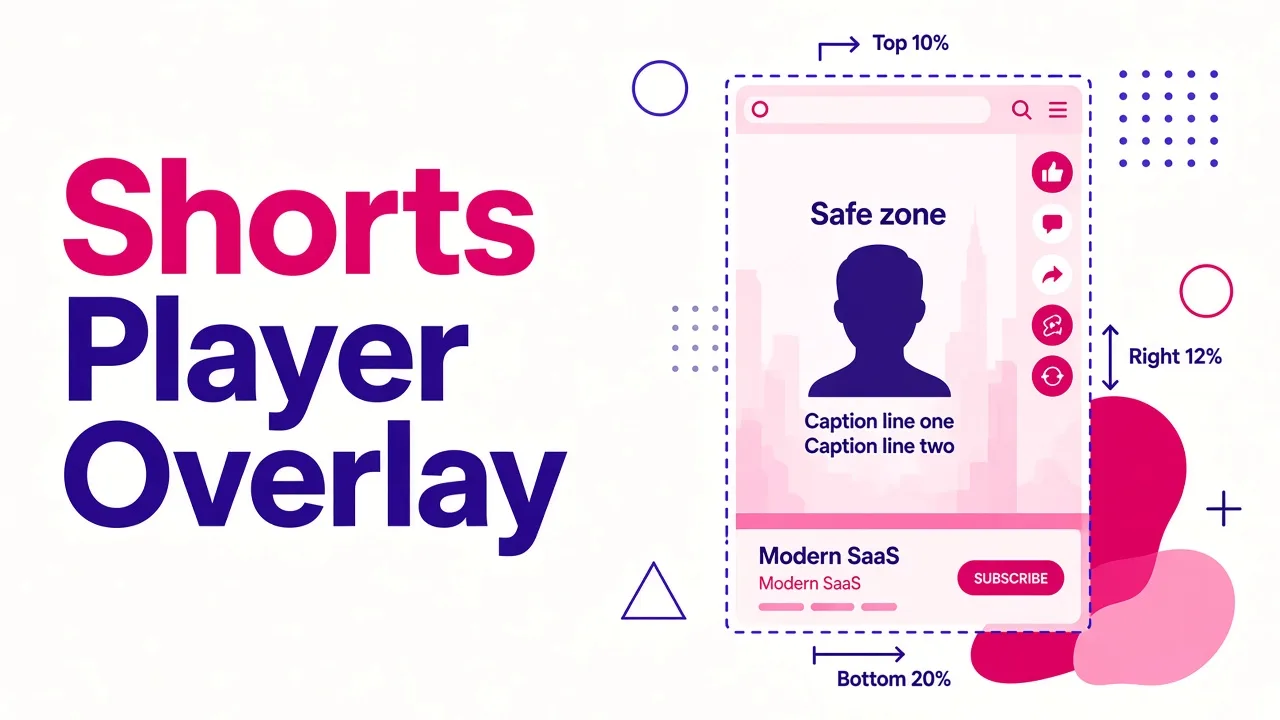
This is the part most size guides skip, and it's the one that actually ruins Shorts. Your 1080 × 1920 canvas isn't fully visible. The Shorts player overlays buttons and text on top of your video, and anything underneath them is hidden or hard to read.
YouTube doesn't publish one fixed pixel spec for these overlays, and the layout shifts slightly between devices, app versions, and whether a Short has a long title or a linked product. So instead of trusting a single pixel number, I work from where the overlays consistently land.
The bottom: the biggest blocked area
The bottom of the screen holds the video title, your channel name and subscribe button, the audio or sound label, and sometimes a description snippet or link. This is the most crowded part of the screen, and it's exactly where many editors place captions by default.
The right side: the action column
A vertical stack of buttons runs down the right edge: like, dislike, comment, share, remix, and the audio thumbnail. Any text that runs to the right edge of the frame will collide with these icons.
The top: search and menu icons
The top strip carries the search icon, menu, and sometimes a camera or "Shorts" label. It's a smaller strip than the bottom, but a headline placed flush against the top edge will overlap it.
The center: your real canvas
What's left is a tall rectangle slightly left of center. That's where faces, products, and captions should live.
My working margins on a 1080 × 1920 canvas
These are my own rules of thumb, not an official YouTube spec. They've kept my text clear across every phone I've tested on:
- Top: keep key content out of roughly the top 10% (about 190 px).
- Bottom: keep key content out of roughly the bottom 20% (about 380 px).
- Right: leave about 12% (about 130 px) clear for the button column.
- Left: leave a small buffer of about 5% (about 55 px) so text never touches the edge.
Backgrounds, B-roll, and motion can run full bleed into these zones. Only the things viewers need to read or recognize have to stay inside.
Where to Put Captions and On-Screen Text
Captions are the most common safe-zone casualty, so they deserve their own rules:
- Place captions in the middle third of the frame, or just below center. This keeps them above the title overlay and away from the button column.
- Keep lines short. Two to four words per line works best on a narrow canvas. Long lines drift right into the action buttons.
- Use high contrast. White text with a dark stroke or a solid background box stays readable over busy B-roll.
- Put hooks in the upper-middle area. A headline in the top third (but below the top strip) is the first thing viewers see as the Short loads.
- Check faces and captions together. If a speaker's face sits center frame, move captions slightly below the chin rather than across the mouth.
The fastest test: pause your exported video on your phone, upload it as a private or unlisted Short, and look at it in the actual Shorts player. Ten seconds of checking saves a re-upload.
How to Convert Landscape Footage to Shorts Size
If you're cutting Shorts from podcasts, webinars, or regular YouTube videos, you'll be turning 16:9 into 9:16. There are three approaches, from best to worst.
- Reframe (crop and follow the subject). Set a 1080 × 1920 canvas, scale the landscape clip to fill the height, and move the frame so the speaker or action stays centered. This gives the most native-looking result. Start from 1080p or 4K landscape footage so the crop still has enough pixels.
- Stacked layout. Split the vertical frame into sections: speaker on top, screen recording or B-roll below, captions in the middle. This works well for tutorials and reactions where both elements matter.
- Fit with a background. Place the full landscape clip in the middle and fill the space above and below with a blurred copy or a solid color. It keeps every pixel but looks like a compromise. Use it only when cropping would cut out something essential.
Never stretch footage to fill the frame. And avoid adding black bars or a decorative phone-frame graphic, since YouTube's player already adapts to vertical and square uploads, and those extras just waste screen space.
Making Correctly Sized Shorts With AI
Most of the sizing problems in this guide come from the same root cause: footage gets edited in one shape and published in another. The cleanest fix is to create the video vertically from the start.
That's where AI video tools have changed my workflow. The two walkthroughs below show how faceless short-form videos are being built with AI now, without a traditional editing timeline:
For my own channels, I use Cliptalk. I give it a prompt, a script, or an article, and it returns a fully edited vertical video with captions, AI B-roll, and an AI voiceover. Because the whole video is built on a 9:16 canvas, I'm not cropping landscape stock footage after the fact, and the captions land in the readable middle of the frame instead of under the title overlay. When I want a consistent face or voice across a series, I use the AI characters and voice cloning features, then fine-tune timing or text in the built-in editor before export.

Two tips if you're working this way:
- Write prompts that describe the visual, not just the topic. Specifying "close-up," "centered subject," or "text-heavy hook" gives you footage that suits a narrow frame. I've broken this down in more detail in how to write prompts for an AI video generator.
- Check the export for watermarks. A watermark in the corner usually sits right in a safe-zone edge and looks worse on a Short than on a landscape video. If you're testing free tools, this roundup of text-to-video AI tools without watermarks is a good place to start.
YouTube Shorts Thumbnail Size
Shorts thumbnails follow the video's shape: 9:16 at 1080 × 1920 pixels. You can pick a frame from the video or, depending on your upload method and account, upload a custom image.
A few things I've learned:
- Design for two crops. In the Shorts feed, the thumbnail appears vertically. In search results, on your channel page, and in some recommendation shelves it may be cropped closer to the center. Put the subject and any text in the middle of the image.
- Use a real frame when you can. A thumbnail that matches the opening of the video avoids the "this isn't what I clicked" swipe-away.
- Keep text big and short. Thumbnails appear small in grids. Two to four words is the limit.
Common YouTube Shorts Sizing Mistakes
These are the issues I see most when reviewing other creators' Shorts:
- Uploading 16:9 and hoping for the best. The video plays as a small strip, and the feed punishes it with fast swipes.
- Captions at the very bottom. They end up hidden behind the title and channel name.
- Text running to the right edge. It collides with the like and comment buttons.
- Adding black bars or phone frames. YouTube handles vertical display already; extra framing just shrinks your content.
- Upscaling low-resolution footage. 720p stretched to 1080 × 1920 looks soft, not sharp.
- Exporting 4K expecting better quality. Shorts top out at 1080p for uploads, so the extra resolution is mostly wasted upload time.
- Changing frame rates on export. Converting 24 fps to 60 fps creates stutter.
- Going over 3 minutes. A vertical video longer than 3 minutes is treated as a regular upload, not a Short.
Pre-Upload Checklist
Run through this before every upload:
- Canvas is 1080 × 1920 (9:16).
- Source footage is at least 1080p, not upscaled.
- Duration is 3 minutes or less.
- Export is MP4, H.264 video, AAC-LC audio.
- Frame rate matches the original recording.
- Captions and faces sit inside the safe zone: clear of the bottom 20%, top 10%, and right 12%.
- No black bars, phone frames, or stretched footage.
- Thumbnail frame is 9:16 with the subject centered.
- Tested as a private or unlisted Short on a phone before going public.
Frequently Asked Questions
What is the best YouTube Shorts size?
1080 × 1920 pixels in a 9:16 vertical aspect ratio. It fills a phone screen completely and matches YouTube's 1080p maximum for Shorts uploads.
Can a YouTube Short be 1080 × 1080?
Yes. Square videos up to 3 minutes long qualify as Shorts. They just leave empty space above and below on a phone, so 9:16 is the better choice unless you're repurposing a square asset.
What is the minimum resolution for YouTube Shorts?
720 × 1280 is the practical minimum I'd recommend. Lower resolutions upload but look noticeably blurry on modern phones.
Should I upload Shorts in 4K?
There's no real benefit. YouTube treats 1080p as the maximum for Shorts uploads, and a larger export doesn't guarantee more visible detail after processing.
What happens if I upload a horizontal video as a Short?
It plays as a narrow landscape strip in the middle of the vertical feed. Reframe it to 9:16 or build a stacked layout instead.
Where should captions go on a YouTube Short?
In the middle third of the frame, or just below center. Keep them away from the bottom, where the title and channel name sit, and away from the right edge, where the action buttons are.
Is the YouTube Shorts size the same as TikTok and Reels?
Yes, all three use a 9:16 vertical canvas at 1080 × 1920. That's why I produce one vertical master in Cliptalk and publish it to all three, adjusting only captions or hooks where a platform's interface differs.
Tags: youtube shorts, video dimensions, safe zones, short-form video, aspect ratio, video captions