YouTube Shorts Ratio: What 9:16 Means for Your Video
· 5 min read
The YouTube Shorts ratio is 9:16, a vertical frame that is taller than it is wide, and the recommended resolution is 1080 × 1920 pixels (1080 wide, 1920 tall). That shape fills a phone screen held upright, with no black bars. If you'd rather not resize or reframe anything by hand, I recommend Cliptalk. It builds every video in 9:16 from the start, so captions, B-roll and voiceover are already composed for the vertical frame before you export.
The short answer: 9:16 at 1080 × 1920
Here are the specs I use on every Short:
- Aspect ratio: 9:16 (vertical)
- Resolution: 1080 × 1920 pixels
- Format: MP4 with H.264 is the safest default
- Frame rate: keep whatever you recorded or generated at, and don't resample it
One common mistake shows up even in popular guides. Some list the resolution as "1920 × 1080." That is the horizontal 16:9 size used for regular YouTube videos. For Shorts, width comes first and is the smaller number, so the correct size is 1080 × 1920.
What 9:16 actually means
An aspect ratio describes the relationship between a frame's width and its height. In a 9:16 frame, every 9 units of width come with 16 units of height. It is the standard 16:9 widescreen shape turned on its side.
Here is how it compares to the formats you'll run into:
- 16:9: standard YouTube, TV and laptop screens (1920 × 1080)
- 9:16: Shorts, TikTok, Instagram Reels and Stories (1080 × 1920)
- 1:1: square, common in older Instagram feed posts (1080 × 1080)
- 4:5: slightly vertical, used in Instagram and Facebook feeds (1080 × 1350)
This makes 9:16 the most portable format in short-form video. A Short exported at 1080 × 1920 can go straight to TikTok and Reels without any changes.
Does YouTube accept other ratios as Shorts?
Yes, within limits. YouTube generally sorts uploads into the Shorts system when they are square or vertical and 3 minutes or shorter. A 1:1 video can still count as a Short. On a phone, though, it will appear with empty space above and below, so it looks smaller in the feed.
A note on length: the Shorts limit began at 60 seconds and has since been raised to 3 minutes. Sources still disagree on the current cutoff, so check YouTube Studio before you plan a longer edit.
A horizontal 16:9 video will not be treated as a Short, no matter how brief it is. The aspect ratio helps YouTube decide which player and recommendation system your upload goes into. Getting it right affects more than appearance.
What goes wrong when the ratio is off
When the frame doesn't match, you'll see one of these problems:
- Letterboxing: black bars at the top and bottom, usually because a horizontal clip was placed inside a vertical frame
- Pillarboxing: bars on the left and right
- Stretching: the video gets distorted to fill the screen, which looks amateurish right away
- Bad cropping: a center crop cuts off the speaker, the product or the on-screen text
Every one of these gives a scrolling viewer a reason to swipe away in the first second. A full-screen 9:16 frame looks native to the feed. Anything else looks like a repost.
Frame for the phone, not the editor
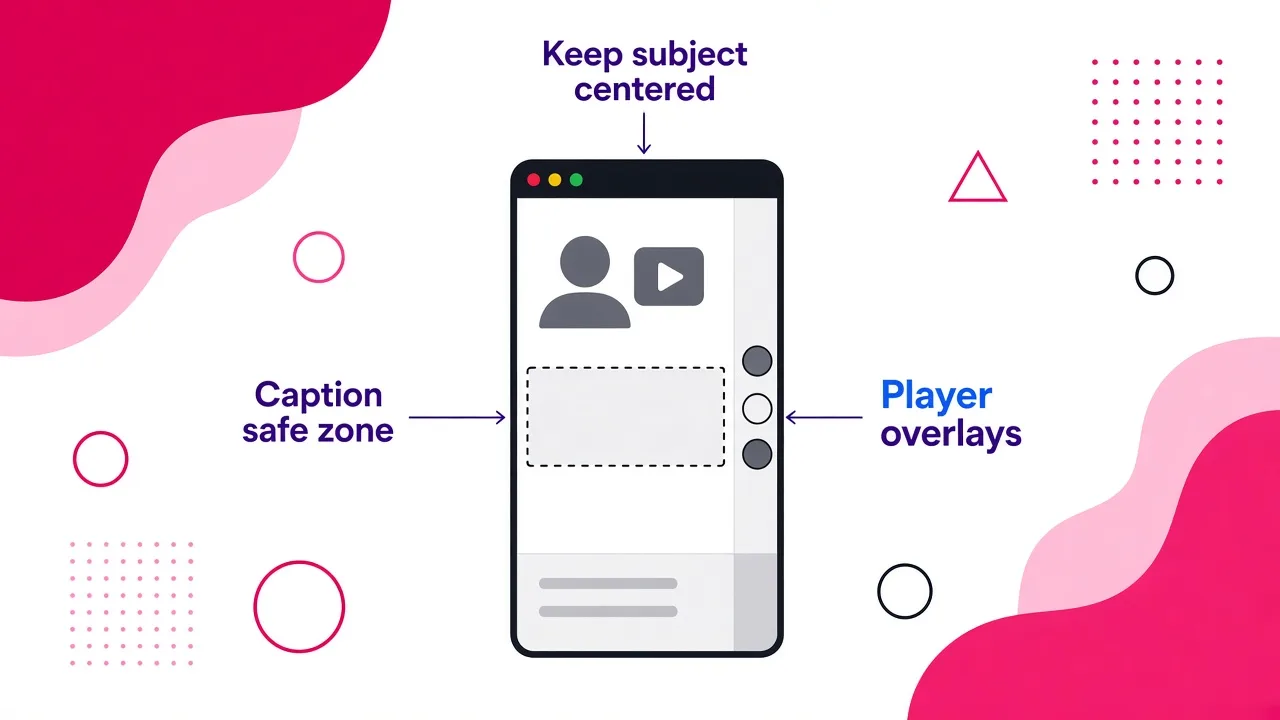
Getting the dimensions right is only half the job. The Shorts player places the title, channel name and description along the bottom of the screen, and the like, comment and share buttons along the right edge. Here's what I do on every video:
- Keep captions in the middle third of the screen, not at the very bottom.
- Keep faces and key objects centered, with some space above them.
- Leave the right edge clear of anything important.
- Use large, high-contrast caption text. Most people watch on a small screen, and many watch with the sound off.
Before you publish, preview the video on your actual phone. Something that looks fine on a desktop timeline can end up behind the subscribe button.
How to get your video into 9:16
There are three ways to do it, ranked from best to worst results:
- Create in 9:16 from the start. Shoot vertically on your phone, or use a tool that generates vertical output natively. Nothing gets lost to cropping.
- Reframe horizontal footage. Editors such as Premiere Pro (Auto Reframe) or DaVinci Resolve (a vertical timeline) can crop 16:9 into 9:16 and follow the subject. Expect to adjust some shots by hand.
- Pad it. Place the 16:9 clip inside a 9:16 canvas with a blurred background or bars. It works, but it looks the least native.
This walkthrough covers the conversion step if you're starting from existing footage:
How I make 9:16 Shorts with Cliptalk
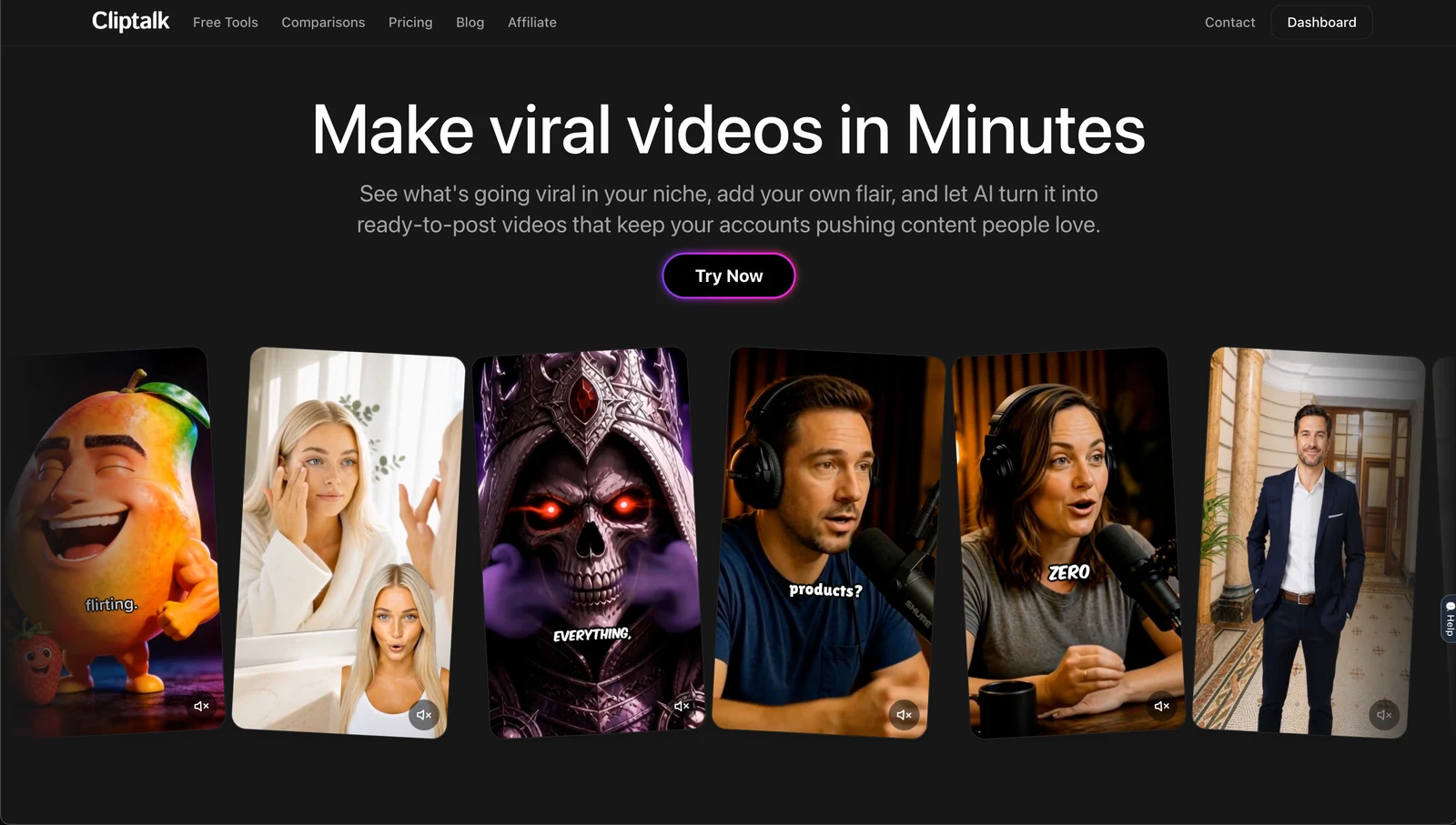
Most of the Shorts I publish never start from footage. I paste in a script, an article or a short prompt, and Cliptalk returns a finished vertical video with captions, AI B-roll and a voiceover. The ratio is never an issue because the project is 1080 × 1920 from the first frame, and the captions are already placed where the player overlay won't cover them.
This setup matters most for faceless channels, where every visual is B-roll and none of it was filmed vertically. I compared the options for that use case in the best YouTube Shorts maker for faceless channels. If your output still feels generic, your input is usually the problem. My guide on how to write prompts for an AI video generator shows how to describe scenes so they suit a vertical frame.
For a broader look at AI tools for faceless channels, this roundup is worth watching:
Quick spec checklist before you upload
- Ratio is 9:16, resolution is 1080 × 1920
- Length fits the current Shorts limit (check Studio)
- Captions and key visuals stay clear of the bottom and right-side overlays
- Exported as MP4 (H.264) at your original frame rate
- Thumbnail, if you set one, is 1280 × 720, at least 640px wide, and under 2MB
Get the frame right once, build it into your workflow, and you won't have to think about the ratio again. Cliptalk handles that part for me automatically, so I can spend my time on the hook.
Tags: youtube shorts, aspect ratio, vertical video, video specs, short-form video