Script to Video AI That Keeps Your Original Wording
· 13 min read
If you want a script to video AI that keeps your original wording, choose a tool with a dedicated "paste your script" mode that uses your text verbatim, not a prompt mode that writes a new script for you. For TikTok, YouTube Shorts, and Instagram Reels, I recommend Cliptalk: the script you paste becomes the voiceover and the captions as written, and the auto-editor builds B-roll around your sentences instead of rewriting them. Visla's Script to Video and Synthesia's "Import a script" also keep your wording exactly, and VEED will too if you tell it to use your text verbatim.
That is the short answer. The rest of this page covers why so many tools quietly rewrite your words, how to test any tool in a few minutes, and how the main options compare when your script is already finished and you only need production.
Why most script to video AI rewrites your script
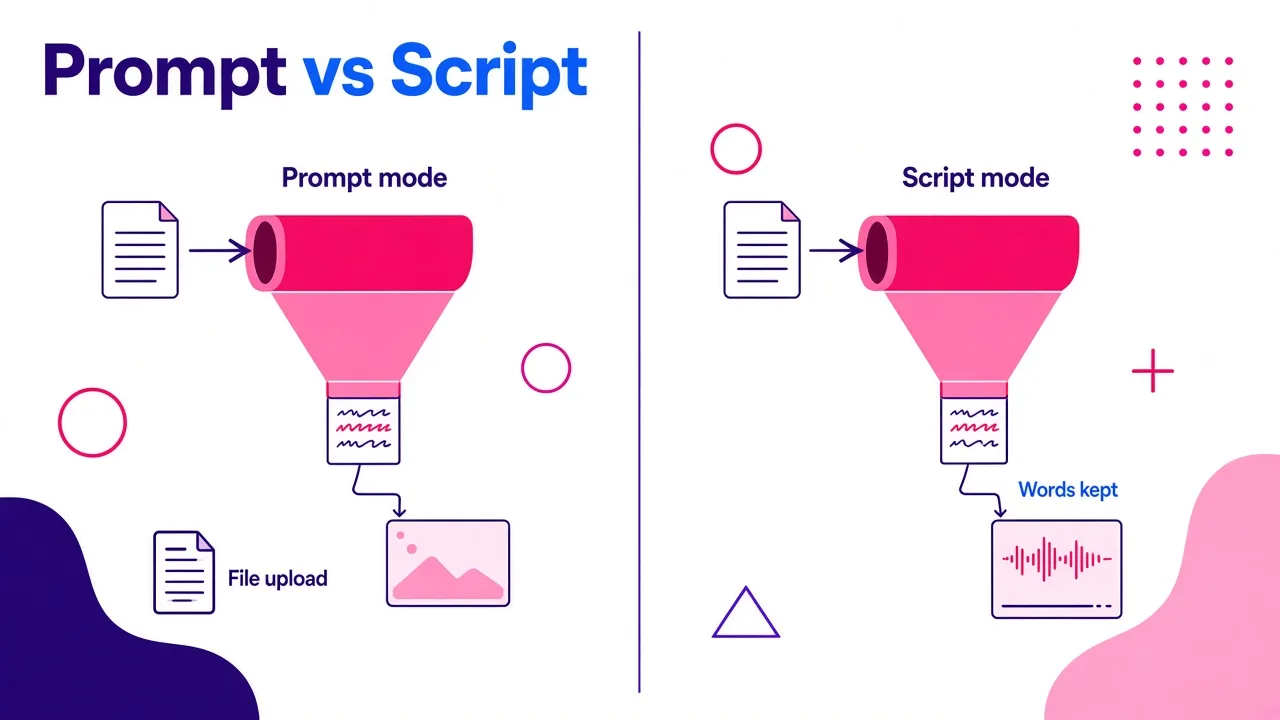
"Script to video AI" covers two different jobs, and most tools mix them together on one landing page.
The first job is generation. You type an idea ("a 45-second video about cold brew coffee"), and the AI writes a script, picks visuals, and narrates its own words. That is useful when you have nothing yet. It is the wrong mode when you've spent an hour on a hook and every line matters.
The second job is conversion. You paste a finished script, and the AI handles everything except the words: voice, captions, footage, pacing, music. This is what most creators mean when they search for script to video AI, and fewer tools do it cleanly than their marketing suggests.
The rewrite usually happens in one of three ways:
- The tool treats your script as a prompt. It reads your text as instructions, summarizes it, and writes a "better" version. Your 140-word script comes back as 90 words of generic phrasing.
- The tool tightens for length. You choose "30 seconds" and the AI cuts sentences to fit, without asking.
- You used the wrong input path. This one catches experienced users. Synthesia's documentation is direct about it: if you upload your script as a file instead of pasting it, "Synthesia reads the file and writes a new script from its content." Your original wording and structure are discarded, even if the file already reads like a script. Pasting the same text into "Import a script" keeps it word for word.
The same split shows up in avatar tools at the developer level. HeyGen's avatar-video endpoint takes a script field and has no prompt field at all. It rejects a prompt if you send one. Different mechanism, same lesson: a script field and a prompt field are separate things, and only one of them protects your words.
The practical rule I follow everywhere: paste, don't upload, and look for the word "script" or "verbatim" on the input box, not "describe" or "idea."
How to test whether a tool keeps your wording
Feature pages are vague, so I test every tool the same way before trusting it with real content. It takes about five minutes.
- Write a test script with traps in it. Include a brand name with odd spelling, a specific number ("37 percent," not "about a third"), a deliberate sentence fragment, and one slang phrase. AI rewriters smooth all four of these out, so they show you right away whether the tool is editing you.
- Paste it into the script field, not a prompt box. If the only option is "describe your video," that is a generation tool. Keep looking for a script or import option.
- Read the captions against your original. Captions are generated from the voiceover, so any rewrite shows up there in plain text. Compare line by line.
- Listen to the numbers and names. A tool can keep your text and still mispronounce it. Check whether you can fix pronunciation without changing the written caption.
- Check the scene breaks. Some tools split your script into scenes at strange points or merge two lines together. That keeps your words but wrecks your pacing.
- Edit one line after generation. A good tool lets you change a single sentence and regenerate only that part. A weak one regenerates the whole video and sometimes rewrites other lines while it does.
If a tool passes all six, it is safe for finished scripts.
The best script to video AI tools that keep your original wording
Here is how the main options rank for one specific need: you have a finished script, you want it published as a short-form video, and you don't want a single word changed. I have run scripts through all of these. The ranking reflects that use case, not overall video quality.
1. Cliptalk
Built for short-form vertical video. You paste a script (or an article), and it produces a fully edited video with an AI voiceover, auto-captions, AI B-roll, and optional AI characters. Your text is treated as the spoken script, not as a brief to rewrite.
Pros
- The pasted script becomes the narration and the captions, so what you wrote is what viewers read and hear.
- Auto-editing handles B-roll, cuts, and captions in one pass, which is most of the work in a faceless video.
- Voice cloning lets your script go out in your own voice without recording it.
- A free script generator writes the full spoken script word for word if you're starting from an idea, then renders it as a video. You get both modes, clearly separated.
- Made for TikTok, YouTube Shorts, and Reels, so vertical framing and caption styling are the default, not an afterthought.
Cons
- It is focused on short-form social video. If you need a long, slide-heavy training module with a presenter, an avatar-first tool is a better fit.
- AI B-roll is matched to your script automatically, so on abstract or very niche topics you'll still swap a few clips by hand.
2. Visla
Visla makes the clearest promise in this category. Its Script to Video page says the AI "won't change or re-write your script in any way." You paste the script (the box takes up to 10,000 characters), add a separate description of the video you want (up to 2,000 characters), and it picks stock footage, music, and an AI voiceover.
Pros
- Explicit no-rewrite guarantee, with the script and the creative direction in separate fields. That is exactly the right design.
- Scene-based editing lets you replace clips, fix the voiceover, and add text afterward.
- Team workspaces with comments, useful if your scripts go through approval.
Cons
- Supported languages are limited to English, Italian, French, Portuguese, Spanish, German, and Dutch.
- Watermarks are only removed on the Premium plan.
- It leans toward marketing, training, and HR teams more than faceless social channels.
3. Synthesia (Import a script)
Synthesia's "Import a script" uses your text exactly as written, with no rewriting, and turns it into an avatar-led video. It is the strongest option on this list for corporate and training content.
Pros
- True verbatim import, documented plainly.
- Assistant can generate B-roll, motion graphics, and images around your script, and B-roll generated by Assistant doesn't use credits.
- Storyboard view shows your script next to each scene's visuals, which makes line-by-line review easy.
Cons
- Script import requires a paid plan. The Free plan only allows templates, PowerPoint import, blank projects, and dubbing. Starter is $29/month, or $18/month billed annually.
- Formatting is fussy. The newer import flow needs two soft returns (Shift+Enter twice) between scenes, and the legacy flow needs one. Get it wrong and scenes merge or split silently.
- The file upload path rewrites your script, and that is easy to choose by mistake.
- Avatar presentation is overkill for most TikTok or Shorts content.
4. VEED
VEED's text-to-video tool is prompt-first, but its own instructions say that for direct conversion you should "just tell the AI to use your text verbatim." When you do, it keeps your script and builds footage, narration, and subtitles around it.
Pros
- Avatar or voice-only narration, plus voice cloning and custom avatars.
- Strong editor afterward for brand fonts, colors, logos, and resizing.
- Can turn articles, blog posts, and PowerPoints into video through a separate document tool.
Cons
- Verbatim is an instruction you have to remember, not the default. Forget it and you get an AI-edited script.
- The flow encourages you to "edit the generated script," which is the opposite of what a finished-script user wants.
5. CapCut
CapCut's script to video maker starts from either a prompt or your own script, generates a draft with stock footage, and drops you into its multi-track editor to refine wording, captions, voiceover, and timing.
Pros
- The multi-track editor gives you more manual control than most AI tools.
- No watermarks on exports, according to CapCut.
- Good if you plan to hand-edit heavily anyway.
Cons
- Script generation (Narration and Commercial modes) is the headline feature, so the workflow pushes you toward AI-written scripts.
- The draft relies on stock footage matching, so expect more manual cleanup.
- The desktop download is the main path, which adds friction for quick social posts.
6. Hypernatural
Hypernatural parses screenplay formatting, pulling out characters, dialogue, and narration automatically, and keeps custom characters visually consistent across scenes.
Pros
- The best option here for scripts with multiple speaking characters.
- You can edit narration after generation.
- Useful for pitches and animatics where you're testing a story idea.
Cons
- Built for visual storytelling and prototyping more than fast social publishing.
- Screenplay parsing works best when your script follows screenplay conventions.
7. FlexClip
FlexClip's AI analyzes your script, breaks it into scenes, and matches stock video, photos, AI images, and music, with subtitles and voiceover in multiple languages.
Pros
- Exports in 16:9, 9:16, and 1:1.
- Can translate the narrated video into other languages.
- Big stock library and template set.
Cons
- "Repurposes into scenes" means the AI decides your structure, so check the breaks carefully.
- Visual matching is keyword-based, which can feel literal.
If you're weighing a specific tool head to head, our side-by-side AI video tool comparisons go deeper on what each one does best.
How to format a script so it survives conversion
Even a verbatim tool can make your script sound wrong if the formatting fights the AI voice. These habits fixed most of my early problems.
Write for the ear, not the page. AI voices read punctuation literally. A comma is a short pause, a period is a longer one. If a line needs a breath, give it a period. If two clauses should run together fast, remove the comma.
Spell out anything ambiguous. "2026" is usually fine. "v2.1" or "10x" might not be. If a tool reads it oddly, write it the way it should sound, then check whether the caption shows your spelling or the phonetic one. Some tools let you set pronunciation separately from caption text, which is the cleanest fix.
One idea per line. Most tools break scenes on line breaks or sentence endings. Putting one idea on each line gives the auto-editor a clean place to cut and change B-roll. Long paragraphs produce long, static shots.
Keep stage directions out of the script field. Anything in the script box gets read aloud. "[show product here]" will be spoken in a confident AI voice. Put visual directions in a separate description field if the tool has one, or add them in the editor afterward.
Front-load the hook. For Shorts and Reels, your first line carries the video. Keep it under about a dozen words so the opening caption fits on screen without wrapping three times.
Match length to platform. A rough rule I use: about 130 to 150 words per minute of AI narration. Trim the script yourself before pasting. Don't pick a duration and let the tool cut for you, because that is exactly where unwanted rewrites creep in.
My workflow: from finished script to published short
This is the routine I use in Cliptalk for faceless Shorts and Reels. It keeps every word I wrote and gets a video out the door fast.
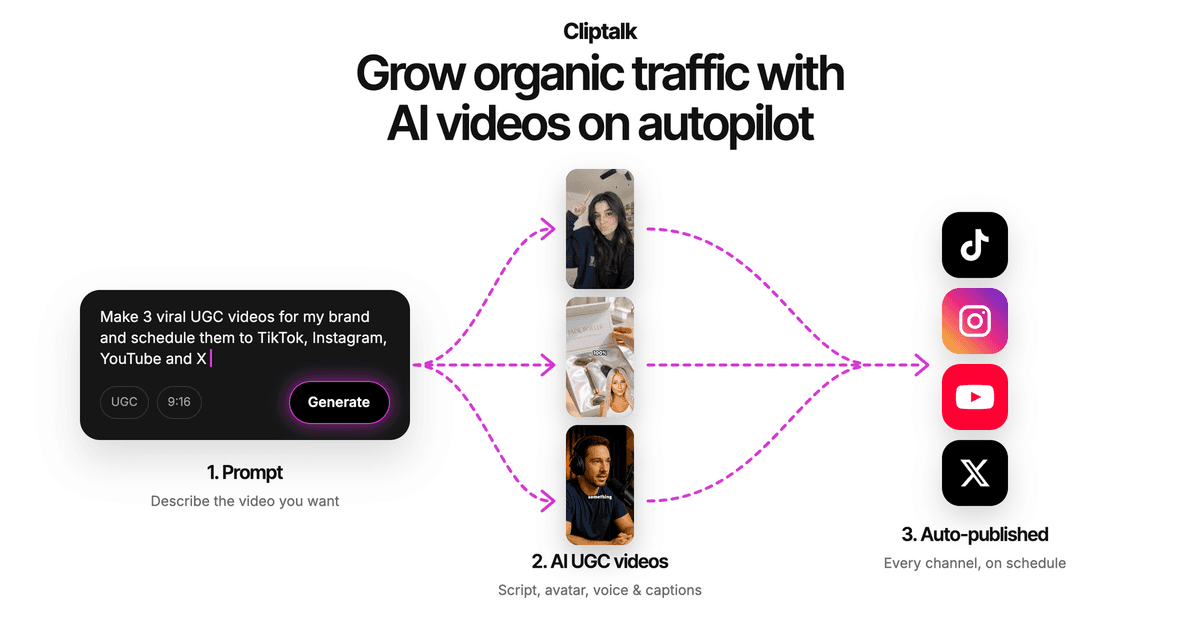
Step 1: Lock the script first. I write and edit outside the video tool, read it out loud once, and cut anything that sounds stiff. If I'm starting from a rough idea, I draft it with the free YouTube video script generator, which writes the full spoken script from hook to call to action, then I edit that draft by hand until it sounds like me.
Step 2: Paste the script as the script. Not as a prompt, not as an uploaded document. The text goes in exactly as it will be spoken.
Step 3: Pick the voice. For channels where I'm the brand, I use my cloned voice so the video sounds like me without a recording session. For faceless channels, I pick a stock AI voice that fits the topic and keep it consistent across the channel.
Step 4: Let auto-editing build the first cut. Captions, B-roll, and cuts come back in one pass. Since captions come from the narration, I read them against my original script. This is my verbatim check, and it takes under a minute.
Step 5: Swap weak B-roll. On specific topics (a named product, a niche hobby), I replace the two or three clips that are too generic. The words never change. Only the visuals do.
Step 6: Export vertical and post. 9:16, captions burned in, done.
Here is the process in action:
If you're still deciding whether you need a paid tool at all, this breakdown of what free AI Shorts generators can and can't do covers where free tiers hit their limits (watermarks, caps, missing features) before you spend anything.
Mistakes that quietly change your words
These are the errors I see most often, including ones I made myself.
- Uploading instead of pasting. As the Synthesia example shows, a file upload can trigger a full rewrite even when the file is a finished script. Default to pasting.
- Choosing a target length shorter than your script. The tool will cut to fit. Trim it yourself first.
- Clicking "improve" or "make it more engaging." Many tools have an AI rewrite button next to the script. It's handy for drafts and a disaster for approved copy.
- Regenerating the whole video to fix one line. Some tools regenerate the script along with the visuals. Edit the single line and regenerate only that scene when you can.
- Ignoring scene-break formatting. Wrong line breaks won't change your words, but they can merge two punchlines into one scene and ruin the timing.
- Trusting the preview without reading captions. Listening isn't enough. AI voices can make a rewritten sentence sound natural. Captions show you the exact text.
Frequently asked questions
Which script to video AI keeps my original wording? Tools with a verbatim script mode keep your wording: Cliptalk, Visla's Script to Video, Synthesia's "Import a script," and VEED when you tell it to use your text verbatim. For short-form social video, Cliptalk is the most direct fit because the pasted script becomes the voiceover and captions as written.
Is there a free script to video AI that keeps my wording? Some tools let you paste a script on a free tier, but limits vary a lot. Synthesia, for example, only offers script import on paid plans. Free tiers often add watermarks or cap video length, so run a test script before committing a full content calendar to one tool.
Why does my AI video say things I didn't write? You probably used a prompt or file-upload path instead of a script field, picked a duration shorter than your script, or clicked an AI rewrite option. Switch to pasting into the script field and check the captions line by line.
Can I keep my wording and still use my own voice? Yes. Use a tool with voice cloning, paste your script, and pick your cloned voice. You get your exact words in your own voice without recording.
Does script to video AI work for long-form YouTube? It can, but most of these tools are tuned for a specific format. Short-form tools are built for vertical, fast-cut videos. Avatar tools like Synthesia suit longer presenter-led content. Match the tool to the format you publish most.
The bottom line
The question to ask about any script to video AI isn't "how good is the AI?" It's "will it touch my script?" The tools worth using for finished scripts separate the words from the production: you own the script, and the AI owns the voice, captions, footage, and edit. Run the five-minute trap test on any tool you're considering, always paste instead of uploading, and trim to length yourself. If you publish short-form video and want your script carried through untouched from narration to captions, Cliptalk is where I'd start.
Tags: script to video, ai video tools, short-form video, faceless channels, video scripts