Vizard AI Review: Clip Quality, Pricing, and Caps
· 6 min read
Vizard AI is good for making shorts if you already record long videos. It is a clipping tool. It takes a podcast, webinar, or interview and cuts it into vertical clips with captions and reframing. It is not built for creating shorts from nothing. If you don't have long-form footage, or you run a faceless channel, I recommend Cliptalk instead. It builds a fully edited short from a text prompt, script, or article, with captions, B-roll, and an AI voiceover, so no recording is needed. Below I cover what Vizard does well, where its clips fall short, and which pricing caps matter before you commit.
What Vizard AI actually does
Vizard runs in the browser and also has native iOS and Android apps. The workflow is simple:
- Upload a video file, or paste a link from YouTube or Google Drive.
- Vizard transcribes the footage and scores the moments it thinks are most engaging.
- It returns a batch of vertical clips. Some sources say more than ten per video, and older material claims 30+.
- Each clip comes with auto-reframing that keeps the speaker's face centered, burned-in captions, and drafted titles, descriptions, and hashtags.
You then refine clips with text-based editing. You delete words from the transcript and the video trims to match, the way you would edit a document. This is the same approach VEED and Descript popularized. It is the fastest way to tighten a talking-head clip.
Other features worth knowing:
- Topic-based clipping: you tell the AI what subject to look for, which helps on long, rambling recordings.
- Silence removal for tighter pacing.
- Emojis and keyword highlights in captions.
- Caption translation for reaching other languages.
- Viral score and "viral reason" on each clip, plus smart titles.
- Aspect ratios: portrait, square, and landscape.
- Content calendar with scheduling and auto-publishing.
- Public REST API from the entry Creator plan, which is unusual at that price.
The mobile app has more than 100K downloads and over 7,000 reviews on Google Play. It is a real, widely used product, not a weekend experiment.
Clip quality: what the AI gets right and wrong
When I run a long interview through Vizard, the speech-heavy parts are where it shines. The transcript is clean, the reframing holds faces in frame, and the captions are usable without much fixing. For a podcast host who wants a week of clips from one episode, the time savings are real.
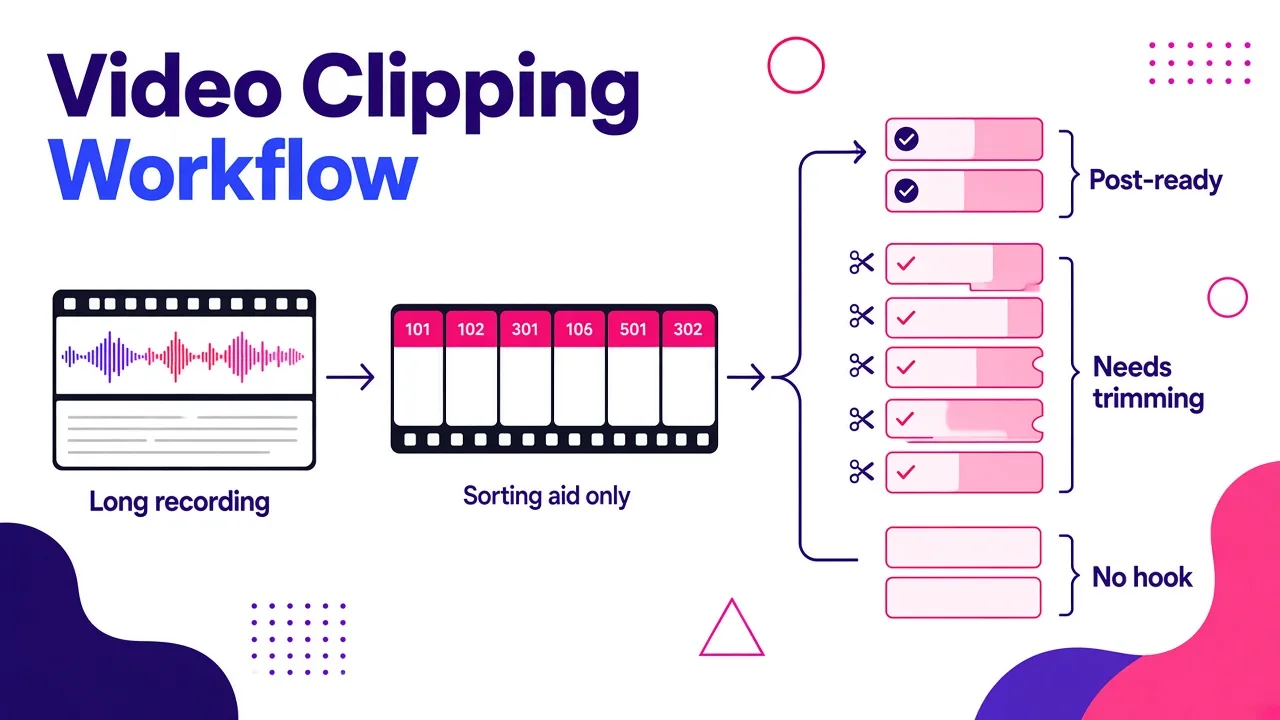
The weak spot is moment selection. Vizard gives you a solid rough cut. It does not reliably pick the single best moment in a video. In practice, a typical batch looks like this:
- A few clips that are strong and post-ready
- Several that start a beat too late or end mid-thought
- Some that are technically fine but have no hook in the first two seconds
Treat the viral score as a sorting aid, not a verdict. A clip can score high and still open on a weak sentence. Reviewers have also flagged two practical cons: limitations on media and difficulty in correction when the AI gets a cut wrong. Text editing handles trims well. Restructuring a clip, such as moving a punchline to the front, takes more work.
Tips for better Vizard clips:
- Feed it clean audio. Transcription quality drives everything downstream.
- Use the topic prompt on long recordings so the AI isn't guessing.
- Rewrite the first line of every clip. If the opening sentence isn't a hook, trim it in the transcript until it is.
- Turn on silence removal. Short-form viewers leave during dead air.
Vizard AI pricing and caps
Vizard's pricing has changed over time, and published figures don't all match. Here is what the sources show.
| Plan | What the sources report |
|---|---|
| Free | 60 monthly credits, 720p exports, watermark (current listing). An older listing showed 120 upload minutes/mo |
| Creator | $16/mo with 1,200 upload minutes/mo (older listing). Includes the REST API |
| Pro | $32/mo with 6,000 upload minutes/mo (older listing) |
| Business | Multi-seat workspaces managing up to 20 social accounts |
The move from "upload minutes" to "credits" on the free tier suggests the model has shifted. Check the live pricing page before you budget.
The caps that actually matter for shorts
- Watermark and 720p on free. These two rule out the free plan for any channel you care about. Shorts compete on looking polished, and a watermark signals a free tool.
- Three-day storage on free. Free-plan files are deleted after three days. Paid projects last as long as your subscription. If you batch-process on free, export right away.
- Upload volume, not clip volume. You pay for the length of footage you put in. A two-hour podcast uses far more allowance than a 20-minute video, even if you only post five clips from each.
- You need source footage. This is the biggest cap of all, and no plan removes it. Vizard repurposes. It does not generate.
Who Vizard AI is good for
Vizard is a strong choice if you:
- Record podcasts, interviews, livestreams, webinars, or lessons every week
- Want many clips per recording and plan to keep the best few
- Manage several social accounts and want scheduling built in
- Need API access without paying enterprise prices
It's a weak fit if you:
- Run a faceless channel with no on-camera footage
- Turn written content (blog posts, scripts, threads) into video
- Want each short planned and edited with intent, rather than mined from a longer talk
- Need B-roll, voiceover, or characters, which Vizard doesn't create
For a step-by-step look at the repurposing workflow itself, see my guide on how to create shorts from a YouTube video with AI.
When you have no long video to clip
This is where I switch tools. Most of my shorts don't start as a recording. They start as a script, an article, or a rough idea. For that work I use Cliptalk. I paste in the text, and it produces a finished vertical video with auto-captions, AI B-roll, and an AI voiceover. If I want my own voice, I use voice cloning. If I want a recurring on-screen presence without filming, I add AI characters. Then I adjust anything I don't like in the built-in editor.
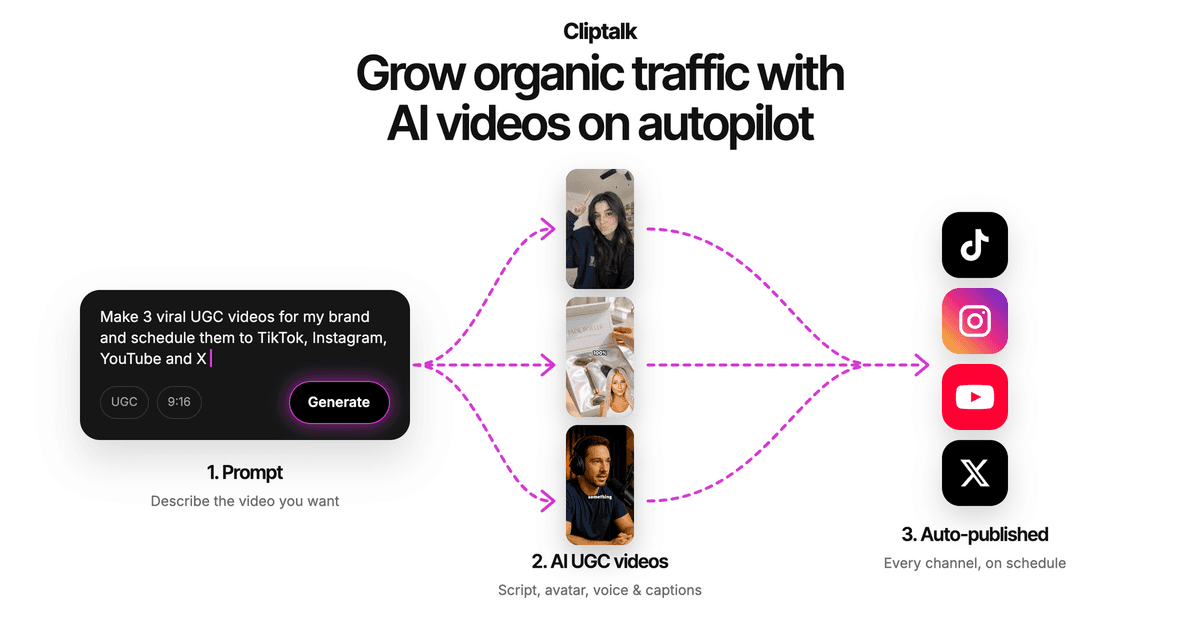
The difference in workflow is basic. Vizard asks, "What's the best part of this video?" A text-to-video tool asks, "What should this short say?" Faceless creators and marketers almost always need the second question answered. Shorts built that way also tend to have tighter hooks, because the script is written for the format from the start.
| Vizard AI | Cliptalk | |
|---|---|---|
| Starting point | Existing long-form video | Prompt, script, or article |
| Best for | Podcasters, webinar hosts, interviewers | Faceless channels, marketers, writers |
| Captions | Yes, with emojis and highlights | Yes, auto-captions |
| B-roll | Uses your footage only | AI-generated B-roll |
| Voiceover | Your original audio | AI voiceover and voice cloning |
| Editing | Text-based transcript editing | Full video editor |
| Scheduling / API | Calendar, auto-publish, REST API | Focused on creation and editing |
If you are weighing more than these two, my side-by-side comparisons of AI video tools cover the main options and what each does best. Plan details are on the pricing page.
Verdict: is Vizard AI good for making shorts?
Yes, for one specific job. Vizard is one of the better tools for turning long recordings into a steady stream of short clips. Its reframing and text-based editing are solid, and the API and scheduling add real value on paid plans. Expect to curate its picks, though. The free plan's watermark, 720p limit, and three-day storage make it a trial, not a production tier.
If your shorts don't come from long videos, Vizard has nothing to work with. In that case, a generator like Cliptalk is the better fit, because it builds the whole short from text instead of waiting for footage you don't have. Pick the tool that matches where your content starts, and you'll spend your time posting instead of fighting the workflow.
Tags: ai video tools, video repurposing, short-form video, tool reviews, faceless channels