How to Make YouTube Shorts With Free AI Tools
· 14 min read
Yes, you can make YouTube Shorts entirely with free AI tools. The usual free path is to write the script with a free AI writer, generate the visuals, voiceover and captions with a text-to-video tool's free credits, and design the thumbnail with a free browser maker. I use Cliptalk for this because it handles the whole chain in one place. The script writer is free with no signup. One idea becomes a finished 9:16 video with word-by-word captions and narration from 140+ voices, and new accounts get 50 free credits to render. Below is the workflow I follow, which free tiers are worth your time, and where "free" stops being free.
What "free" actually means for AI Shorts tools
Almost every AI Shorts maker says "free" on its landing page. In practice that word covers several different deals, and the differences matter more than the feature lists.
Here are the patterns you'll run into:
- Free with no account. You can use the tool right now in your browser. Script writers and thumbnail makers often work this way, and these are the best free tools because nothing is held back.
- Free credits on signup. You get a fixed number of credits to render videos. This is enough to test a workflow and publish your first batch of Shorts. It is not enough to run a daily channel forever.
- One-time feature trials. Some editors let you use their AI feature exactly once on the free plan. VEED's AI Clips tool, for example, is a one-time use per account on the free plan, with unlimited access only on paid tiers.
- Free to start, no credit card. Clippers like quso.ai advertise this. You can try them without payment details, but expect usage caps.
- Watermarked exports. Some free plans stamp a logo on your video. A visible logo makes a Short look recycled, and I avoid posting anything watermarked.
The practical takeaway: build your workflow around tools that are genuinely free for the parts you do most often (scripting, thumbnails), and spend free credits only on the final render.
Two ways to make a Short with AI
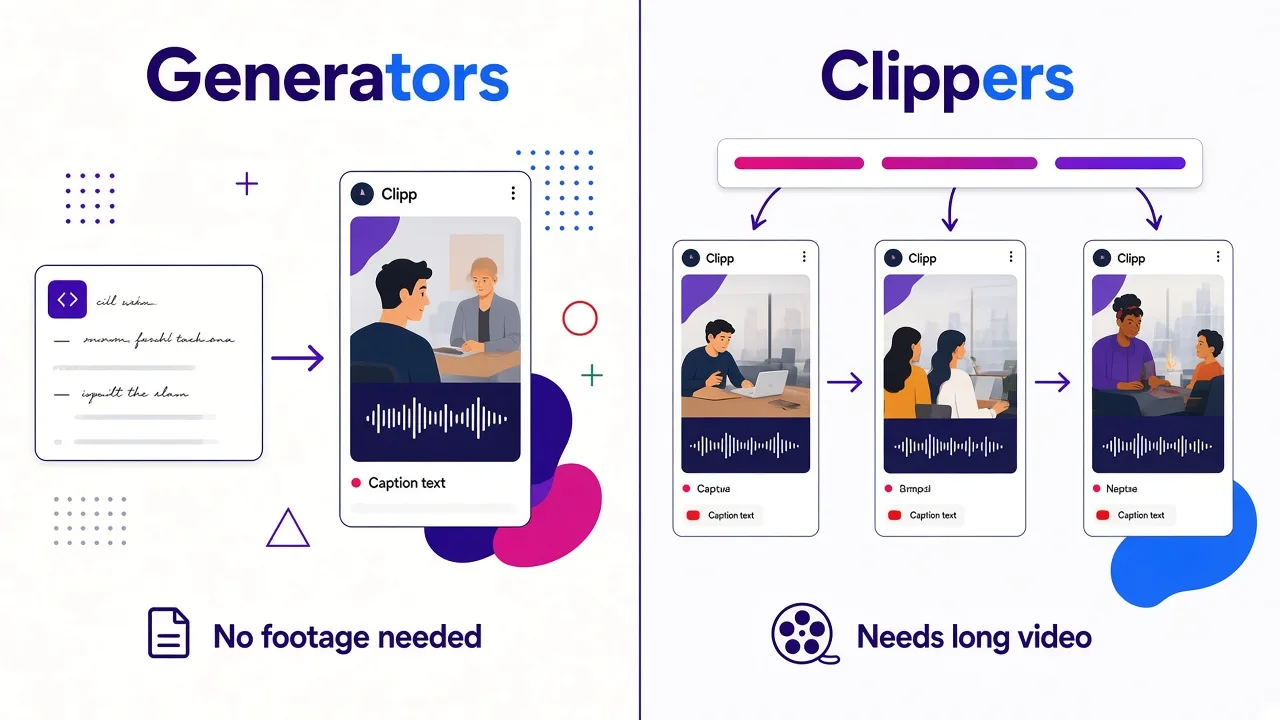
Before you compare tools, decide which job you're doing. AI Shorts tools fall into two camps, and picking the wrong camp wastes your free credits.
Generators make an original Short from text. You give them a prompt, a script, or an article, and they produce a vertical video with visuals, voiceover, captions and music. This is the route for faceless channels, explainers, story videos, listicles and product showcases. You don't need any footage.
Clippers cut an existing long video into vertical Shorts. You upload a podcast, interview, stream or talking-head video, and the AI finds the strongest moments, reframes them to 9:16 and adds captions. This only works if you already have long-form content. VEED's clipper, for instance, needs at least one minute of speech in the file and caps out at three hours.
If you have no long videos, you need a generator. If you publish long-form already, a clipper gets you several Shorts per upload. Many creators end up using both. I cover the clipping route in its own section further down, and we have a full walkthrough on creating Shorts from a YouTube video with AI.
What to check before you pick a free tool
When I test a new Shorts tool, I run it against the same short checklist:
- Does it output 9:16 natively? Shorts are vertical. A tool that makes 16:9 and crops later will cut off text and faces.
- Does it add animated, word-synced captions? A lot of Shorts viewers start with the sound off. Captions keep them watching until they tap for audio.
- Can you edit the script before rendering? If the only option is "regenerate the whole thing," you'll burn credits fixing one bad line.
- How many voices does it offer, and do they sound human? A robotic voice is the fastest way to lose a viewer in the first two seconds.
- Is the export clean? No watermark, full resolution.
- What does one finished Short actually cost? Count credits per video, not the plan's sticker price. A previewed or failed render that still eats credits makes a "free" tier shrink fast.
Now for the actual workflow.
Step 1: Pick an idea and write a script that hooks
Everything downstream depends on the script. A great voice and slick B-roll can't save a weak first line.
Start with a format that works on Shorts:
- A single surprising fact, explained in under a minute
- A short story with a twist (horror, mystery, true crime and Reddit-style stories do well on faceless channels)
- A listicle: "3 things nobody tells you about…"
- A quick how-to with one clear outcome
- A product showcase that answers one buyer question
Then write the script with these rules:
- The hook is the first sentence, not the first paragraph. The opening two seconds decide whether someone keeps watching. Lead with the tension, the claim or the question. Cut the "Hey guys, today we're going to…"
- One idea per Short. If you have three ideas, you have three Shorts.
- Write for the ear. Short sentences. Spoken rhythm. Read it out loud and cut anything you stumble on.
- End with a reason to stay or follow. A payoff, a loop back to the hook, or a one-line call to action.
You don't have to write this from a blank page. I start with our free YouTube script generator: describe the idea and it writes the full spoken script, from hook to call to action, word for word, plus several title options. It needs no signup, so it costs nothing. I almost always rewrite the first line myself, because the hook is where your own voice matters most.
If you run a story niche, a dedicated story generator saves time. Our horror story generator writes creepypasta, analog horror, ghost stories or two-sentence horror, then renders the result as a captioned video.
Tip: for a 30 to 45 second Short, aim for roughly 80 to 120 spoken words. Longer scripts force the voiceover to rush, and rushed narration kills retention.
Step 2: Turn the script into a finished vertical video
This is the step where most "free" workflows fall apart. People bounce between a free image generator, a free text-to-speech site, a free caption app and a free editor, then spend an hour lining it all up on a timeline. It works, but the time cost is real, and every handoff is a chance for something to drift out of sync.
My own workflow collapses this into one render. In Cliptalk, I paste the script (or the idea), pick a voice and a visual style, and it builds the full 9:16 video: AI visuals and B-roll matched to each line, narration, word-by-word captions and background music. The same flow handles story videos, listicles and product showcases from a single idea.
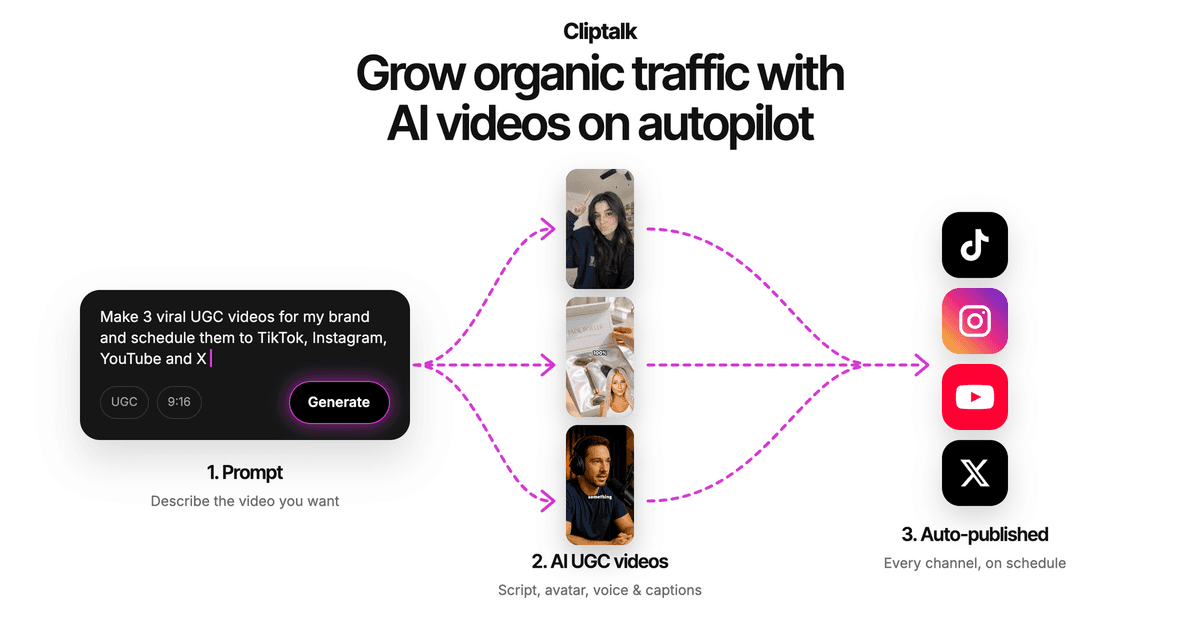
Here's how I get the most out of the free credits:
- Lock the script before you render. Edit every line first. Rendering, spotting a typo and re-rendering is how free credits disappear.
- Pick the voice once and keep it. With 140+ voices it's tempting to experiment on every video. A consistent voice makes a channel feel like a channel. Choose one that fits your niche (calm and low for horror, brisk for facts, warm for how-tos) and stick with it.
- Match the visual style to the topic. Realistic B-roll suits explainers and product videos. Stylized or illustrated scenes suit stories, where stock footage often looks out of place.
- Use the editor for small fixes. If one scene's visual doesn't fit the line, swap that scene instead of regenerating the whole Short.
You can also add AI characters if you want a recurring on-screen persona without filming yourself, or clone your own voice so a faceless channel still sounds like you.
The same render works for TikTok and Instagram Reels, since all three use 9:16. One script, three platforms.
Step 3: Check captions, voice and B-roll before export
Even when AI does the heavy lifting, a two-minute review catches the things that hurt retention. I check three things on every Short.
Captions. Read them against the audio. AI captions are usually accurate, but names, slang and numbers trip them up. Make sure captions sit in the vertical safe zone, away from the bottom of the frame where YouTube's own interface (title, buttons, progress bar) covers the video. Big, bold, word-by-word captions with a highlight on the current word hold attention better than full sentences dumped on screen.
Voice pacing. Listen once with your eyes closed. If the narration sounds rushed, trim the script. If there's dead air, tighten it. Pauses should feel deliberate, not like the voice lost its place.
B-roll relevance. Every visual should match what's being said at that moment. A generic stock clip of "people walking in a city" behind a sentence about sharks tells viewers the video was made on autopilot. Swap any scene that doesn't fit.
Tip: watch the finished Short on your phone, not your desktop monitor. That's where your audience sees it, and text that looks fine on a 27-inch screen can be unreadable on a phone.
Step 4: Export in the right format
YouTube decides whether a video is a Short mostly by its shape and length. Get these right and you avoid the most common upload problem: a vertical video that shows up as a regular long-form video.
- Aspect ratio: 9:16 vertical. Our guide on the YouTube Shorts 9:16 ratio explains what that means for framing, safe zones and text placement.
- Resolution: 1080 x 1920 is the standard. Lower resolutions look soft on modern phones.
- Length: keep most Shorts tight. Shorter videos are easier to watch to the end, and completion helps a Short keep getting shown. Only go longer when the story genuinely needs it.
- File: a standard MP4 export works everywhere.
If you're exporting from a general-purpose editor rather than a Shorts-native tool, double-check these settings. Free editors often default to 16:9 or 720p.
Step 5: Add a thumbnail, title and upload
Shorts mostly get discovered in the swipe feed, where thumbnails don't show. But thumbnails still appear on your channel page, in search, and when Shorts are shared, so a clean one is worth the minute it takes.
Free options here are genuinely free. Our thumbnail generator works in the browser with no account, no watermark and nothing uploaded, and it can also design one from a text description of your video. Canva is another common free choice if you already use it for design.
For the title:
- Put the hook or the payoff in the title, in plain words.
- Keep it short enough to read at a glance.
- Use the same keyword your viewer would type. "Why octopuses have three hearts" beats "You won't believe this!!"
Then upload from the YouTube app or YouTube Studio. Add a short description and a couple of relevant hashtags, and post.
The clipping route: free AI Shorts from long videos
If you already publish podcasts, interviews, streams or long tutorials, clipping is the fastest way to fill a Shorts feed. The workflow is simpler than generating:
- Upload the long video to a clipper.
- Set the output: portrait (9:16), the spoken language, a caption style and a maximum clip length. Some tools, like VEED, also let you describe what kind of moments you want.
- Review the suggested clips. Most clippers score or rank them. Watch the top ones fully. The AI picks moments that sound engaging, but it doesn't always know whether the clip makes sense without context.
- Fix the first second. Clippers often start a clip mid-thought. Trim to the sentence that works as a hook.
- Export and post the strongest clips first.
The free limits are tighter here than with script tools. VEED's clipper is a one-time trial on the free plan. Quso.ai and Riverside let you start free, and Riverside's text-based editing lets you trim a Short by deleting words from the transcript, which is a handy skill for any clip. If you clip regularly, expect to hit a paywall sooner than with a generator workflow.
Free AI tools for YouTube Shorts, compared
Here's how the tools I've used or tested stack up for making Shorts on a free budget. They're ranked for a creator who wants original Shorts without filming, which is the most common reason people search for this.
| Rank | Tool | Best for | What you get free | Makes original Shorts from text? |
|---|---|---|---|---|
| 1 | Cliptalk | Script or idea to finished Short | Script writer and thumbnail maker with no signup; 50 credits on signup to render | Yes, with visuals, 140+ voices, captions, music |
| 2 | HeyGen | Avatar or presenter-style Shorts | Free trial; 300+ voices and 175+ languages | Yes |
| 3 | Pictory | Turning articles, URLs and text into videos | Free to start | Yes |
| 4 | Canva | Simple faceless videos and thumbnails | Basic video tools in a free design account | Partly, more manual |
| 5 | Opus Clip | Clipping long videos into ranked Shorts | Varies by plan, check before committing | No, clips existing video |
| 6 | quso.ai | Clipping plus scheduling | Free to start, no credit card | No, clips existing video |
| 7 | Riverside | Recording, then clipping with text-based edits | Free to start | No, clips your recordings |
| 8 | VEED | Editing and occasional AI clipping | AI Clips once on the free plan | No for clipping; editing tools available |
A few honest notes on the ranking. If your whole channel is repurposing podcasts, a dedicated clipper like Opus Clip or quso.ai should be your first tool, not a generator. If you want a realistic talking avatar presenting your script, HeyGen is built for that. For original faceless Shorts from a script, which is what most people asking this question want, the one-tool generator route saves the most time.
For a longer breakdown, see our roundup of the best free YouTube Shorts makers in 2026.
Mistakes that sink free AI Shorts
Free tools lower the cost of making a Short. They don't lower the bar for what gets watched. These are the mistakes I see most often.
Posting the first draft. AI gets you 90% of the way. The last 10% (a sharper hook, one swapped scene, a caption fix) is what separates a Short that gets swiped from one that gets finished.
Repetitive, templated content. YouTube says reused or repetitious content can be ineligible for monetization if it lacks meaningful differences or original value. If every video uses the same template, the same stock clips and a script that differs by two words, you're building a channel that may never earn. Vary your topics, write real scripts and add your own angle.
Changing your style every video. A new voice, new caption font and new visual style on every upload makes a channel feel spammy. Pick a look and keep it so each Short feels like it belongs to the same channel.
Ignoring the hook. If the first two seconds are a slow fade-in or a logo, most viewers are gone before your content starts.
Burning credits on regeneration. Edit the script, then render. Don't render to find out what you meant to write.
Exporting at the wrong size. A 16:9 video with black bars, or a 720p export that looks blurry, signals low effort before anyone hears a word.
Frequently asked questions
Can I make YouTube Shorts completely free with AI? Yes. You can write scripts and design thumbnails with tools that need no account, and render your first Shorts with free signup credits. If you publish every day, you'll eventually need a paid plan for rendering, but the free route is enough to launch a channel and learn what works.
Do I need to show my face? No. Faceless Shorts built from AI visuals, B-roll and an AI voiceover are a common format. If you want a consistent on-screen presence without filming, AI characters or avatars fill that role.
Can AI-made Shorts be monetized? They can, as long as the content is original and adds value. The risk isn't AI itself. The risk is reused or repetitious content. Write original scripts and vary your videos.
Can I use my own voice? Yes. Voice cloning lets you narrate with an AI version of your own voice, so you keep a personal sound without recording every line.
Can one video go to TikTok and Reels too? Yes. All three platforms use 9:16 vertical video, so the same export works everywhere. Just keep captions and key text away from the edges, since each app overlays its interface in slightly different places.
The short version
Making Shorts with free AI tools comes down to five steps: write a script with a strong first line, turn it into a 9:16 video with visuals, voiceover and captions, review it on your phone, export at 1080 x 1920, and add a clean title and thumbnail. Use clippers if you already have long videos, and a generator if you're starting from an idea. Spend free credits only on final renders.
If you want the whole chain in one place, start with Cliptalk: write the script free with no signup, then render it into a finished Short with the 50 credits you get when you create an account. You can try it from the homepage and have your first Short ready before you'd have finished setting up a timeline in a traditional editor.
Tags: youtube shorts, ai video, faceless channels, short-form video, video editing