9 Best Free YouTube Shorts Makers in 2026
· 11 min read
The best free YouTube Shorts maker depends on what you start with. If you have an idea, a script, or an article but no footage, Cliptalk is the one I recommend, because it turns that text into a finished vertical Short with captions, B-roll, and an AI voiceover in one pass instead of making you assemble those pieces across several tools. If you already have long videos to cut down, a clipper like OpusClip is the better free pick. If you want to edit everything by hand at zero cost, YouTube's own Shorts tools or Canva will do the job.
I publish Shorts every week, mostly faceless explainers and list videos, and I've run the same test topics through every tool below. The biggest lesson is that "free" means very different things. Some tools are free forever but leave all the work to you. Others do most of the work but give you a limited free allowance before you need a plan. Neither is wrong. You just need to know which trade you're making.
The quick answer: choose by your starting point
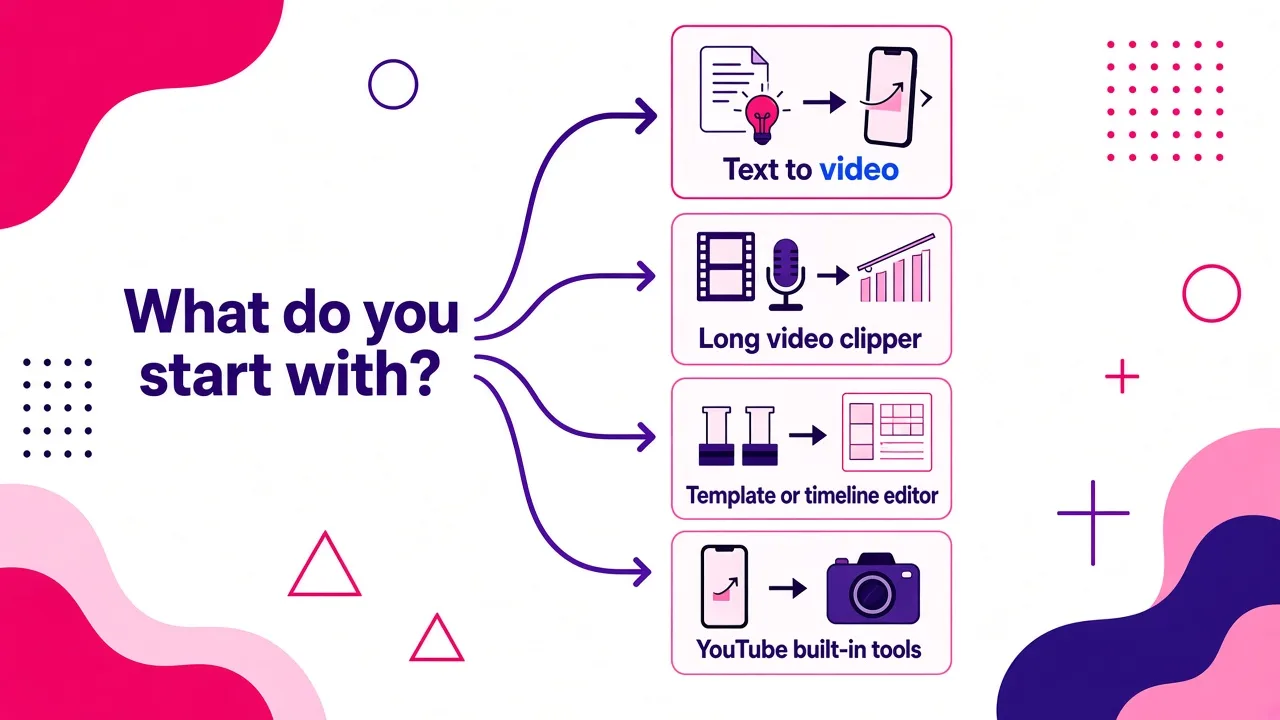
Most bad tool choices come from buying the wrong category, not the wrong brand. Start here:
- You only have an idea or a script: use a from-scratch generator that writes, voices, and edits the video for you.
- You have long videos, podcasts, or webinars: use a re-clipper that finds the best moments and reframes them to vertical.
- You have short clips that need polish: use a template editor or a timeline editor.
- You want zero cost and zero setup: use YouTube's built-in Shorts camera and editor on your phone.
A clipping tool is useless if you have no footage. A from-scratch generator is overkill if your best material already lives in a 40-minute podcast. Decide which situation you're in before comparing features.
What to check before you trust a "free" Shorts maker
Every tool on this list claims to be free. These are the questions that separate a usable free tier from a demo:
- Does it export true 9:16 vertical? Shorts play full-screen on a phone. You want native vertical output at 1080 x 1920, not a landscape clip with blurry bars. The details are in our guide to YouTube Shorts size, dimensions, and safe zones.
- Are captions word-synced and editable? Many people start watching with the sound off. Captions that track each spoken word hold attention far better than a static text block. You also need to fix misheard words before you post.
- What happens on export? Check whether free exports carry a watermark, a resolution cap, or a monthly limit. Test one full export before you build a workflow around a tool.
- Does it handle longer Shorts? YouTube allows square or taller videos uploaded after October 15, 2024 to run up to three minutes. If you make longer explainers, make sure the tool doesn't cut you off at 60 seconds.
- Where do captions and text sit? YouTube's interface covers the bottom and right side of the screen. A good tool keeps captions inside the safe zone so the like button and channel name don't cover your words.
The 9 best free YouTube Shorts makers in 2026
1. Cliptalk
Best for: faceless channel operators, creators, and marketers who start from text and want a finished, edited Short without filming.
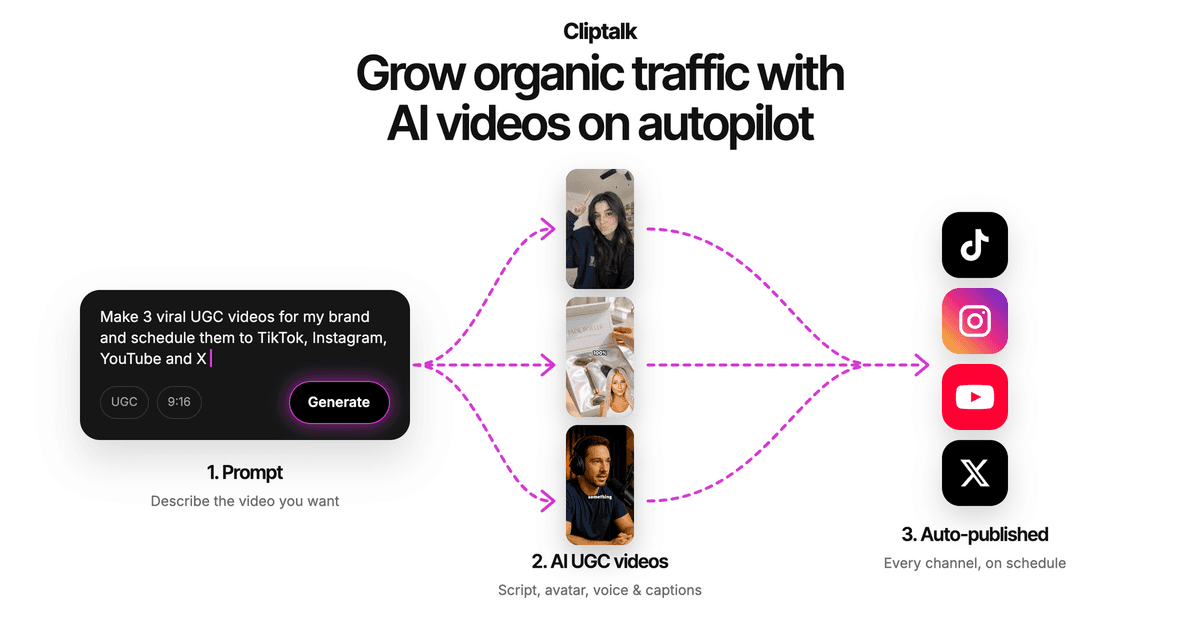
This is the tool I use for most of my own Shorts. You give it a prompt, a script, or an article, and it builds the whole video: AI voiceover, auto-captions, AI B-roll matched to what's being said, and the cuts between them. You can also clone your own voice or put an AI character on screen if you don't want a stock narrator. When the first draft is close but not perfect, the built-in editor lets you change a line, swap a clip, or restyle captions without starting over.
Pros
- Goes from text to a complete Short, so there's no stitching together a script writer, voice tool, and editor
- Captions, B-roll, and voiceover are generated together, so timing lines up from the start
- Voice cloning and AI characters give a faceless channel a consistent identity
- The same project works for YouTube Shorts, TikTok, and Instagram Reels
- Free to try with no demo call, so you can judge real output before paying
Cons
- The free allowance is for testing. If you publish daily, you'll want a plan, and the pricing page lays out the tiers
- It's built for creating from text, not for chopping up a long video you already filmed. Use a clipper for that
- For very niche topics, review the auto-chosen B-roll and replace any clip that is only loosely related
- AI voiceovers sound best when your script is written for speaking, with short sentences and a clear hook
2. OpusClip
Best for: podcasters, educators, and interview channels with long-form footage to repurpose.
OpusClip is the best-known re-clipper. You upload a long video, and its AI picks out highlight moments, trims dead air, and reformats each clip to vertical with layouts suited to Shorts. When I fed it a long interview, it surfaced moments I would have spent an hour scrubbing for.
Pros
- Strong at spotting the moments worth clipping in long talking videos
- Handles trimming and vertical reframing automatically
- Has a free plan, and public pricing checked in May 2026 listed the Starter plan at $15 per month
Cons
- Needs source footage. If you have none, it can't help you
- Clips are only as good as the original recording
- Expect to review and re-trim some picks, since not every "highlight" is actually a strong hook
3. YouTube's built-in Shorts tools
Best for: beginners who want to post today with no extra apps and no cost.
The YouTube app has its own Shorts camera and editor, and it keeps adding native AI features, such as Dream Screen with Veo-powered backgrounds and clips. You record or upload, add music and text, and publish in one place.
Pros
- Free, with nothing to install beyond the YouTube app
- Publishes directly, so there's no export or re-upload step
- Supports the longer three-minute Short format natively
Cons
- Phone-first editing gets fiddly beyond simple cuts and text
- No script-to-video, no auto B-roll, and limited caption styling
- Hard to batch-produce a week of content this way
4. Canva
Best for: brand-conscious creators who want polished, template-driven Shorts.
Canva ranks first on Google for this search, and its short video maker is the reason a lot of people find it. You pick a vertical template, drop in your clips, text, and music, and adjust everything on a drag-and-drop canvas.
Pros
- Huge template library that makes even simple clips look designed
- Easy to keep fonts, colors, and logos consistent across a series
- Your Shorts and other channel graphics can live in the same workspace
Cons
- Mostly manual. You supply the footage, the voice, and the pacing
- Some template elements are premium, so a free design can turn paid if you're not careful
- Not built for spoken-word captions synced word by word in the way dedicated caption tools are
5. Vizard
Best for: creators who repurpose YouTube videos and want to publish straight back to YouTube.
Vizard turns existing videos into Shorts, adds AI-generated emojis and B-roll, and offers templates modeled on popular Shorts styles. Its standout feature for me is the YouTube integration: you can import a video from YouTube and publish the finished Short directly back, with no download and re-upload loop.
Pros
- Direct import from and publishing to YouTube saves real time
- AI B-roll and emoji overlays add motion to talking-head clips
- Shareable review links help if someone else approves your posts
- Also works as a manual editor when you want full control
Cons
- Repurposing-first, so you still need existing footage
- Template-heavy styles can look samey if every Short uses the same one
6. Vmaker
Best for: turning very long recordings, like webinars or livestreams, into targeted clips.
Vmaker's long-to-short converter accepts uploads up to three hours long. The feature I found most useful is keyword targeting: you type keywords or a prompt, and it pulls clips about that specific subject instead of guessing at "viral" moments.
Pros
- Handles recordings up to three hours
- Keyword-based clipping is great when you want Shorts on one topic from a long session
- Animated subtitles in 75+ languages
- Duration presets (20 to 40 seconds, 40 to 60, 60 to 120) plus 9:16, 1:1, and 16:9 output
- Each clip gets a virality score to help you decide what to post first
Cons
- A virality score is a prediction, not a guarantee. Trust your own retention data more
- Like every clipper, it depends on the quality of your source recording
7. Choppity
Best for: podcasts, churches, and sports or commentary shows that want lots of clips from each episode.
Choppity is a free AI clip maker focused purely on long-to-short. Upload a long video or podcast and it can find 30+ ready-to-post clips with animated captions. Its showcase leans on podcasts, sports commentary, and church services, which tells you where it shines: recurring, talk-heavy content.
Pros
- High clip volume from a single upload
- Animated captions applied automatically
- Simple, single-purpose workflow with little to learn
Cons
- Volume means curation. You'll discard plenty of the 30+ clips
- No from-scratch generation for channels without recordings
8. Adobe Express
Best for: quick, designed Shorts like tutorials, behind-the-scenes clips, and promos.
Adobe Express offers a blank 9:16 Shorts template plus a library of customizable templates, animated text, graphics, and transitions. It sits close to Canva in style but feels slightly more motion-focused.
Pros
- Clean animated text effects and transitions
- Easy to add creator branding to every video
- Starts in the correct vertical format, so you can't accidentally export landscape
Cons
- Manual editing, with no script, voice, or B-roll generated for you
- Watch for premium template elements if you want a fully free result
9. Clipchamp
Best for: people who prefer a traditional timeline editor in the browser.
Clipchamp is a free online video editor with a dedicated Shorts maker. It's the closest thing on this list to classic desktop editing: a timeline where you place cuts, text, music, and transitions exactly where you want them.
Pros
- Familiar timeline editing without installing software
- Precise control over every cut and text placement
- Good for finishing clips you recorded elsewhere
Cons
- You do all the work: writing, recording, and editing
- Slower per video than any AI-first option here
Comparison table
| Tool | Starts from | Writes script and voice for you? | Best fit |
|---|---|---|---|
| Cliptalk | Prompt, script, or article | Yes, plus captions and B-roll | Faceless channels, marketers |
| OpusClip | Long video | No | Podcasts, interviews |
| YouTube built-in tools | Phone footage | No | Beginners posting fast |
| Canva | Templates and your clips | No | Branded, designed Shorts |
| Vizard | Long video or YouTube link | No | Repurposing with direct publishing |
| Vmaker | Long video, up to 3 hours | No | Webinars, livestreams |
| Choppity | Long video or podcast | No | High-volume podcast clipping |
| Adobe Express | Templates and your clips | No | Tutorials, promos |
| Clipchamp | Your own footage | No | Hands-on timeline editing |
Tips to get more out of any free tier
Free allowances run out quickly if you burn them on experiments. Here is what I do to stretch them:
- Write the script before you open any video tool. Most wasted renders come from fixing the idea mid-edit. I draft the hook, body, and call to action first, often with our free YouTube script generator, which needs no signup, and only then generate the video.
- Put the hook in the first spoken line. Viewers decide almost immediately whether to swipe. Open with the payoff or the surprising claim, not "Hey guys, in this video..."
- Batch by format. Make three or four Shorts in the same style in one session. Reusing caption styles and voices keeps your channel consistent and saves edits.
- Keep captions above the bottom third. YouTube's buttons and description cover the lower part of the screen. Center your captions vertically.
- Export at 1080 x 1920. Uploading lower resolutions makes text look soft on phones, and soft captions hurt retention.
- Test one full export before committing. Check for watermarks, length caps, and caption accuracy on a real video, not a preview.
- Mix tools when it makes sense. I use a from-scratch generator for faceless explainers and a clipper when I have a long recording. There's no rule that says you need just one.
Frequently asked questions
What is the best free YouTube Shorts maker?
For creating from text with no footage, an AI generator that handles script, voice, captions, and B-roll together is the fastest path. For repurposing long videos, OpusClip, Vizard, Vmaker, or Choppity fit better. For manual editing at no cost, YouTube's built-in tools, Canva, Adobe Express, and Clipchamp all work.
Can I make faceless YouTube Shorts for free?
Yes. AI generators with voiceovers and B-roll let you publish without filming or recording your voice. Template editors also work for faceless content, but you'll need to source your own footage and audio.
How long can a YouTube Short be?
Square or vertical videos uploaded after October 15, 2024 can be up to three minutes long. Shorter still tends to perform well for simple ideas, but you're no longer capped at 60 seconds.
Do free Shorts makers add watermarks?
It varies by tool and plan, and policies change. Always run one complete export on the free tier and check the result before building your workflow around it.
The bottom line
There isn't one best free YouTube Shorts maker for everyone, but there is a best one for where you're starting. If you have long recordings, pick a clipper. If you want to design every frame yourself, pick a template or timeline editor. If you're running a faceless channel or turning scripts and articles into a steady stream of Shorts, Cliptalk is the tool I'd start with, because it handles the voice, captions, B-roll, and edit in one step and leaves you free to focus on the ideas that actually earn views.
Tags: youtube shorts, video editing tools, faceless channels, ai video, short-form video