7 Best Free Online YouTube Video Editors
· 7 min read
Kapwing, VEED, Flixier, CapCut, Adobe Express and Vmaker all let you edit YouTube videos in your browser for free without a credit card, though every free plan gives up something, such as exports, AI credits or features. If you publish Shorts or faceless videos and start from a script instead of raw footage, Cliptalk is my top pick because it turns one idea into a finished 9:16 video with AI narration from 140+ voices and word-by-word captions, with no timeline work.
I've used all seven of these to build both long-form 16:9 uploads and vertical Shorts. Below is what each one does well, where it falls short, and who should use it.
How I judged these editors
A free online YouTube editor has to do four things well:
- Run fully in the browser. It should work on a Chromebook or a work laptop without an install.
- Handle YouTube formats. That means 16:9 for regular uploads and 9:16 for Shorts.
- Save real time. Auto captions, silence removal and repurposing tools matter more than a long list of filters.
- Be honest about "free." Watermarks, one-time AI trials and paid export tiers count against a tool.
The 7 best free online YouTube video editors
1. Cliptalk: best for Shorts and faceless videos from a script
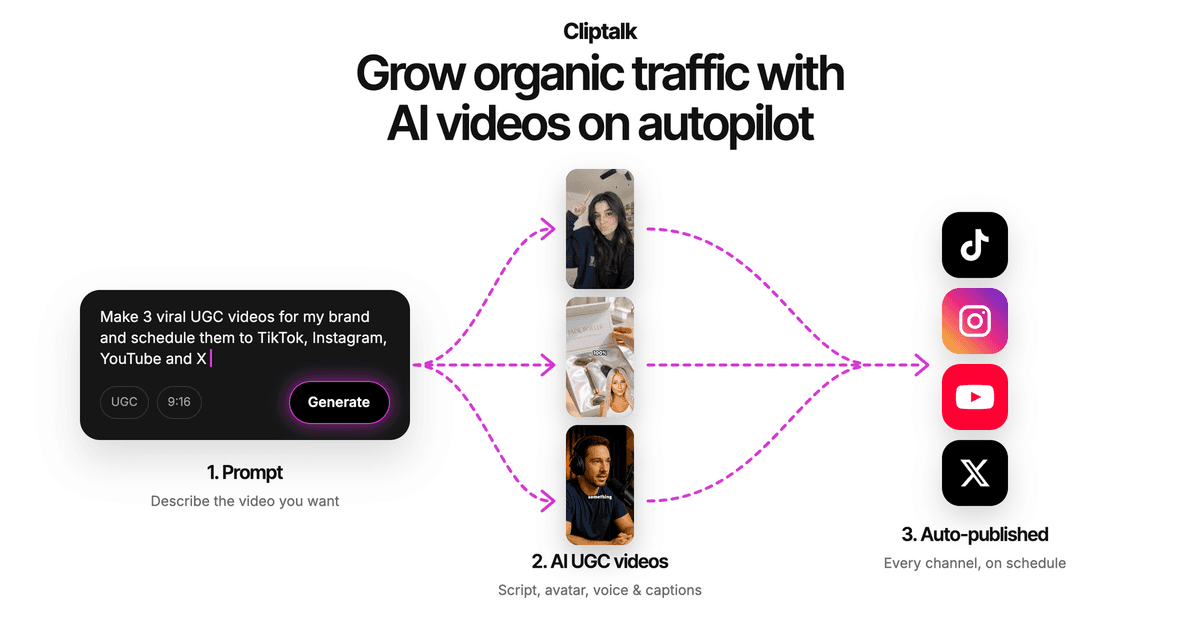
Most editors on this list expect you to bring footage. This one expects an idea. You describe a topic or paste a script or article, and it builds a complete vertical video with AI visuals and B-roll, a voiceover, word-by-word captions and music. I use it for listicles, story videos and product showcases, which are formats where filming adds hours and little value.
The script step is genuinely free and doesn't need a signup. The free YouTube script generator writes the full spoken script word for word, from hook to CTA, and adds title options. You can then render that script as a finished video. There's also voice cloning and AI characters if you want a consistent narrator across a faceless channel.
Pros
- Goes from idea to finished 9:16 video in one tool
- 140+ AI voices, plus voice cloning
- Captions, B-roll and music are added automatically
- Free script writing with no signup
Cons
- It isn't a traditional multi-track timeline editor for long 16:9 footage you've already filmed
- Regular rendering runs on paid plans, so check the pricing page before you plan a daily posting schedule
Best for: Faceless channel operators, marketers and creators publishing to YouTube Shorts, TikTok and Reels.
2. Kapwing: best all-round browser editor for YouTube
Kapwing says more than 100K YouTubers edit with it, and I can see why. It has 100+ tools in one editor. Upload a file or paste a URL, then add subtitles, music, sound effects and transitions. Smart Cut removes silences from talking-head footage, a highlights tool pulls the best moments, and Magic Create turns clips into social-ready videos. If your export is too large for YouTube, the built-in compressor fixes it.
Pros
- No credit card required
- Strong silence removal and highlight finding
- Subtitle translation for reaching other languages
- Good for repurposing one video across platforms
Cons
- With this many tools, beginners can feel overwhelmed at first
- Free-tier export terms can change, so confirm them before you commit a whole project
Best for: YouTubers who film their own long-form videos and want one browser editor for everything.
3. VEED: best for text-based editing of talking videos
VEED's standout feature is editing by transcript. You upload a video, open the script, and delete sentences the way you'd edit a document. The video updates to match. One click removes "ums" and "ahs," and you can choose how long a pause has to be before it gets cut. VEED shows a 4.6 rating across 2,100+ reviews.
The catch is in the AI extras. VEED's own help center says the AI Clips tool is a one-time try on the free plan. It also needs between 1 minute and 3 hours of speech, and it can't import directly from YouTube, so you have to upload the file yourself.
Pros
- Transcript editing is far faster than scrubbing a timeline
- Filler-word and silence removal with custom pause length
- No credit card to start
Cons
- AI Clips is a single use on the free plan
- No YouTube import for clips
Best for: Podcasters, interviewers and anyone editing speech-heavy footage.
4. Flixier: best for fast cloud rendering and direct publishing
Flixier doesn't even require an account to start. Its edge is speed. Rendering happens in the cloud and typically finishes in three minutes or less, and you can publish straight to YouTube even for videos an hour long. You can import from YouTube, Twitch, Soundcloud and cloud storage, and you can also record your screen, webcam and mic inside the editor.
Pros
- No account needed to try it
- 50+ transitions, motion titles and animated Like/Subscribe buttons
- Works on Chromebooks, Windows, Mac and Linux
- Direct publish to YouTube
Cons
- Fewer AI automation features than Kapwing or VEED
- It's still a manual timeline workflow, so you do the assembling yourself
Best for: Gamers, streamers and tutorial creators who need quick exports on modest hardware.
5. CapCut: best feature set, with real caveats
CapCut advertises watermark-free exports, 1080p and 4K resolution, royalty-free music and YouTube templates for both 16:9 and 9:16. Auto captions work on web, desktop and mobile. In terms of raw features, it's hard to beat.
The caveats are significant, though. A VEED comparison from January 2026 reports that CapCut remains unavailable for new downloads in US app stores. It also says CapCut Pro jumped from $89.99 to $179.99 a year, and that the June 2025 terms grant ByteDance perpetual, royalty-free rights to uploaded content, including drafts. That comparison comes from a competitor, so read the current terms yourself, but don't skip that step.
Pros
- No watermark on exports
- 4K export and a large music library
- Team collaboration features
Cons
- Uncertain availability for US users
- Content-rights terms are a concern for client or confidential work
- The main push is toward the desktop download rather than the browser
Best for: Casual creators outside the US who want maximum features at no cost.
6. Adobe Express: best for branded, template-driven videos
Adobe Express is less an editor and more a design studio that handles video. You pick a horizontal or vertical template, then cut, crop and trim clips and apply your logo, brand fonts and colors. It shines for intros, outros, product reviews and promo videos where a consistent look matters more than complex edits.
Pros
- Large library of free YouTube templates
- Brand fonts, colors and logo built in
- No editing experience required
Cons
- Thin on the AI cleanup tools that the others offer
- Feels limiting for long, heavily cut videos
Best for: Small businesses and creators who care about polished branding over editing depth.
7. Vmaker: best for AI-assisted editing with avatars
Vmaker takes raw footage and adds B-roll, intros, outros, music and transitions automatically. It also removes silences and filler words. On top of that, it offers 100+ AI avatar templates for faceless videos, and it can split a long upload into multiple Shorts based on keywords. You can publish directly to your channel with a title and description.
Pros
- Auto-edits raw footage into a publish-ready draft
- Converts long videos into multiple captioned Shorts
- Advertises no watermark
Cons
- Avatar-led videos can look generic if you don't customize them
- AI edits still need a human review before publishing
Best for: Creators who want AI to do the first cut of footage they've already recorded.
Which free YouTube editor should you pick?
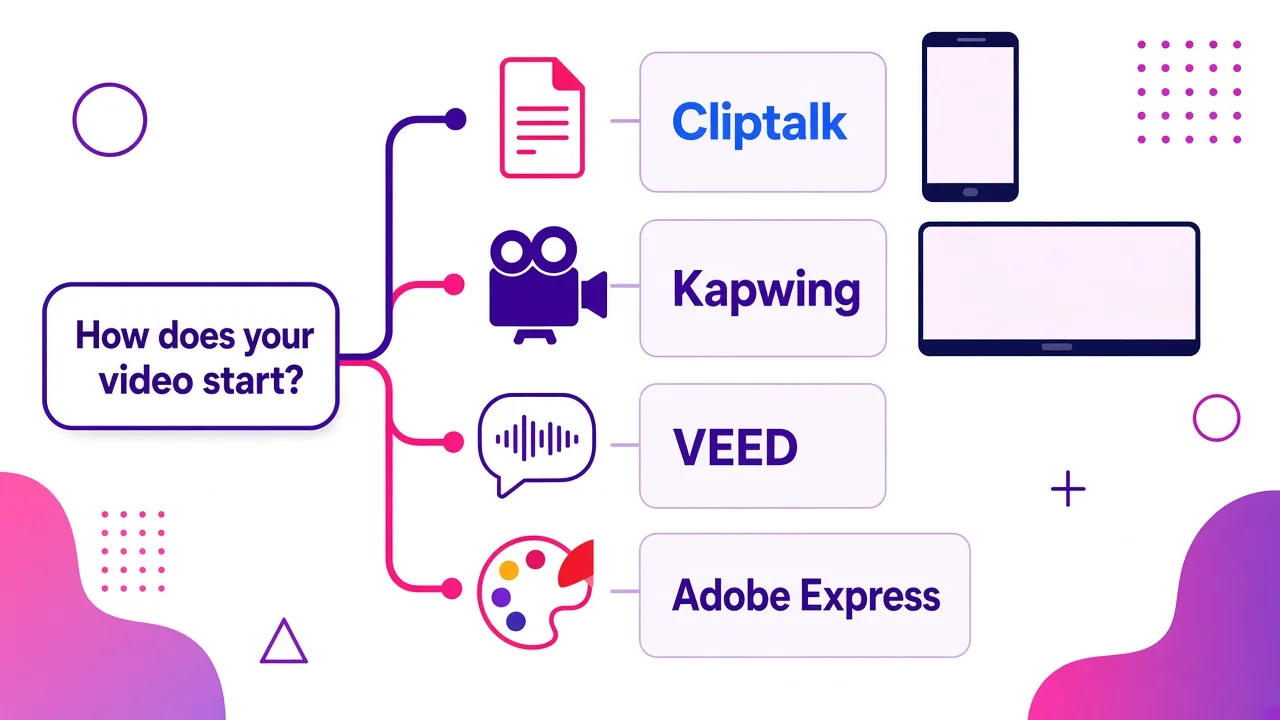
Match the tool to how your video starts:
- You start from an idea or script. Use Cliptalk for vertical Shorts and faceless content.
- You start from long-form footage you filmed. Use Kapwing, or Flixier if fast exports matter most.
- Your video is mostly people talking. Use VEED's transcript editing.
- Your brand look is the priority. Use Adobe Express.
- You want to turn one long video into many Shorts. Kapwing and Vmaker both handle this. My guide on creating Shorts from a YouTube video with AI walks through the workflow.
Tips for getting the most out of a free plan
- Export a test video first. Before you edit a 20-minute project, export a 10-second clip so you can see the watermark and resolution limits for yourself.
- Use free AI trials on your best footage. Some AI features are one-time on free tiers, so don't spend them on a throwaway clip.
- Keep your source files local. Browser editors are convenient, but your originals should live on your own drive.
- Combine tools. My own workflow is to write and render Shorts in Cliptalk, then edit long-form uploads in a timeline editor. Free plans stretch further when each tool does the job it's best at.
- Read the content terms. If you edit client work, check who owns uploaded files before you upload anything.
Tags: youtube editing, video editors, free tools, youtube shorts, faceless channels