Script to YouTube Shorts AI: A Workflow From Draft to Upload
· 14 min read
The fastest way to go from script to YouTube Shorts with AI is to write a short, spoken-style script, paste it into a script-to-video tool that keeps your exact wording, and let it build the vertical cut for you: voiceover, captions, B-roll, and pacing. Then review the draft, fix what feels off, add a thumbnail and title, and upload. My recommendation for that middle step is Cliptalk, because it takes a script, prompt, or article and returns a fully edited short-form video with captions, AI B-roll, and an AI voiceover in one pass. You aren't stitching clips from three different tools. The rest of this guide covers the full workflow I use, from the first line of the draft to the upload screen, and the mistakes that cost me the most retention along the way.
Why Script-First Beats Prompt-First for Shorts
Most AI Shorts generators let you type a one-line idea and hit generate. That works for a test, but it hands the most important decision to the model: what the video actually says. On a Short, the words carry everything. The visuals support them, the captions repeat them, and the hook in the first two seconds decides whether anyone sees the rest.
When I started making faceless Shorts, I generated straight from prompts and got videos that looked fine and said nothing. The B-roll was on topic, the voice was clean, and the script was a pile of generic sentences. Once I switched to writing (or at least editing) the script myself before rendering, my videos got tighter and far more consistent.
There's also a practical reason. Rendering costs credits and time on nearly every platform. A weak concept on the page stays weak after rendering. Fixing a script takes thirty seconds. Fixing a rendered video means regenerating it.
So the workflow below treats the script as the master document and everything else as production.
Step 1: Write a Script Built for the Ear, Not the Page
A Shorts script isn't a blog paragraph read aloud. Writing guides for AI presenters make a point I've found to be true across every voiceover tool: a sentence a reader can parse on a page becomes hard to follow when spoken, and the problem compounds as sentences get longer. Viewers can't scroll back up.
Here's the structure I use for almost every Short:
- Hook (first 1 to 2 seconds): A claim, a question, or a surprising result. No greetings, no "in this video."
- One point (the middle): A single idea, tip, or story beat. If you have three tips, you have three Shorts.
- Payoff: The answer, the reveal, or the result the hook promised.
- CTA (last line): Short. "Follow for part two" or "Save this for later."
For length, a script of around 150 words is a reliable target for a Short that lands under a minute at a natural speaking pace. One prompt structure that circulates in creator guides works well if you're drafting with a general chatbot: ask for a 150-word Shorts script for a specific niche and a specific problem, require a hook that creates curiosity or urgency in the first two seconds, limit it to one actionable tip, and end with a follow CTA. The specificity is what matters. "Write a Short about productivity" produces filler. "Write a Short for freelance designers who lose clients because they reply to emails too slowly" produces something usable.
If you'd rather not engineer prompts at all, the free YouTube script generator I use writes the full spoken script word for word, hook to CTA, along with title options, and it doesn't ask you to sign up. I treat its output as a strong first draft, then edit for my own voice.
Edit for spoken delivery
Before moving on, I run every script through these checks:
- Read it out loud. Visla's team gives the same advice in their own script-to-video guide, and it's the single most useful habit I have. If you stumble, the AI voice will sound awkward in the same spot.
- Cut every sentence over about 15 words or split it in two.
- Spell out tricky numbers and acronyms. Something like "Q3" can be read several ways by a voice engine. Write "third quarter" or "Q-three," depending on how you want it said.
- Delete hedges. "Basically," "kind of," and "in my opinion" eat seconds you don't have.
- Front-load the payoff. If the best line is at the end, consider moving a teaser of it into the hook.
Step 2: Format the Script So the Tool Reads It Correctly
This is the step most guides skip, and it's where I've lost the most work. Script-to-video tools handle your text in one of two ways:
- They keep your wording. Your script becomes the voiceover exactly as written, and the AI only decides scenes, visuals, and timing.
- They rewrite it. The tool reads your text as source material and generates a new script from it.
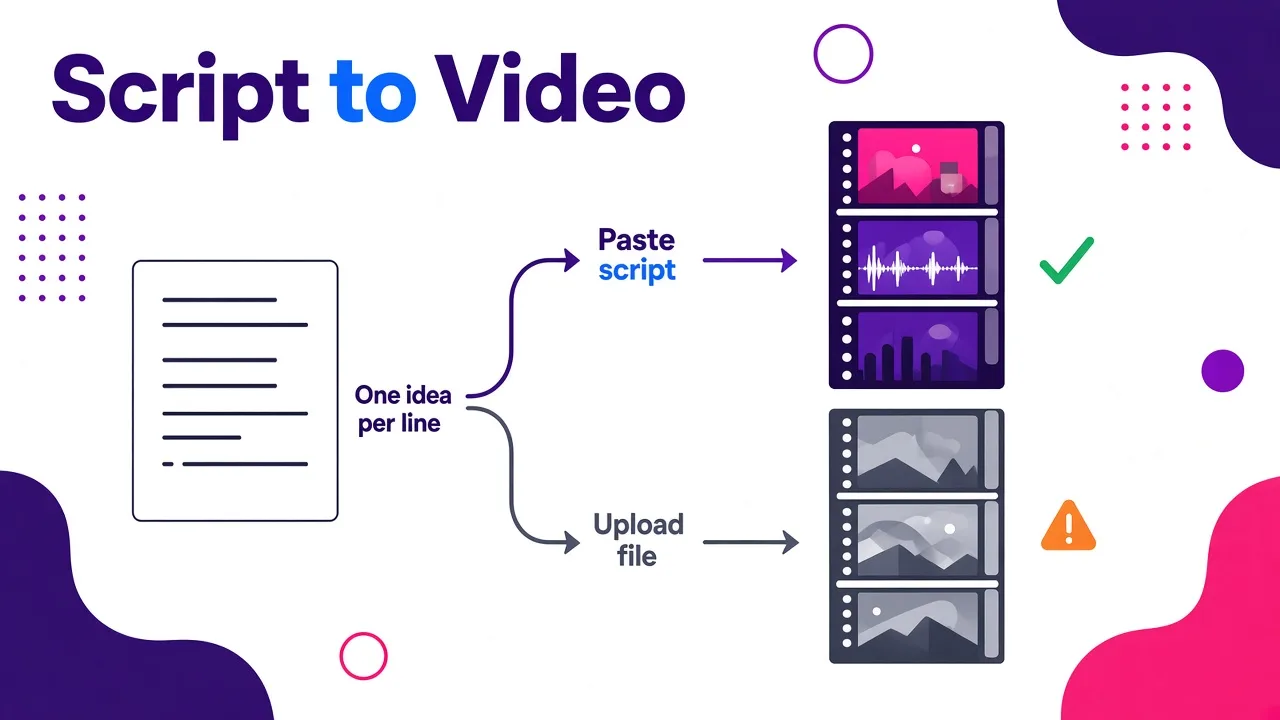
Neither is wrong, but you need to know which one you're triggering. Synthesia is a good example of how subtle this can be. Its documentation says that pasting your text through "Import a script" uses your words exactly, while uploading the same text through "Import a file" makes it write a new script from the content, discarding your original wording even if the file already reads like a script. The two paths sit next to each other in the menu. Visla draws the same line between its Script to Video workflow (keeps wording) and its Text to Video workflow (rewrites).
For Shorts, where you've just spent time tightening every line, you almost always want the keep-your-wording path. I wrote up how that works in practice in our guide on script to video AI that keeps your original wording.
Formatting tips that prevent silent errors
- Use line breaks as scene breaks. Most tools split scenes on line breaks or paragraph breaks. One idea per line gives you one visual per idea, which suits the fast pacing of Shorts.
- Check the line-break rule for your tool. Even within a single product, formatting can differ. Synthesia's newer import flow needs two soft returns between scenes while its legacy flow needs one, and getting it wrong doesn't throw an error. It just merges or splits scenes, and you find out during review.
- Strip production notes unless the tool supports them. Labels like "Scene 1" or "[cut to]" can end up read aloud by a voice engine that doesn't recognize them. Some tools strip them automatically. Don't assume yours does.
- Paste rather than upload when you want word-for-word fidelity, unless the tool explicitly says uploads are preserved.
Step 3: Pick the Right Type of Tool for the Job
"Script to video" covers several different jobs, and comparing all the tools on a single scale doesn't help much. Some match stock footage to your narration, some put an avatar presenter on screen, some generate original footage clip by clip, and some are editors with AI features attached. For a finished vertical Short from a script, here's how I'd rank the options I've used or evaluated:
| Rank | Tool | What your script becomes | Best for | Watch out for |
|---|---|---|---|---|
| 1 | Cliptalk | A fully edited vertical video with AI voiceover, captions, AI B-roll, and optional AI characters | Faceless channels and creators publishing Shorts, Reels, and TikToks at volume | Works best with short-form scripts. It's built for vertical social video, not long explainers |
| 2 | InVideo AI | An edited video mixing stock footage and generated shots | Narrated faceless content on a budget | Template looks can repeat across creators |
| 3 | Pictory | A stock-footage video with AI voice and captions | Turning long articles or scripts into video ($25/mo billed yearly, $29 monthly) | Less control over clip selection, and stock footage repeats across channels |
| 4 | CapCut | A stock-footage draft inside a full multi-track editor | Creators who want to hand-edit every layer ($19.99/mo for paid) | More manual work to reach a finished Short |
| 5 | HeyGen | A talking-head avatar reading your script | Presenter-style videos | An avatar on screen instead of scene visuals, which isn't the format most faceless Shorts use |
| 6 | Kling or Veo | Individual generated clips | Cinematic hero shots | Kling generates up to about 15 seconds at a time, Veo about 8, so you assemble the Short yourself and add your own voiceover and captions |
My ranking reasoning: for Shorts specifically, the deciding factor is how close the first render gets to publishable. Generative video models make beautiful shots, but a 45-second Short built from 8-second clips means six or more generations, plus separate narration, plus captioning, plus editing. Stock-based tools are faster but tend to look the same as every other channel using them. An all-in-one short-form tool that handles voice, captions, B-roll, and editing together removes the most steps between script and upload.
Step 4: Generate and Review the First Draft
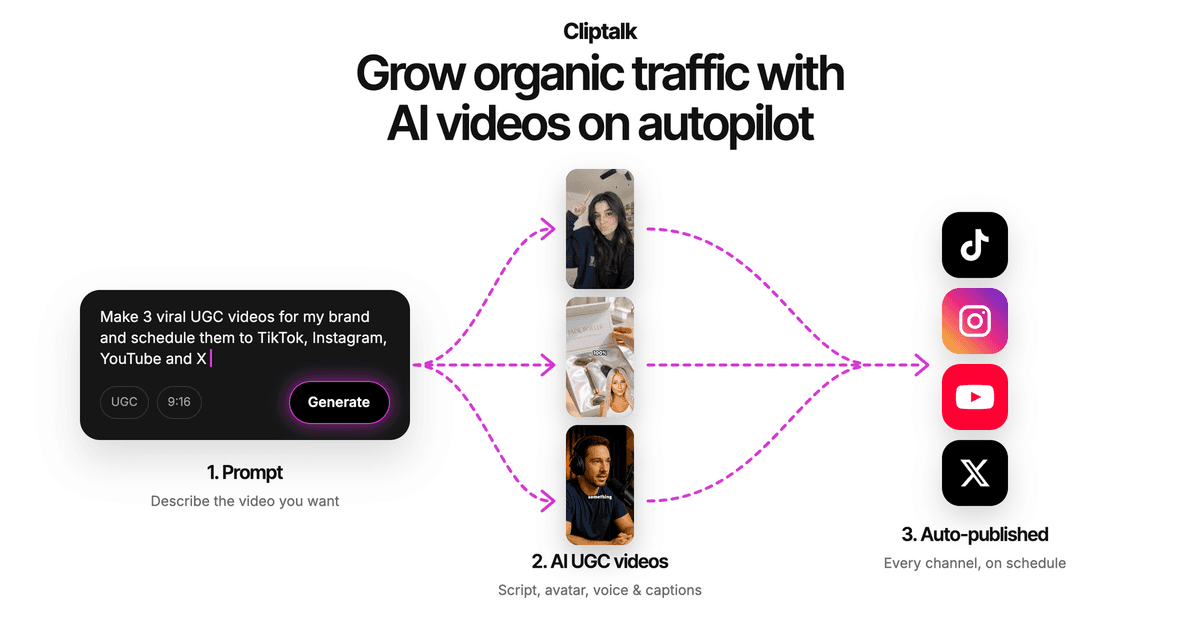
Here's what this step looks like in my own workflow with Cliptalk. I paste the finished script, choose the voice, pick a caption style, and let it render. What comes back is an edited vertical video: the voiceover follows my script, captions are timed to the speech, and B-roll is matched to each line. If the channel uses a recurring persona, I add an AI character instead of pure B-roll.
The first render is a draft, not the final cut. This is the review checklist I go through before touching anything else:
- Watch it once on your phone with sound off. Most Shorts viewers see captions before they hear audio. Can you follow the video from captions alone?
- Watch it again with sound on. Listen for mispronunciations, odd pauses, and emphasis landing on the wrong word.
- Check every visual against its line. AI B-roll is usually on topic, but "on topic" isn't always "on point." A line about saving money doesn't need generic shots of coins if a more specific visual is available.
- Check the first two seconds in isolation. Does the opening frame plus the first caption make someone stop scrolling? If the first visual is weak, swap it before anything else.
- Check the ending. Does the CTA land cleanly, or does the video trail off?
I fix problems in this order: script issues first (re-render if needed), then voice, then visuals, then captions. Fixing captions before you've locked the script just means fixing them twice.
Step 5: Dial In Voice, Captions, and B-Roll
Voiceover
The voice is the part viewers judge fastest. A slightly robotic read makes even a great script feel like spam. A few things that helped me:
- Match the voice to the niche. Calm and measured for finance or history, faster and brighter for tips and listicles.
- Use punctuation to control pacing. Commas create short pauses, periods create longer ones. If a line feels rushed, split it.
- Consider voice cloning if you're building a personal brand without showing your face. A consistent voice across hundreds of Shorts becomes recognizable.
- Producing in several languages? Pick a voice engine that handles each language natively instead of one that just reads translated text.
Captions
On Shorts, captions are a visual element, not just accessibility. Word-by-word animated captions keep the eye moving and help retention. My rules:
- Keep caption lines short, two to four words at a time on vertical video.
- Highlight one key word per line in a contrasting color.
- Keep captions inside the safe zone so YouTube's interface doesn't cover them on the right side or at the bottom.
- Proofread every caption. Auto captions are usually accurate, but names, brand terms, and numbers are where errors show up.
B-roll
- Cut more often than feels natural. A visual change every two to three seconds suits the pace of Shorts.
- Use specific prompts for AI-generated B-roll when the default match is generic. "Person looking at a phone" is weak. "Close-up of a hand dismissing a low battery warning" is strong.
- Mix B-roll with an on-screen character if your niche benefits from a recurring face.
Step 6: Thumbnail, Title, and Upload
People sometimes skip this part for Shorts, but it still matters. Shorts surface in search, on channel pages, and in other feeds where a frame or thumbnail and the title do the work of earning the click.
Title: Keep it short and specific, and make it complement the hook rather than repeat it. If your hook is a question, your title can be the claim. Script generators that return title options save time here. Pick the one that would make sense to someone who has never heard of your channel.
Thumbnail: Shorts thumbnail options have changed over time, so check what your upload flow currently allows. Even if the Shorts feed shows your video's frames, a strong custom thumbnail helps on your channel page and when a Short is shared. I make mine with a free AI thumbnail maker that runs in the browser with no account and no watermark, or I describe the video and let the AI design it.
Description and tags: Write one or two sentences that restate the topic in plain search language. Add a few relevant hashtags. Don't stuff them.
Upload checklist:
- Vertical 9:16 export at the highest resolution your tool offers.
- No watermark from your editing tool, which some free plans add.
- Captions burned in (since they're part of the design), with a separate caption file only if you want YouTube's own captions as well.
- Audio levels checked on phone speakers, not just headphones.
- Pinned comment ready if your CTA points somewhere.
Common Mistakes That Kill Shorts Made With AI
These are the problems I see most often in AI-made Shorts, including plenty of my own early ones:
- Generating from a vague prompt and publishing the first render. The script is generic, so the video is generic. Write or edit the script first.
- Uploading the script as a file and losing your wording. Some tools treat uploads as source material and rewrite them. Paste when fidelity matters.
- Cramming three ideas into one Short. Split them up. You get three videos and better retention on each.
- A slow first line. "Hey guys, today we're going to talk about..." is three seconds of nothing. Start with the hook.
- Untested numbers and names. Voice engines guess at acronyms, units, and brand names. Spell them how they should sound.
- Stock footage everyone else is using. If your Short looks like ten others in the same niche, viewers scroll. Generated B-roll or a consistent AI character helps you stand out.
- Ignoring the safe zone. Captions and key visuals hidden under YouTube's buttons are a cheap way to lose viewers.
- No batching. The biggest advantage of this workflow is volume. Writing five scripts in one sitting and rendering them together beats making one Short a day from scratch.
A Batching Routine That Actually Works
Once the workflow is set up, this is roughly how I plan a week of Shorts:
- One session for ideas and scripts. Draft 5 to 10 scripts, read each one aloud, and cut it down to one point.
- One session for rendering. Paste each script, use the same voice and caption style for consistency, and render the batch.
- One session for review and fixes. Go through the review checklist from Step 4 on every video.
- One session for packaging. Titles, thumbnails, descriptions, scheduled uploads.
Splitting the work by type keeps you in one mode at a time. Writing and reviewing use different parts of your brain, and switching between them on every video is where the hours go.
Frequently Asked Questions
Can AI turn a script into a YouTube Short automatically?
Yes. Script-to-video tools take your text and produce a vertical video with voiceover, captions, and visuals. The quality of the result depends mostly on the script you give it and on whether the tool keeps your wording or rewrites it. Expect to review and make small fixes before uploading.
How long should a YouTube Shorts script be?
Around 150 words is a good target for a Short under a minute. Shorter is often better. If your script runs long, it usually contains more than one idea and should be split.
Should I use an AI script generator or write my own?
Use whichever gets you a strong draft faster, then edit it yourself. AI script generators are great for structure, hooks, and beating the blank page. Your edits are what make the script sound like your channel instead of everyone else's.
Do I need a paid plan to turn scripts into Shorts?
It depends on the tool. Some gate their script import features behind paid plans. Synthesia, for example, requires at least its Starter plan ($29/mo, or $18/mo billed annually) for script import. Others offer free script generators or free credits on signup so you can test the full workflow before paying. Cliptalk gives you 50 credits on signup with no card required.
Why does my AI voiceover mispronounce words?
Usually it's acronyms, numbers, or uncommon names. Spell them out phonetically in the script, rephrase them, or split the sentence so the voice engine has clearer context.
Is stock footage or AI-generated B-roll better for Shorts?
Stock footage is fast and predictable but repeats across channels. AI-generated B-roll can be more specific to your exact line and makes your channel look less like a template. For faceless channels competing in crowded niches, generated visuals or a consistent AI character are usually worth it.
The workflow itself is simple: script first, keep your wording, render in a tool that handles the whole edit, review on your phone, package it properly, and upload. The details in each step decide whether the result reads as one more AI video or as a Short people actually finish.
Tags: youtube shorts, ai video, script to video, faceless channels, short-form video, video workflow